

Previously when Windows Live Hotmail did not have POP3 access, you could still fetch Hotmail emails in Outlook using Outlook connector. But now you can configure Outlook to get all the Windows Live Hotmail emails using POP3 without having to install Outlook connector. Configuring Hotmail in Outlook is very simple and follows the same process of adding a new POP3 account. If you are already using Outlook, go to Tools-> Account Settings.
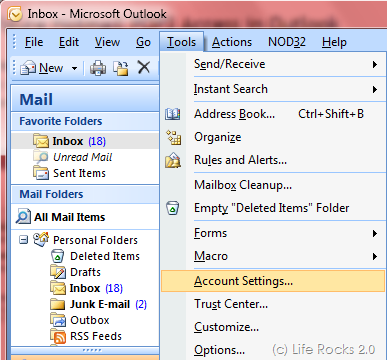
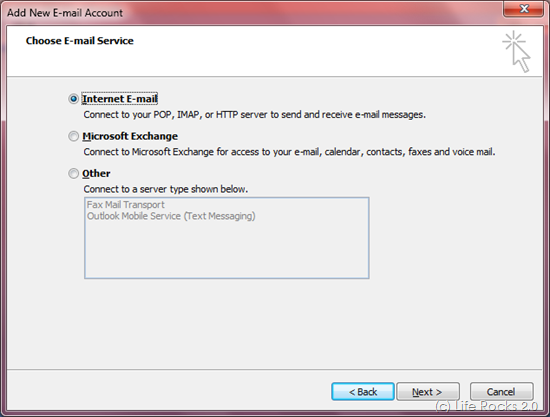
In the new account settings, select Internet Email which connects to email account using POP or IMAP access.
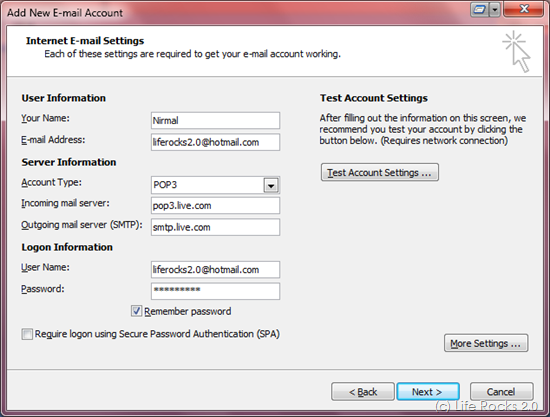
In the next step, add your account details like email ID, name, password and server information.
POP server: pop3.live.com (Port 995)
POP SSL required? Yes
User name: Your Windows Live ID, for example [email protected]
Password: The password you usually use to sign in to Hotmail or Windows Live
SMTP server: smtp.live.com (Port 25 or 587)
Authentication required? Yes (this matches your POP username and password)
TLS/SSL required? Yes
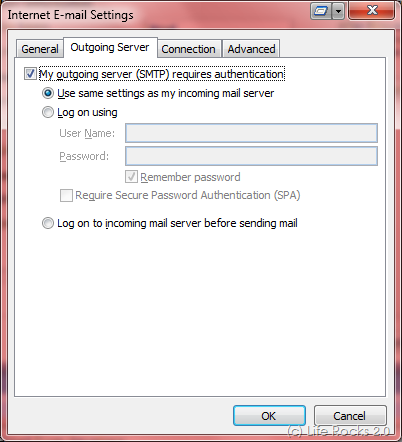
Click on More settings button and this will open advanced settings. In the Outgoing server tab, select the box against “My outgoing server (SMTP) requires authentication”.
Next select the advanced tab and enter the outgoing and incoming server ports as mentioned above.
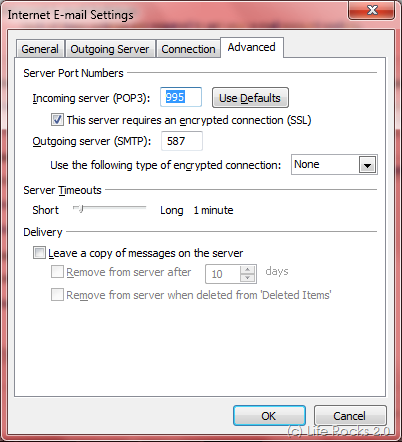
Once you have entered all the settings, Outlook will connect to Hotmail server and fetch all you email using POP3 access.




YOU GAVE ME THE BEST PRESENT EVER WITH THIS ARTICLE. THANKS A MILLION TIMES… YUPPIIEEE YOU GUYS ARE GREAT…
ALI from TURKIYE
Excellent paper. Just one question: I now get my hotmail e-mail mixed with my other mailboxes, in “personal folders”. Do you know how to create a distinct mailbox? Thanks.
I use Otlook 2003 on XPH SP3.
i tried this for outlook express but i get my emails in my local folders instead of the hotmail folder ? help ?
Awesome. It really helps me. Thank you so much!
thanks it is working fine…..
Alright…worked great, however, i don’t see any of my hotmail folders.
You guys are the best!!! I am so so happy to have got rid of that crappy outlook connector add on. This is like christmas morning when I was a kid. I am sooo excited.
Thank You so much
Steve Collins
I really appreciate this post – though, having set up my outlook as instructed – I can now receive mail – but cannot send mail??
Send/Receive Error: “None of the authentication methods supported by this client are supported by your server”
Hello,
Thanks for the nice write up it helped me get my outlook set up, but i am having the exact same error message that Joey K listed above when I try to send email:
Send/Receive Error: “None of the authentication methods supported by this client are supported by your server”
Any help would be great
Thanks
Try using the encrypted connection “TLS” (on the last page). I did and it worked!
Good Luck!
I see that everyone else has configured their accounts successfully, however I followed all the steps mentioned above – and POP3 still doesn’t seem to be working. I remember when I configured my gmail account I had to go and change settings at gmail – do I have to do the same thing with hotmail?
Forget I ever posted that comment – TLS on last page works! Many thanks for the article.
After yesterday’s outage on Hotmail, I have had issues trying to connect my Outlook to Hotmail. For a while, I was able to download the new mail to Outlook, but unable to send mail from Outlook. I have tried all the various SMTP and encryptions. Please help!
Does anyone know how to make it work like that in WM phone?
I have the same question with Randy. Outlook works good for incoming email, but I could send out email. When I test the setting of the account, it shows:
Send test e-mail message: None of the authentication methods supported by this client are supported by your server.
Is there anybody know why?
Thank you!
“TLS” didn’t work for me either. I tried the “Auto” encryption and that seemed to work for me.
I have the same message that I have for several months with http server.
It causes me so much problems not able to retrieve email with outlook. Please, help.
The connection to the server has failed. Account: ‘Hotmail ‘, Server: ‘pop3.live.com’, Protocol: POP3, Port: 110, Secure(SSL): No, Socket Error: 10060, Error Number: 0x800CCC0E
Elena
Can anyone help with incoming mail server for hotmail in Outlook 2003 please? I’ve tried: pop3.live.com
but sadly it isn’t connecting.
Thanks Von
thanks a lot for providing such a good description and easy way instruction.
In Linux I tried it works with empathy mail also It is working in windows 7 with outlook 2003.If you still having problem try after changing your account password.I Think POP3 will work if you once change the password
if still problem leave POP3 !! you can download mail by changing the server type option to HTTP instead of POP3 at the starting of the configuration.this method having some synchronization issues .
I got my account setup, why don’t my folders show up?
Thanx
And what about to Configure Yahoo mail POP3 Access in Outlook
thanks.. it works
Thanks for the article/help
THANK YOU! Verizon In Home Agent was worthless at fixing this problem. I’m FINALLY getting my hotmail received to Outlook again. THANK YOU!
Thanks you soooooooo much. It realy works 🙂
Same comment of “Jean Claude on August 9, 2009 at 2:09 am: Excellent paper. Just one question: I now get my hotmail e-mail mixed with my other mailboxes, in “personal folders”. Do you know how to create a distinct mailbox? Thanks. I use Otlook 2003.”
Awaiting your answer.
I received all the mails but it does not send the e-mails.
What’s wrong the error message is as below:
“The connection to the server has failed. Account: ‘Hotmail’, Server: ‘smtp.live.com’, Protocol: SMTP, Port: 25, Secure(SSL): Yes, Socket Error: 10060, Error Number: 0x800CCC0E”
Okay… You guys are the best. I have been sufffering to set up my outlook express and your easy to follow steps just eased my worries… Thumbs up!
THANK YOU THANK YOU THANK YOU!!!!
My story is as follows:
When the screen on my old HP 5340 went black and knowing it couldn’t be repaired I started dialing like a crazy woman trying to find some lone still in existence XP. It was right when ALL the new XP’s were just off the market and I DID NOT WANT A VISTA or anything close to it.
I found TWO still in existence in my area. Both were floor models. One was a complete piece of s***. Didn’t even have cables. The other one was a 9005 Entertainment model. Came with everything and was untouched. So I snapped it up (like any sane person would).
It WAS recalled repeatedly and I went through the gyrations of getting the box from HP, sending it back, getting it back, sending it back, getting back. Happened three times. The FOURTH time I couldn’t turn the puter on.
After spending almost three weeks at the local (but nationwide and well reputed) repair facility it was almost a joke that they’d call me each day to tell me they STILL can’t find the problem.
FINALLY they called me and told me to sit down. Get this. The idiots over at HP installed a VISTA MOTHERBOARD into my precious XP puter without changing ANYTHING ELSE and didn’t notify me. That’s no different than installing a 1.4 liter chevy engine into a 5.0 liter Mustang. That’s my analogy. It blew up in NO TIME.
Needless to say I was furious. I had to pay almost $400 to have the puter (I’m typing on it right now) repaired and the guts upgraded to VISTA and that includes a new hard drive and various other components (too many to list).
Well, I get it home and first words out of my mouth are “where’s the F-ing Outlook Express”?
I ended up ordering a brand new custom built HP 7 which isn’t going to give me too much relief, as I understand (it’s still sitting in the box….. just trying to make VISTA work has made me practically insane…. doesn’t work with almost ANY of my software and forget the backup that I paid $99 for. Not compatible with Vista so I’m screwed EXCEPT that I still have my old 5340 and am trying to figure out how to get the files off of the SimpleTech backup drive onto the 5340. YEARS of pictures, work, etc., gone. POOOF, in a heartbeat thanks to the Bill Gates clan.
In any event, at least through your instructions I was able to configure Outlook to retrieve my various emails.
Thank you!
There is a question though… I will post it separately. Perhaps you can help with it.
OK…. now that I’m not so high strung, here are my questions.
To precede, I was able to get the addresses, etc. out of my various Hotmail accounts and into Outlook. BUT:
1) I cannot get the folders to export out of Hotmail.
2) I have all my XP data backed up onto the SimpleTech drive and cannot figure out how to get these VERY VERY VERY important files into my Vista (I assume that if you advise me on that, I can follow same to get the onto the HP dv7 business puter too).
3) From my SimpleTech Outlook Express files how can I make them go into Outlook?
I HAVE to HAVE the files that are on that SimpleTech on my puters. They are CRITICAL files.
If anyone knows what to do, you would, I’m sure. I searched the internet over left and right before finding this page which saved this puter’s life (otherwise I was going to just give it away…. that how BAD I HATE Vista).
Thank you in advance!!! 😉
hai i am connect with this steps but not connected my live mail id into to oThe connection to the server has failed. Account: ‘pop3.live.com’, Server: ‘pop3.live.com’, Protocol: POP3, Port: 110, Secure(SSL): No, Socket Error: 10060, Error Number: 0x800CCC0Eutlook exprees error appier as below
The connection to the server has failed. Account: ‘pop3.live.com’, Server: ‘pop3.live.com’, Protocol: POP3, Port: 110, Secure(SSL): No, Socket Error: 10060, Error Number: 0x800CCC0E
This mini-tutorial is good 🙂 Also, take a look at the video I’ve found:
http://www.youtube.com/watch?v=J5fu1XQu-Nk
This application has saved my time on setting everything up manually. I just installed it and typed 2 things and it was done! 😀 it’s a free add-on!
I am trying to set up a hotmail account on Outlook but when I send & receive I get the following message “none of the authentication methods are supported by this client are supported by your server” Please can someone tell me what im doing wrong?
you tried the free Add-on from CodeTwo?
http://www.codetwo.com/freeware/outlook-autoconfig/?sts=606
It should help you
thanks to all for this infomation, at first my account didnt work so i used the the encrypted connection “TLS” .
Now it does!!!!!!!
Thanks a bunch. I can build a pc but couldn’t set up an email account for outlook, LOL. Thanks again. Very helpful and easy to follow.
we want to see your more job, you are best in the world you saved our life, you should work for IBM CEO, I know world will change with your little touching, can I kiss your feet toes
Thanks for the help. However, I managed to to configure hotmail account. I’m able to receive but can’t send the emails.
Thank You, Nice Write: Short, Simple and WORKS!!
Thanks, So Helpful
Thank you so much for this information on connecting hotmail to my outlook 2007 – it worked first time!
Thanks for the instructions!!!
I kept getting the same error, I could recieve emails, but not send. So I looked up another solution and found this link:
http://www.youtube.com/watch?v=xV0FYF7RQro
Watch the video, it explains in a detailed manner. It worked for me and I can now have seperate folders.
I have followed all step you mentioned but I still cannot sending out with the below alert message:
Task ‘[email protected] – Sending’ reported error (0x800CCC80) : ‘None of the authentication methods supported by this client are supported by your server.
FYI, for income POP3 is ok. I can receive all the incoming mail.
Waiting for your solution.
Thanks
I really appreciate this post – though, having set up my outlook as instructed – I can now receive mail – but cannot send mail??
Send/Receive Error: “None of the authentication methods supported by this client are supported by your server”
please help me
Best regards, Ahmed
I am having the same problem — tried every variation known to man — changed from SSL to TSL to auto, changed port from 25 to 587, checked to log into server first, changed from required authentication to not — Help! Thanks.
Thank goodness you kept this post up. The new outlook connector doesn’t play well with hotmail and this provided the workaround I needed.
Thank you!
hi thank u so much it worked……….
Thank you so much after looking everywhere here is the only website that i found with th einformaion of the port number
It was driven me insane!!
easy way download connected outlook form Microsoft then close outlook it’ll ask you to enter your account and your password
thankful
Hello There. I discovered your blog using msn. This is a very smartly
written article. I’ll make sure to bookmark it and come back to learn more of your useful info. Thank you for the post. I’ll definitely comeback.
I have no tools tab on my outlook which makes getting to account settings this way impossible…. if i go in other way i am told to dl the outlook connector – which i did – and it worked that way – but I find your graphics very misleading. And yes I use outlook 2010
Thank Friend. This has helped me for the necessary actoin required for me.
Thks,, through this i have config the outlook and receiving the mails but not able to send the mails it shows the error,,,,
Task ‘[email protected] – Sending’ reported error (0x800CCC80) : ‘None of the authentication methods supported by this client are supported by your server.’
Can any one help me in this,,,
??????? ?????
If you have any problems regarding Hotmail just like Hotmail Contact, Hotmail server down, password change, not working properly you can call our toll free no and our support team solve your issues.