Off late we have been seeing a lot of ransomware attacks. After the WannaCry ransomware attack, now we have another one in Petya ransomware which were located within Ukraine. In case you don’t know what a Ransomware is, it is basically a type of malicious software which blocks access to the victim’s data or files and then threatens delete it until a ransom is paid. These files will be encrypted and to unblock it you need to pay a ransom. There are many such Ransomwares on the internet and how to decrypt files encrypted by ransomware? In this post, we will have a look into a free tool from one of the leading security solutions Trend Micro.
Trend Micro Ransomware File Decryptor or Anti Ransomware allows you to decrypt your files if they have been infected by one of infamous ransomwares.
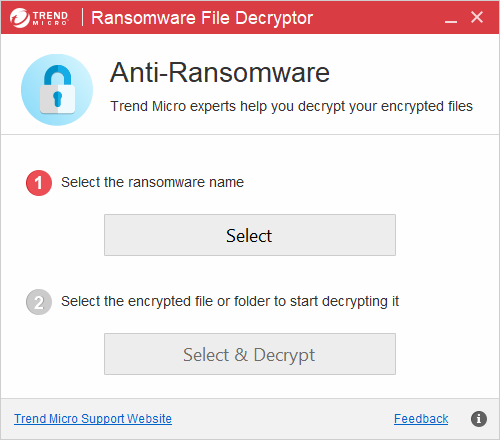
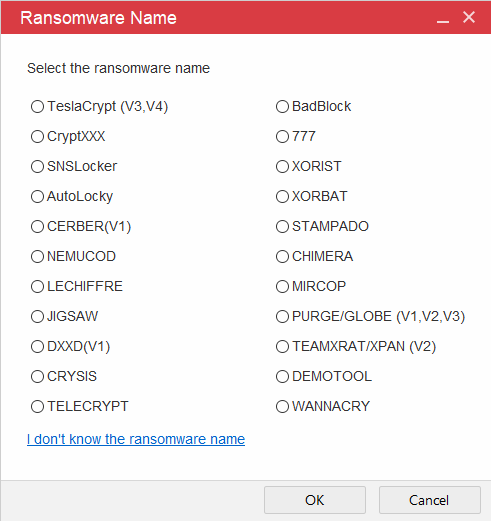
The app does not require any installation, instead you can directly run the exe file (portable). It asks you to select the type of ransomware attack on your files. It supports 20+ ransomwares. It supports infamous ones including WANNACRY, SNSLocker, XORBAT, JIGSAW, CRYSIS, AutoLocky and many others. You can see the screenshot below to get an idea on the list of ransomwares supported by the app.
Once you have selected the type of ransomware, you can now select the files to decrypt. The tool will attempt to decrypt one file or all files in a folder and also its sub-folders by using recursive mode and will clear all the ransomware attacks on your files.
Ransomware File Decryptor is one of the free apps to remove any sort of ransomware attacks on your files. With ransomware attacks spreading more often, we request our readers to be careful while opening unknown or suspicious links you receive on email or install any suspicious apps. You can download Ransomware File Decryptor from the link below.
Download Ransomware File Decryptor