Techniqued- Technoloy, Review and Tutorials
  • Android
  • Freewares
  • Tutorial
  • Windows 11
  • macOS
No Result
View All Result
Techniqued- Technoloy, Review and Tutorials
  • Android
  • Freewares
  • Tutorial
  • Windows 11
  • macOS
No Result
View All Result
Techniqued- Technoloy, Review and Tutorials
No Result
View All Result

Automatically Import Contents of Removable device to PC

Nirmal by Nirmal
March 1, 2011
in Freewares
1
Share on FacebookShare on Twitter

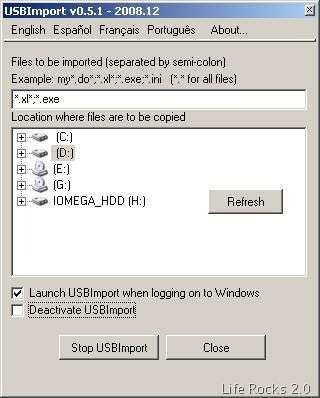
USBImport is a small freeware utility which can automatically import files and folders from any removable device as soon as its connected to any PC. Removable devices that have been tested to work with this utility include USB keys, USB digital cameras and Smart cards. USBImport will be minimize to the system tray and will work in the background and will import as soon as you connect the drive.
USBImport

You need to specify the files to be copied and also the folder to where it has to be copied. While specifying the file names, use wild cards and also you can separate multiple files with semi colon. Once the settings are done, as soon as a removable device gets connected to your computer, USBImport will silently copy the chosen files from the device. They will import the contents to a folder called “usb-yyymmdd-hhmmss” created at the location you have selected.

Anytime you can disable the import by right clicking the system tray icon. You can also have USBImport automatically running when logging on to Windows.

The main use of USBImport is to back up any USB drive automatically to your PC whenever it gets connected, so that you will not lose contents from USB incase it gets corrupted or gets lost.

Download USBImport

Tags: Back Up DataFreewaresUSB Back UpUSB Import
ShareTweetSendSend
Previous Post

Monitor Hard Disk with CrystalDiskInfo

Next Post

Search Files Quickly with File Seeker

Related Posts

Freewares

How to Find the CPU Temperature in Windows 11

November 29, 2023
Featured

7 Best Free Cleaner Tools for Windows 11

November 27, 2023
Freewares

The Best File Manager App for Windows 11

November 26, 2023
Freewares

Unlock Hidden Features on macOS with this tool

August 21, 2023
Freewares

10 Best Minecraft Mods You Should Download

April 19, 2023
Freewares

How to Password Protect Folders in Windows 11

March 15, 2023

Leave a Reply Cancel reply

Your email address will not be published. Required fields are marked *

This site uses Akismet to reduce spam. Learn how your comment data is processed.


Latest Articles

How to Fix “Installation can’t continue” when trying to Update Nvidia Graphics Drivers

Download Windows 11 24H2 ISO (Offline Installer)

Can I Run Windows 11 without Activating

How to Use Snapchat on PC

How to Delete YouTube Search and Watch History on iPhone

How to Use Energy Saver on Windows 11

Techniqued- Technoloy, Review and Tutorials

© 2021 Techniqued - Technology, Tips, Tricks and Reviews

Navigate Site

  • About Us
  • Advertise with us
  • Contact Us
  • Copyright Policy
  • Disclaimer

Follow Us

No Result
View All Result
  • Android
  • Freewares
  • Tutorial
  • Windows 11
  • macOS

© 2021 Techniqued - Technology, Tips, Tricks and Reviews

This website uses cookies. By continuing to use this website you are giving consent to cookies being used. Visit our Privacy and Cookie Policy.