

Unless you are running Windows 8 on a virtual disk, there is no way to take the screenshot of the logon screen or the new lock screen. This is because unless you unlock it, the installed apps will not be able to capture it. Similar to Windows 7, The Windows Club, has developed a simple portable utility which allows you to capture screenshots of Windows 8 logon screen and also lock screen using the ease of access button.
Ease Of Access Replacer v2 (EOAR) is a freeware app will replace the ease of access tool and add options to capture screenshots. While installing the app asks you to create a restore point.
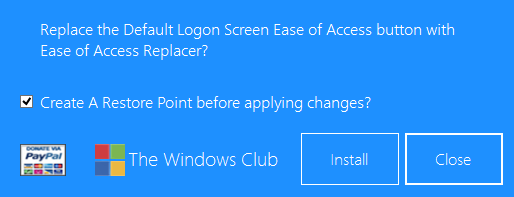
Once installed, you can lock the PC and see the action by clicking on the ease of access button on the bottom left side.
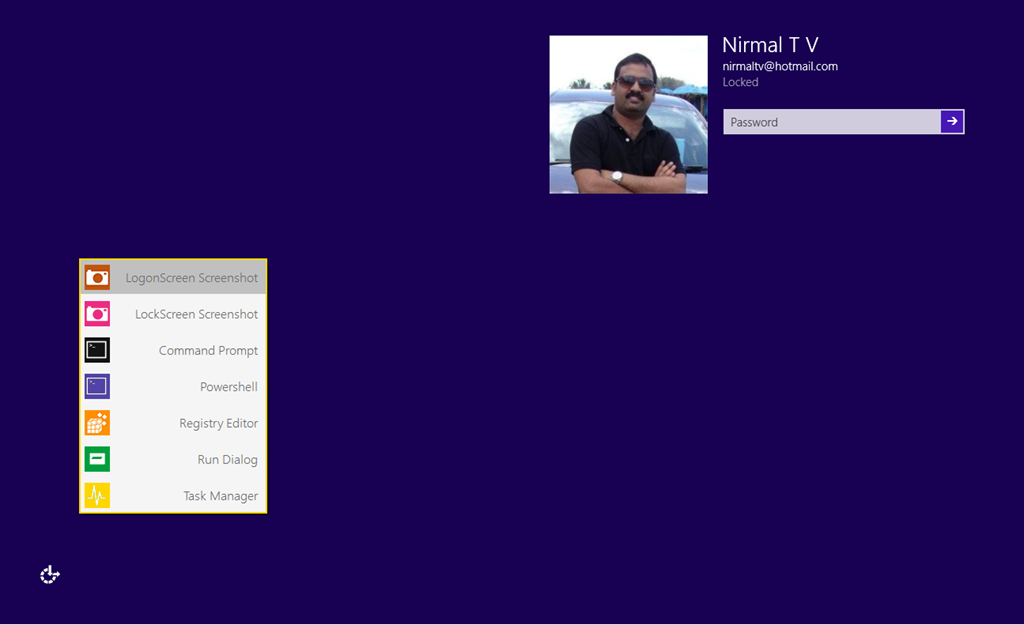
The tools available are;
- Logon Screen Screenshot: Take a screenshot of the Logon Screen. Logon Screenshots are saved to C:\Screenshots.
- Lock Screen Screenshot: Take a screenshot of the Lock Screen. Lock Screen Screenshots are saved to C:\Screenshots.
- CMD Prompt: Opens a Command Prompt.
- Powershell: Opens a Powershell Prompt.
- Registry Editor: Opens the Registry Editor.
- Run Dialog: Opens the Run Dialog.
- Task Manager: Opens the Task Manager.
You need to run the app as administrator to install and make changes to ease of access. The app is compatible with Windows 8, 32-bit and 64-bit.
Download Ease Of Access Replacer v2 (EOAR)






Could not find the file specified.
[Excuse me but I can’t install this to my PC ; ; It seems like I have to rename the file Utilman.exe, right? However I couldn’t do that T___T Can you show me how to do, please…]
[Btw, my laptop is Dell, running win 8 pro 32bit ; ;]
[Thank you in advance]
Guys does this EOAR work with windows 8.1 because they ke
ep saying EOA was not to be back upped. Can u guys help me out?
Awesome, this is very helpful! I got here: http://www.paintshoppro.com/en/pages/screenshot/ a million great ways how to take screenshots, but I couldn’t find anywhere how to take lock screen screenshot, so thanks for the help! This is great! 🙂