

With the Cloud storage war getting more and more intensive with the launch of Google Drive, users are really benefitted from the free storage space provided. Each of these cloud storage has its own good features as well as shortcomings. If you are using these cloud storage services like Dropbox, SkyDrive or Google Drive, you can quickly send files to these services from the Windows 7 desktop context menu. This is very simple trick to quickly send files from desktop.
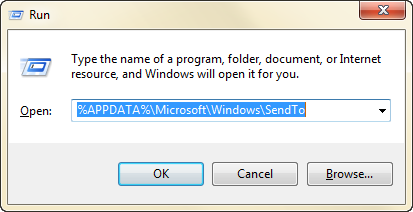
To enable this option, first you need to open the location of Send To menu. To do that, open Run command (Win+R) and type %APPDATA%\Microsoft\Windows\SendTo and press enter. This will open the Send To folder.
If you have installed these cloud storage, you might see the folders in the Favorites Menu on the sidebar. Just drag and drop the folders to the Send To folder.
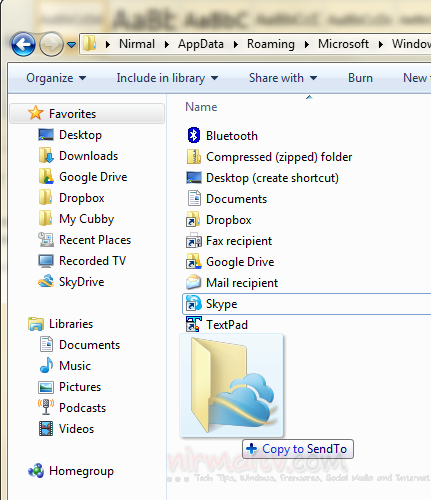
You can drag and drop all the cloud storage folders you want to have in send to menu. Now close the folder and right click on any file on the desktop and select the Send To menu. You can see the cloud storage services you have added.
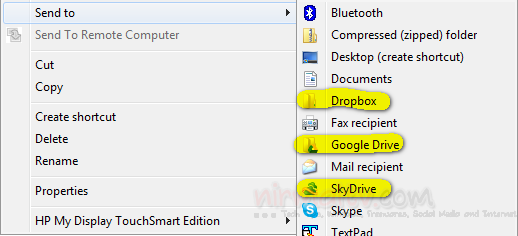
This way you don’t have to copy and paste files in the cloud storage folder for sync.
Thanks Caschy for the tip.






I tried this tip but when I open a file and use send to, all it does open that particular folder (for example Dropbox or Google Drive folder), but doesn’t transfer the file. Can you advise me how to fix this? Thanks.
I tried to install this and all I do is get stuck in an endless loop with this STUPID DOWNLOAD MANAGER VIRUS LOADER – It will now be UNINSTALLED ! ! !
What a load of garbage!