

Every time you install a program, it makes changes to the Windows 7 registry. Before you do any manual changes to Windows registry, it is always advisable to take a back up. There are chances that you might end up with some problem with editing registry and in turn make Windows 7 unstable. Taking a back up of Windows 7 registry is simple task and you can save this back up in a removable drive.

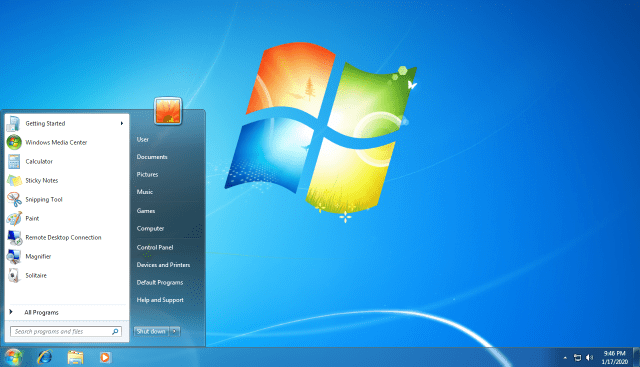
1. Click on the start button and click Run (Win +R). Type regedit and press enter. This will open up the registry editor.
2. You can see Computer on the left panel, click on it. You can right click and then select Export.
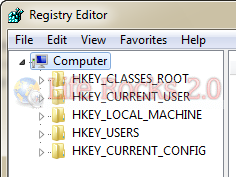
3. Alternately you can select export from the file menu by selecting Computer on the left panel.
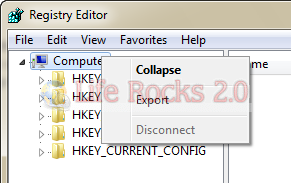
The back up will be stored as .reg files.
You can also take a back up of registry with third party tools like Regbak or Regshot.


Is there a difference between backing up the registry and creating a restore point?