

Windows 7 is now in RTM stage and general availability will be on October 22. If you are using Windows XP, then there is no upgrade option to Windows 7. Windows 7 does not provide an direct in-place upgrade for Windows XP that will retain user’s applications, programs, settings, customizations, personalization and data while setup performing installation of Windows. If you try to upgrade to Windows 7 from a system which is using Windows XP, you will be shown this error report which informs you that direct upgrade from Windows XP to Windows 7 is not available.
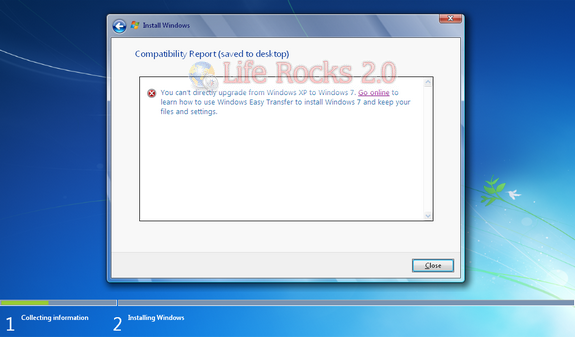
Once you get a Windows 7 DVD, you will need to do a fresh install on your machine if you are using Windows XP (although you can upgrade to Vista and then to Windows 7). Microsoft recommends Windows Easy Transfer which can be used to preserve your files and settings from your XP machine, but please note that it will NOT back up and transfer program files and applications. You will need to reinstall all the applications again.
Follow the steps mentioned below to do Easy Transfer from XP to Windows 7.
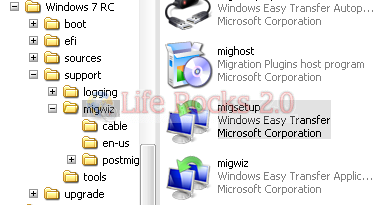
1. Open the Windows 7 DVD and navigate to folder supportmigwiz and you can see a file named migsetup.exe, double click the file to start Easy Transfer.
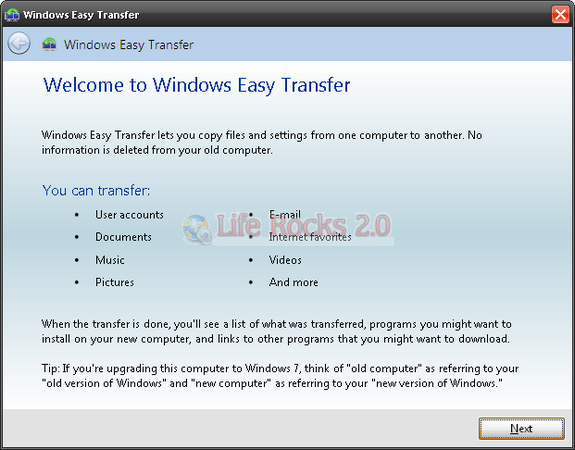
2. Easy Transfer opens up and click on the next button.
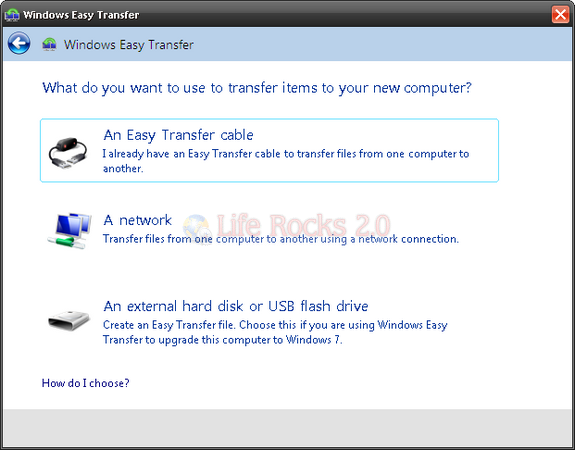
3. Select An external hard disk or USB flash drive from the option in the below screen when prompted.
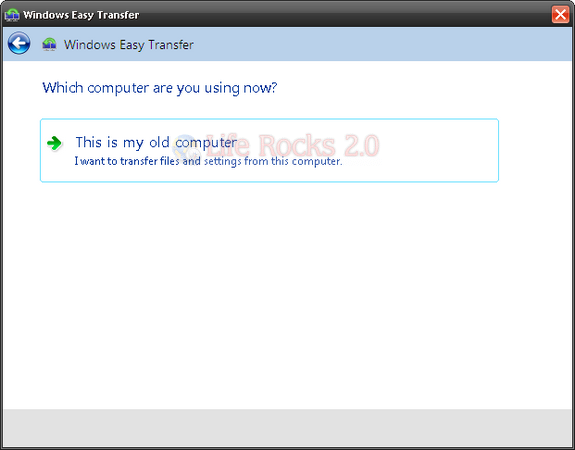
4. Click This is my old computer and Windows Easy Transfer starts scanning the computer for files which can be transferred.
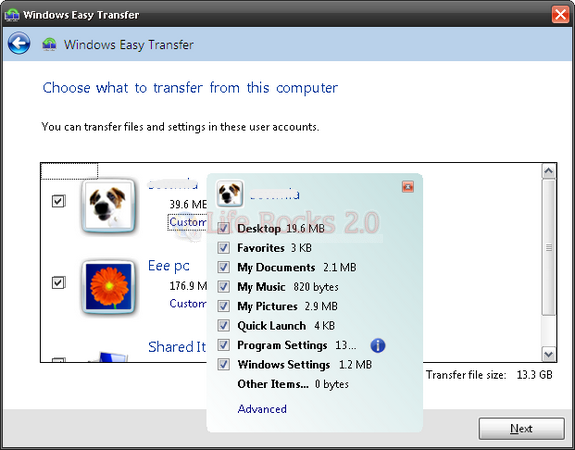
5. Once scanning is completed, it shows the list of user profiles and you can select the files and settings in each profile which needs to be transferred to Windows 7.
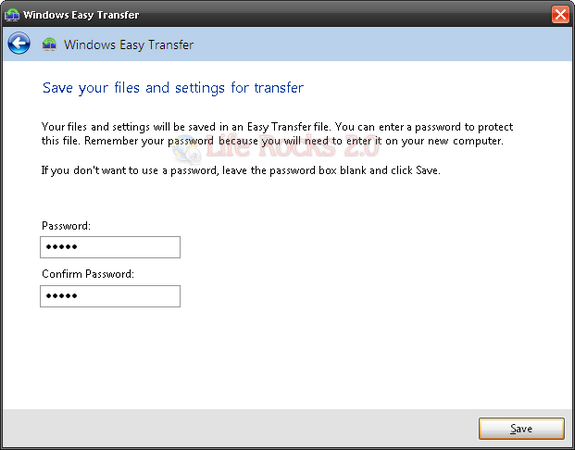
6. You can enter a password for Easy Transfer file.
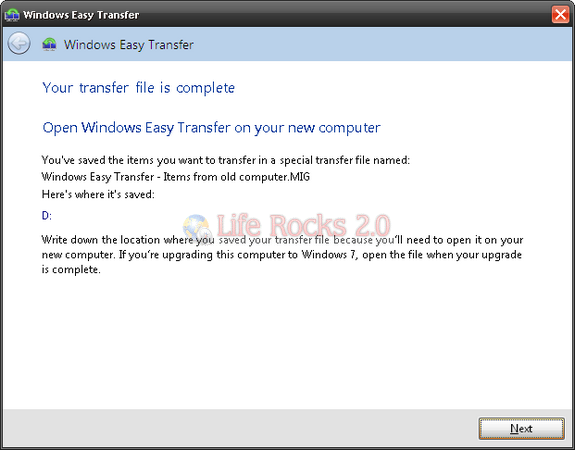
7. You need to save the easy Transfer file on to a external storage like USB or External hard disk. Once the data is saved, Easy transfer tells you the location where the files are stored.
8. Now close the Easy Transfer and open the Windows 7 Setup by browsing to the root folder of the DVD, and then double clicking setup.exe.
9. Click Install Now and in the next step click Go online to get the latest updates (recommended) to retrieve any important updates for Windows 7. This step is optional. If you choose not to check for updates during Setup, click Do not get the latest updates.
10. Accept the Software License terms and in the next window, select Custom (advanced) to perform an upgrade to your existing Windows installation.
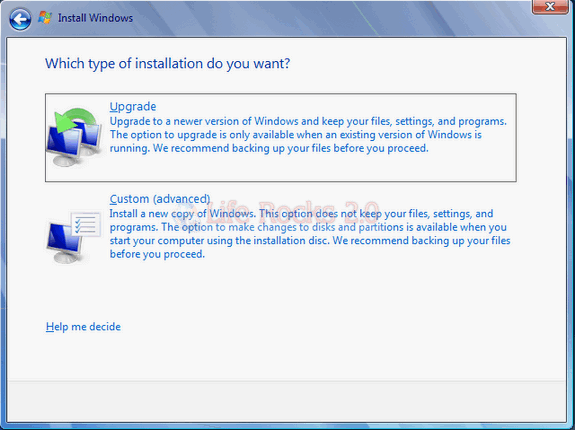
11. In the next step, select the partition where you want to install Windows 7 and then Windows 7 Setup will proceed without further interaction. If you chose to install Windows 7 on a partition where your current Windows XP is installed, it will overwrite and if you have chosen to install on another drive, you can dual boot with XP.
12. Once Windows 7 installation is complete, now you can transfer the files and to do this, insert the USB or the external hard disk where you saved the transfer files. To do this first boot your new Windows 7.
13. Go to Start ->All Programs ->Accessories->System Tools, and then click Windows Easy Transfer. Once Easy transfer opens up click next button and select “An external hard disk or USB flash drive” from the options.
14. Select “This is my New computer” in the next step.
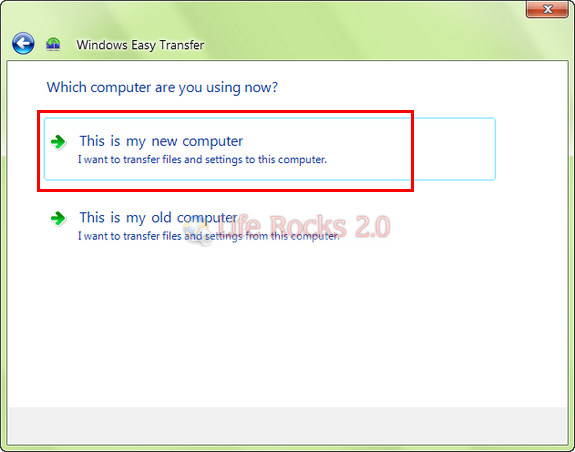
15. In the next step, Easy Transfer will ask you whether you have saved your files on external hard disk or an USB drive and click “Yes”. Now browse for the files which you saved from your Windows XP.
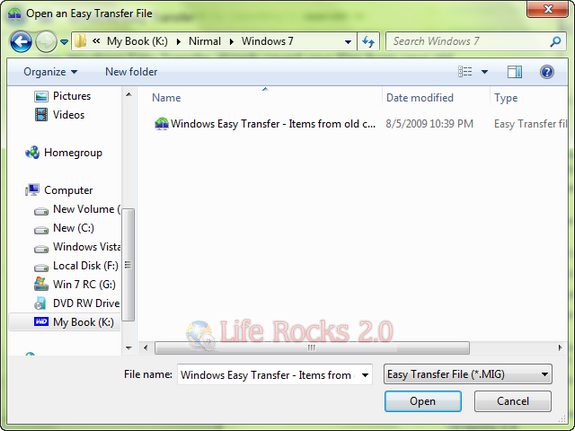
16. Once you select the file and click open, Easy Transfer will again scan for the user profiles available in the saved data. You can chose which files need to be migrated for which all users you have saved. You can customize the migration using the customize button below each profile.
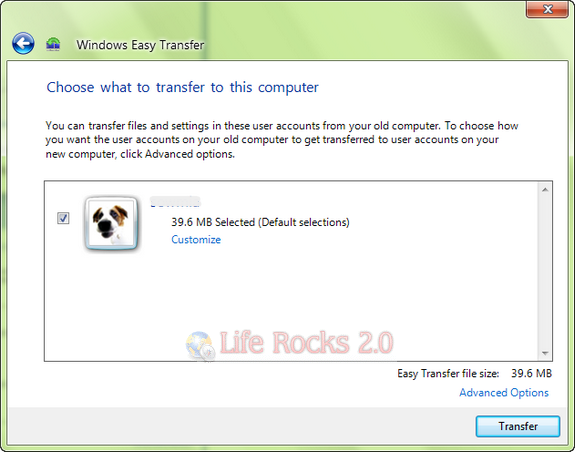
17. Once you have customize the list of files and profiles to be migrated, click Transfer and wait for Easy Transfer to complete the migration.
Once Windows Easy Transfer has completed moving your files, you can close it. Now all your files and settings which you saved from your XP installation will be available in Windows 7.
Important Note: This process will not back up applications installed on XP to Windows 7. You will need to install all your applications again on Windows 7.
You have now successfully completed the migration process and you can use the disk clean up to remove the temporary transfer files.


A fresh Windows 7 installation would be much better as your applications are not backed up.
how to update windows XP
Just Go to Start -> go to Control Panel -> Click on Windows Update-> Select (Automatic recommended)
i deeply advised you kindly update your Drive after installation of Service Pack 3 or you may Face problem in your DVD RAM Drive in reading DVD Movie Disk and CD Audio Disk
If applications were virtualized then you could do a fresh install on your current computer and never reinstall your apps again AND use them on multiple computers. Thats only with some companies, like InstallFree. Other solutions need a clean machine. I don’t want to dig for those old install CDs.
That sure seems like a lot of steps.
Windows 7 does not provide _a_ direct in-place upgrade for Windows XP
Upgraded to windows 7 with the procedure, worked amazing. Awesome article!
Keep updating on windows 7 how tos.
I have Vista powered lappy back home and expecting Windows 7 to be as good as XP.
Also for windows 7 upgrade I’ve written a article, All-in-one guide to Windows 7 upgrade.
usefull info
This guide surely saved me a lot of trouble experimenting, only to be disappointed to find out that “easy transfer” really does not solve my problem. Since it handles just favorites and documents. After searching for a while, I came across Zinstall XP7 from http://www.zinstall.com – it did the job for me, and transferred everything from my old XP to my new win7. Windows 7 is great, but at first it was a bit hard for me to get myself familiarized and feel comfortable enough.
This is simply crazy. Most applications I have are upgrades of upgrades of upgrades of products purchased and installed several years ago. Each upgrade is looking for previous version to install. If I move to Windows 7 from scratch I will not be able to reinstall most applications since I should install the old one and then apply most upgrades, which could be also not possible since the original applications were really old. So I risk to have licenses for products that I paid and I cannot use!
Why not just upgrade from XP to Vista (just use any Vista install disk – cause there’s no need to activate it) then do the Vista to Windows7 upgrade. That way all your apps, product keys & files will be intact with no need for a full reinstall.
Theres bound to be a few issues crop up, but likely nowhere near as stressfull and time consuming as reinstalling everything from scratch. I’m told this has worked for many people.
Dario – look for Garry’s comment earlier.
Seems like you should check Zinstall XP7 out.
thanx very much. very easy to follow. out to buy win7.
Thank you.
I want to know how to make a clear installation for windows 7 ?
That’s just simpler than ever… install a clean windows7 installation easily by booting the system with the DVD and installing a “clean copy”,
HI,Linda
The Link http://www.vogmart.com/news/11/How-to-Make-a-Clean-Installation-with-Windows-7.html mybe will help you.
Thanks for your insights! I think I will do a clean installation of Windows 7.
this very good
I used to re-image my XP installs about every nine months because the performance got to be so bad. Over one year after installation, I don’t notice ANY slow down or performance issues with my installs of Win 7.
May I have help please, Could you kindly let me know how to install windows 7 on windows xp please.
Regards
Rahat
In our company we migrated 23 stations to Windows 7 using Zinstall XP7 (http://www.zinstall.com) , so a clean install is not always the best way to do it…
You may also use free software PickMeApp (www.pickmeapp.com/) to move your application to Windows 7 and Windows Easy Transfer(www.microsoft.com) to move your windows settings (also free)
please tell me what is window migration
i’ve partitioned my harddisk using EaseUs. if i back up my files into the new partition i’ve created using EaseUs adn then install win7 in C: will the data till be lost?
i won’t find anywhere windows 7 luxury version