

Once you have finalized a document, you can always protect it from unnecessary or accidental editing. For this, you can mark the document as final or restrict editing for only selected authors, add an invisible digital signature or even protect sections of document. These steps will make sure that the document whenever opened and viewed will be in read only mode. To protect document and mark it as final, click on the Office button on the top left hand corner and select the info tab of the document.
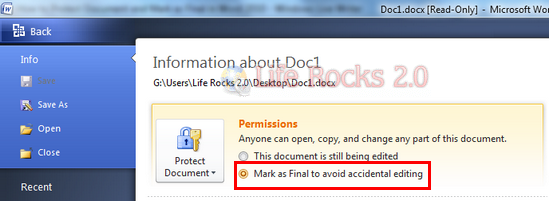
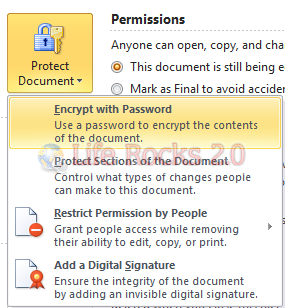
Once you mark the document as final, you will not be able to modify it and Word shows a warning at the top indicating that the document is final. Apart from this, you can also protect the document with password, digital signature or restrict changes. Click on the protect document button and select the suitable options.






Nice but i think something is missing.
hi, thanks fro sharing the tips – they were very useful