

Similar to Windows Vista, Windows 7 also has the option to resize partitions, this means you can shrink or extend partitions. The Disk Management in built utility is able to do the job of shrinking and expanding partitions and it does not require any 3rd party utilities. To manage your partitions, open Control Panel and type “partitions” or “hard disk” in the search bar on the right corner and you can see the link “Create and Format Hard Disk Partitions” under administrative tools.
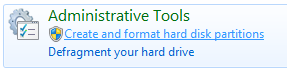
This will open up the disk management utility for Windows 7.
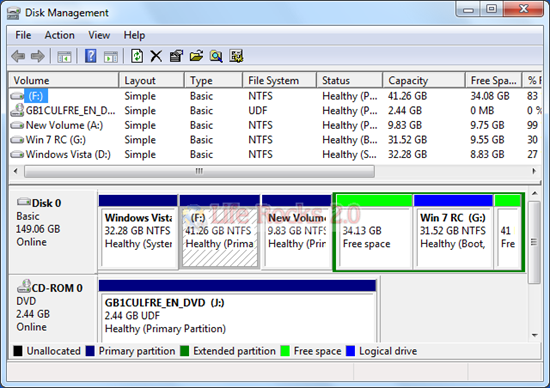
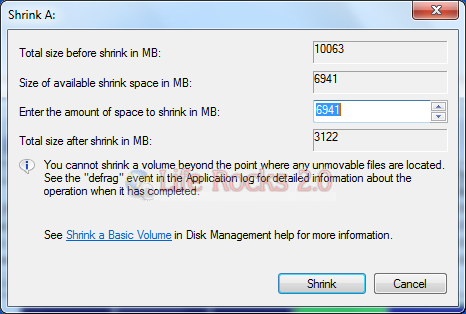
To shrink any volume, right click on the desired volume and select the option “Shrink Volume”. This will open up the Shrink Volume window and you need to specify the amount of space you want to shrink.
If you want to extend any volume in Windows 7, right click on the drive to be extended and select “Extend Volume”. In the next step you need to specify the amount of space by which you want to extend the volume.
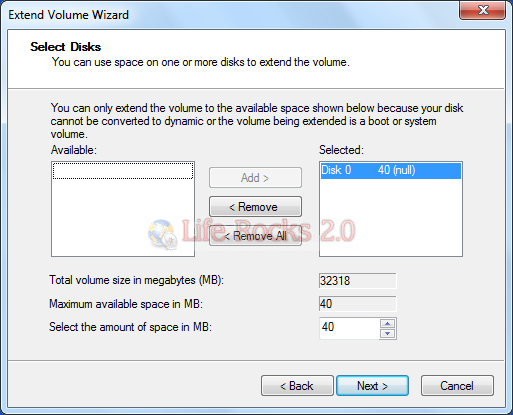
Please note that extend volume for any drive will work only if there is continuous free space available on your hard disk.



Was looking for it ! Thanks Nirmal 🙂
Do you need to change the partition type to dynamic partition before you can do shrinking & extending..?
is it possible for xp??
If there is some unallocated space clinging to other partition, how to expand system partition with the unallocated space? It is easy to use third party to perform this. See this post http://www.hdd-tool.com/partition-manager/extend-windows-7-partition-with-free-partition-manager.htm
Can we go partition when only C is available ie I have PC which 500GB of hard disk and which has single partition as C drive. My question is how to partition the C drive
first you go to Disk Management..
then right click…
select shrink value…
you make size of partition…
then next… apply… ok…
finish…
How to repartition a 500GB partition on which has been installed OS? Easeus partition master is a best choice, you can only need to decrease 500GB partition and then create new partitions on the unallocated space, it is simple and easy to perform this.
Thank you this is exactly what is was looking for.
i have149 gb.c:20 gb.d:30 gb e:30 gb .then i cant partition a new drive.no option there to crate new.i cant take from un allocated space.what i can to do?
ansal k.m, One hard disk which is based on MBR can create four primary partitions or three primary partitions and one extended partition. If you cannot use windows built-in tool to create new partition, you can use a free partition manager tool to have a try, it is free for windows home users. Please refer: http://www.partition-tool.com/resource/partition-windows-7.htm
This was a great help !!!
For Win 7 you don’t need a partition software for lost or missing partions on an external Drive ..
Thanks a lot !!
Thanks for the info…
Windows 7 built in disk management tool has shrink and extend functions, but there is some unallocated space behind this partition which you want to extend. If there is no unallocated space behind this partition, a free 3rd party partition tool is the best choice. I search in google and find many partition tools, such as diskpart, easeus partition master……
thanks a million for this
great help !!!!!!!! thanks!
A called Extend Partition Home Edition free software can expand the size of a partition, the download link: http://www.extend-partition.com/download.html
i have a 500 gb hd… only 83gb used… but when i want to shrink the volume.. only 800mb available… any1 can help me?
Thanks very much for your help. tc
DEFINETLY IT WILL HELPFUL FOR THE LEARNERS……………………….
Depending on the capacity of your hard drive you can change, create, format and partition drives …………………………………….
ONLY FOLLOW INSTRUCTIONS.
Ya Well
Good
Helpfull for me
Im very very thankful to you
it’s an excellent item. Congratulation
doesn’t work at all. only if you have clear partitions. I have two parts one of them with data and I don’t want to erase it. I just wanna add empty partition to partition with data and it wants to create dynamic disk and then it says error…
Does it work on any edition Windows 7?
thanks for sharink, this is very help full for me.
i use free windows 7 partition manager to expand my c partition, please reffer the article:
http://www.partition-tool.com/resource/resize-partition-windows-7.htm
thnaks for guidance.
It’s gr8
I have a laptop with Windows 7 64 bit. Sadly, my engineering program and Auto 2007 will not run on this, and they want BIG bucks ($3,700) to get newer versions.
I would like to partion the drive (500 GB) to load XP Pro on the other side so I can keep with my older, but still very useable software.
I just partitioned the drive after I shrank it, but I think I made a mistake because I don’t know how to get XP Pro in there, so will probably expand it and start over.
Any suggestions on which software to use to partion and get XP Pro on there?
Thanks
Rob
looks like my first didn’t make it.
What software would you recommend to partion Windows 7 64 bit so I can load XP Pro on it to run my engineering programs- they won’t run under windows 7.
EASEUS Partition Master can partition Windows 7 64 bit with simple operations, work like a charm.
http://www.partition-tool.com/resource/windows-7-partition-manager/partition-windows-7-64-bit.htm
Thx Jack.
I bought it. Looking over paperwork now.
Rob
Visit the link and download free partition software for windows 7
http://www.support.justinjacob.com/softwares/utility.php
hello sir…..i found virus affect my files in c drive.shall i partition my hard drive now or better do format and then partition help me sir……
There are a large number of partition software that can resize partition size, today. I found a new free partition manager — Partition Assistant. Info source: http://www.extend-partition.com/free-partition-manager.html
To define a D-disk it is necessary to shrink the C-disk.
Can this be done with data on the c-disk without reformatting the c-disk?
Hello Bob, I believe Partition Assistant Home Edition can shrink your C: drive without reformatting the C-disk and all data protected. You can free download it to try here: http://www.extend-partition.com/download.html
i just brought a dell inspiron 1564 with windows 7 premium. Now it comes with 397 gb in the d drive and 58 gb in the c (os) drive. i want all the gb in my c drive. How do I do that?
Sky
@sky,
You can extend the partition by using space in D
i have the same laptop with u and same issue. i want to extend the size of my C drive but when I right Click the C it only shows shrink and the extend is not even highlighted .
please help
ty nirmal……..
waz xactly wat i waz lookin 4!!!!
Ihavethesame question with miltiple partitionsinan IBM Thinkpad. If you extend all of the partitions,will it truly make one C: drive?
thanks for this information. I appreciate it.
thank you very much i appreciate for this
My c drive is 145 gb(primary partition) i want to divide it into 2 (say 70 gb n 75gb). but when i select shrink option it shows only 8 mb available to shrink.. plz help me.. i wanna divide c drive.
hello,i have a probem and need assistance of it,wen i created a partition drice,in the i got the message, that this new partition drive will be converted into dynamic drive, and if you this dynamic drive,you will no longer be able extend volume from this dynamic drive,except from the current disk,wat does this mean???and should i continue it by clicking yes or not??waitng for help…
good one
it really worked
thank u very much
just what I wanted!
was also looking for ways to partition hdd during windows installation like what windows xp has.
I have 360 gb hard disk.My doubt is its showing only 333.35 gb in disk management.am using windows 7 OS.
C: 38.96,E:97.66,y:29.30,z:169.33 and system reserved is 100mb.can i know is it showing correct or no.plz let me know
Hi,
I bought Lenovo laptop recently, it has 2 drives. c drive with 250gb and d drive with 30 gb. OS is windows 7 home premium. Now i am planning to install XP also by using VMWare. For this, do i need to partition my c drive into 2 volumes? or it is not required, if yes, how can i do it?
thanks for help
To define a D-disk it is necessary to shrink the C-disk.
Can this be done with data on the c-disk without reformatting the c-disk?
nice. very nice. partitioning my hard drive has always been my problem before. thanks alot
i got error ”dynamic disk are not support by this operting system or server configarution. i am having window 7 can any1 help me
I need to extend my C partititon where my windows 7 is … i get the feeling that it can’t be done . Pls help
Thank you..It works..
Hey guys, could anyone tell me how to extend system partition pls? The only way i know is to reinstall win and format HDD. I dont want to reinstall whole system for this… and the disk management doesnt let me extend it…
any ideas?
hi all,
please let me that how can i do partion of my newly purchased note book with windows7 home basic platform.
C:\ has 282 Gb space D:\ has 15 Gb (system recovery data). I tried the shrink option but couldnot got the sucess to do the partion . please help me on the same .
Nice work it works……..good job.
Keep posting.
hello frnds,
Please let me that how can i do partion on my new note book with windows 7 Home Basic
C:\ has 451 Gb space D:\ has 15 Gb (system recovery data).
I tried using shrink option but couldn succeed, also i tried with partition magic software intrestingly, i could part it but couldnt make it active.
can anybody provide me the procedures for partition??
if it is not showing and ur partitionin is compltd thn justb format ur drive from manage disk option my computer=right click-manage -storage-dsk management=format=n ur drive is active
hi vinayak… I have the same problem… If you could do it than let me know .. gkindian in gmail com account.
You can check out our detailed guide here- http://www.nirmaltv.com/2010/05/12/create-shrink-extend-and-resize-disk-partitions-in-windows-7-detailed-guide/
hey guys,
I need to extend volume of C Boot drive. I try to check with management console but it shows disable extend option.i have C,D,E,F drives and some free space but not unallocated space.C drive is physical drive.D,E and F drives are shows Logical drive.also i cannot make unallocated space from free space or after deletion of any volume.please tell me how can i extend c drive with free space.
i have 160 gb hdd of wd in my laptop.i have problem in partation of hdd.i had formatted it.but it shows only 149 gb and when i again make partition then it takes only 152626 mb of 1st part.it is not take more then it and it shows
the size must be at most 152626 mb
what should i do ??
plz tell me
i want 3 part 20gb, 25 gb, & remains
my e-mail id
[email protected]
Works perfectly, i did it in very simple steps,i think the step about formatting the disk is a very important, it’s always advisable to use the disk ONLY after its formatted
I want to share another free resize partition software, easeus partition master, it not only resize partition in windows 7 but also can move partitions. Shrink partition or resize partition from right to left or from left to right.
i have 750 gb hard disk but it shows 685 gb space including OS window7 the remaining 65 gb is hidden somewhere in it how can i recover that space.
give me suggestion???
Hi,
Could someone please tell us when we will shrink volume in win7 so is there are any chances to losses Data or window cruppt.
There will not be any data getting corrupted when you shrink
Thank you very much for very helpful tips on how to partition the hard disk on Windows 7. Although it does not give me the desired volume of space as I wanted in my hard disk. At least, I could partition my hard disk into two partition as back up for all my files which is separate partition of drive C or system files. Thank you very much as this help me in easy partition without purchasing an expensive software for partitioning my hard drive.
When I click on Shrink I get an error message “The service cannot be started, either because it is disabled or because it has no enabled devices associated with it”. Any advice to overcome this error?
i’ve lot of free space in my c drive.But it allows me only some part of that space to shrink
I want to extend the drive c(from 58 to 100gb) but while right clicking i did not find the option of extending volume of c drive
i did not find the option of extending the volume of c drive (shrinking the volume is right there
That was too easy! Thank you!!
Running Windows 7 64-bit Home Premium on a 128GB SSD drive (and liking it very much, thank you =)) Finally decided to upgrade C: to a 256GB SSD (Seriously, I think going to 512GB would be a sign of illness.). I created a fresh repair disk and image of C: (imaged to a USB drive), swapped the hardware and used the repair disk to restore to the new home of C:. Windows dutifully restored as though to another 128GB SSD and left the rest of the drive as unallocated.
Do I really need a BS degree in MS and to have studied all of the documentation associated with Windows 7 to know how and where to find the answer to “Where’s the beef?!”?
Nah! The answer was right here!
Woohoo!
This is quite useful but i couldn’t click on the expand button after i shrank a file.
I tired to do what you said, but the drive I need more space on (C) would not let me expand it after shrinking D. Why would itn’t it let me?
My OS(C) is full and when shrinking C, it doesn’t let me to extend the size. How come? What should I do?
hey. thanks. windows 11 is coming up