

One of the new features announced in Windows 7 RC is the availability of XP mode. Windows XP Mode for Windows 7 makes it easy to install and run your Windows XP applications directly from your Windows 7-based PC. It utilizes virtualization technology, such as Windows Virtual PC, to provide a virtual Windows XP environment for Windows 7. With this features, Windows XP Mode applications can be seen and accessed from a Windows 7 desktop.
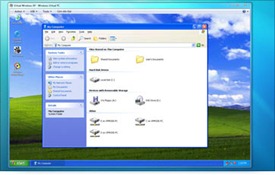
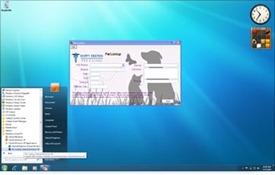
If you want to enable the XP mode, you need to download additional software and install it on top of Windows 7 RC. Here are the steps to enable XP mode on Windows 7.
1. First you need to make sure that Hardware Virtualization Technology is enabled, which means the CPU should support for hardware virtualization. This can be checked using the Intel Processor Identification Utility. If your CPU is enabled for hardware virtualization, make sure that it is enabled using the BIOS settings.
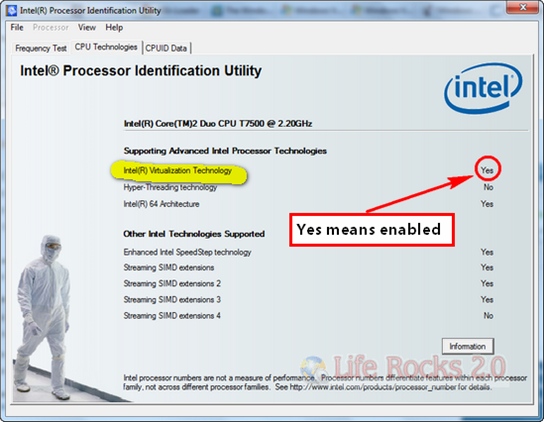
Virtualization Technology can be enabled in the BIOS settings under the System Configuration tab.
2. Once you make sure that CPU supports virtualization, you need to download Windows XP Mode Beta and Windows Virtual PC Beta.
- Download Windows XP Mode Beta (445.4 MB – 890.7 MB)
- Download Windows Virtual PC Beta (4.9 MB – 10.6 MB)
3. Once you have installed these application, you can start using the XP mode in Windows 7 RC.
Other Requirements for XP mode;
- Windows 7 RC
- 1 GHz 32-bit / 64-bit processor required
- Memory (RAM) – 1.25 GB required, 2 GB memory recommended
- Recommended 15 GB hard disk space per virtual Windows environment
- NB: Windows XP Mode is only available in Windows 7 Enterprise, Windows 7 Professional, and Windows 7 Ultimate.
Windows Virtual PC features for Windows XP Mode;
- Once both the Windows Virtual PC and the virtual Windows XP environment are installed, Windows Virtual PC provides a simple wizard to setup the Windows XP Mode with just a few clicks.
- Users can access USB devices attached to Windows 7 directly from Windows XP Mode. These devices include Printers and Scanners, Flash Memory/Sticks and External Hard Disks, Digital Cameras and more.
- Publish and Launch applications installed on Windows XP Mode directly from the Windows 7 desktop, as if they were installed on the Windows 7 itself.
- Access your Windows 7 Known Folders – My documents, Pictures, Desktop, Music, Video, from inside the virtual windows environment, such as Windows XP Mode
- Cut and paste between your Windows 7 and Windows XP Mode.
- Print directly to your attached printer from your Windows XP Mode applications either in application mode or desktop mode.
More information available here.



Apple in Talks to Buy Twitter for $700 Million-May Be A Rumor
http://teentechguru.wordpress.com/2009/05/05/apple-in-talks-to-buy-twitter-for-700-million-may-be-a-rumor/
check this out…………
*sigh*
I do hate all these different types of OSs. Windows Vista Basic, Home Premium, Business, Ultimate;
Windows 7 Enterprise, Premium, and Ultimate. Why can’t they just go back to the good ol’ days of one SINGLE GOOD operating system?
Oh yeah, there were none.
Nice information. Thanks for sharing
@ Sanjeev
Was that directed at Nirmal, me, or Dinesh? ‘Cuz it sounded kinda sarcastic.
@Matthew
Oh…I hope there is a misunderstanding. I liked the information about enabling XP mode on Windows 7 as being on XP I feel almost comfortable to work. My comment was on the article by Nirmal. I hope I can praise Windows as I grew up using that!
Praising Windows….
yeah, I don’t think I’ll EVER do that. Windows 7 should be more accessible for people using crappy hardware (like me: 1.6Ghz Intel Celeron M Processor and REALLY old school video/graphics card), but I’ll just stick to the *FREE* operating system, Ubuntu.
You should check it out sometime.
My xp apps appear under xp mode under Virtual Pc on my 7
start menu, however, I still cannot start them in Windows 7. Any ideas??
All this XP mode is a fucking bullshit!
For once first is because if you have a fax modem on the host pc that runs Win 7 IT CAN’T BE used in the virtualized Win XP! Then it doesn’t always work all or any USB in the virtualized Win XP!
IT’s just a crap to make suckers believe that is nothing to loose in buying Win 7 and that you get 2 products for the price of one! Nothing more non-realistic!!!