Techniqued- Technoloy, Review and Tutorials
  • Android
  • Freewares
  • Tutorial
  • Windows 11
  • macOS
No Result
View All Result
Techniqued- Technoloy, Review and Tutorials
  • Android
  • Freewares
  • Tutorial
  • Windows 11
  • macOS
No Result
View All Result
Techniqued- Technoloy, Review and Tutorials
No Result
View All Result

How to Create a Power Plan in Windows 7

Nirmal by Nirmal
March 1, 2011
in Windows 7
1
Share on FacebookShare on Twitter

Windows 7 is build such that it helps reduce power consumption by working with the latest hardware power-management capabilities and better managing how application processes use the processor. Windows 7 includes device driver support for the latest processor power-management technologies from leading independent hardware vendors. Windows 7 comes with build in power plans, but you can create your own plan if you do not want to alter the default settings.

To create a new power plan, open the Power Options in the Control panel (All Control Panel Items-> Power Options  or you can type power options in the start menu search). In the power Options, click on Create a Power Plan in the left sidebar.
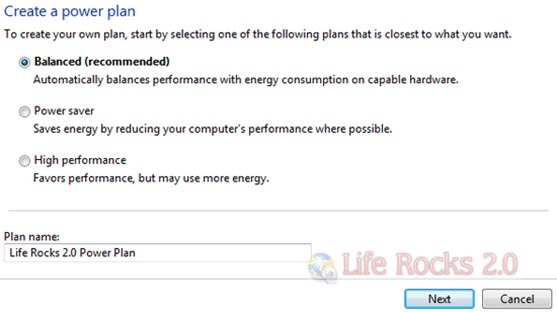
Create power plan

Click on the next button and enter the power settings you would like to have in this plan. You need to choose the sleep and display settings.
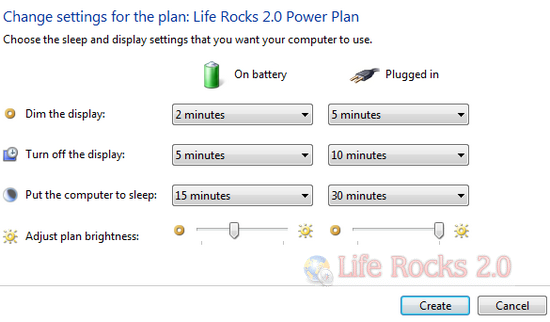
Power settings

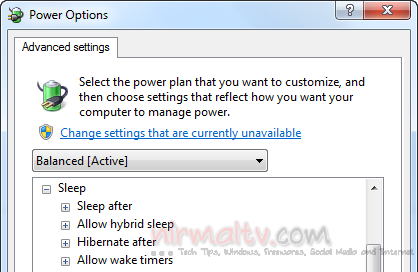
Once you have done with the customizations, click the create button and the power plan is created. You can also change the advanced power options for this plan.
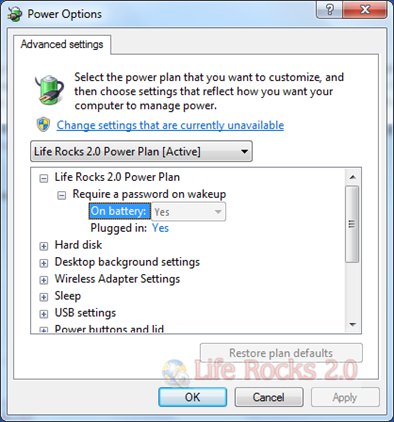
Advanced power Options

Selecting you own power plan allows you to have better control over the battery and power consumption.

Tags: Power PlanWindowsWindows 7Windows 7 Tips
ShareTweetSendSend
Previous Post

How to Migrate from Windows XP to Windows 7

Next Post

How to Enable XP Mode in Windows 7

Related Posts

Windows 10

Where can I Download Windows Legally

April 15, 2020
Windows 7

How to Download Windows 7 ISO [Tutorial]

April 2, 2020
Windows 7

Difference between Sleep, Hibernate, and Hybrid Sleep in Windows 10?

November 19, 2019
Windows 10

How to Fix USB Device Not Recognized on Windows 10

November 11, 2019
Windows 10

Winaero Tweaker – Universal Tweaker Software for Windows

March 11, 2015
Windows 7

How to get Windows 10 Style Folder icons in Windows 8 and Windows 7

December 30, 2014

Leave a Reply Cancel reply

Your email address will not be published. Required fields are marked *

This site uses Akismet to reduce spam. Learn how your comment data is processed.


Latest Articles

How to Fix “Installation can’t continue” when trying to Update Nvidia Graphics Drivers

Download Windows 11 24H2 ISO (Offline Installer)

Can I Run Windows 11 without Activating

How to Use Snapchat on PC

How to Delete YouTube Search and Watch History on iPhone

How to Use Energy Saver on Windows 11

Techniqued- Technoloy, Review and Tutorials

© 2021 Techniqued - Technology, Tips, Tricks and Reviews

Navigate Site

  • About Us
  • Advertise with us
  • Contact Us
  • Copyright Policy
  • Disclaimer

Follow Us

No Result
View All Result
  • Android
  • Freewares
  • Tutorial
  • Windows 11
  • macOS

© 2021 Techniqued - Technology, Tips, Tricks and Reviews

This website uses cookies. By continuing to use this website you are giving consent to cookies being used. Visit our Privacy and Cookie Policy.