

By default Windows 7 needs a password to log in to protect your PC from unauthorized access. In case you are the only person using your PC, then you can turn off Windows native password protection so that Windows will log you in automatically each time you boot Windows. To remove the password protection, open Run (Win + R) and type control userpasswords2 and press enter. This will open up the User Accounts window.
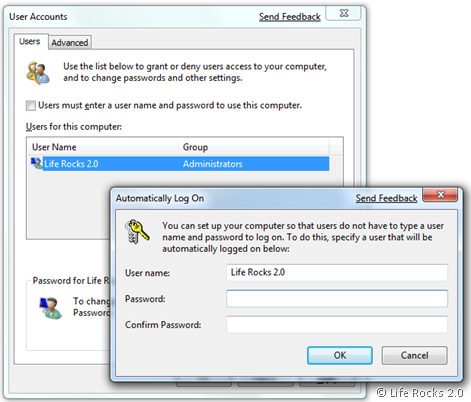
Here uncheck the option “Users must enter a user name and password to use this computer” and click OK. When you click OK, it will prompt to enter the current password and confirm it. Once this is completed, next time you log into Windows 7, it will not ask the password for logging in.
Please not that this is advisable only if you are the only person accessing the PC and there is no possibility of unauthorized access.



This all-in-box Windows 7 autologon tool can be useful if you want deploy automatic logon capability in company network. Good luck.