Freeze Windows Processes with Yawffer

Published on 29 January 2009 by Nirmal in Freewares

Advertisements

Yawffer is a free tool for Windows which keeps an eye on the computer and monitors current CPU usage, amount of data currently transferring in the system and available memory. Data is displayed as strings of text above all windows, takes very small amount of screen space and can be located in any place on the screen. For each showing you can define font and color which will be located on top of all applications.
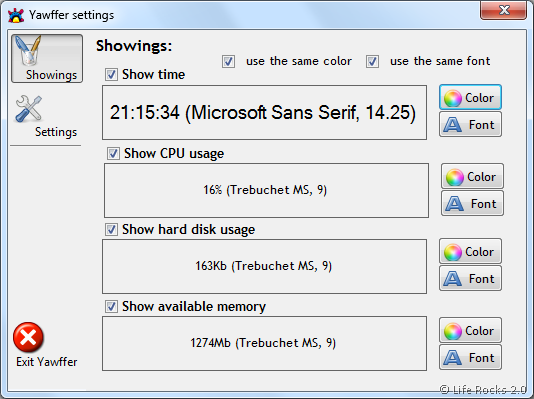
Settings Yawffer

There are few settings like the display type either in horizontal or vertical manner and also the brightness of the application and the hot key to open it. Apart from these, the best feature of Yawffer is the ability to freeze any running application without closing it. Yawffer can help you if you need to suspend a process. Left-click on Yawffer icon in the system tray and select “Freeze a process”. Locate the process in appeared window and click “Freeze it!” button.
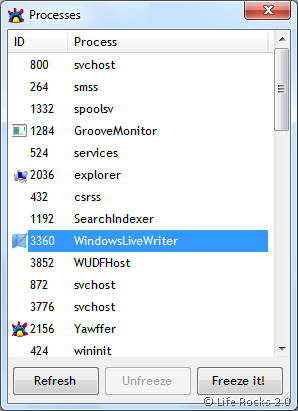
Freeze Process

Yawffer can also inform you about the current network connections. To view connections select “Network connections” in Yawffer tray icon context menu. Appeared window will show you all current connections.
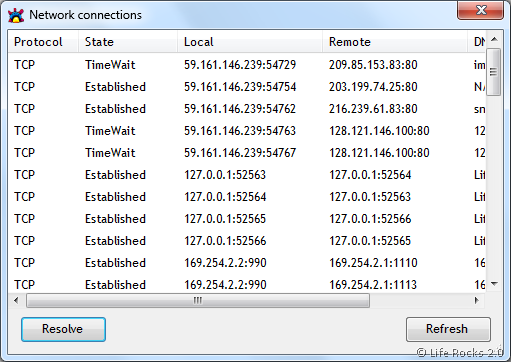
Network Connections

This application works with .Net Framework and installs on Windows XP, Vista and Windows 7 as well.


Download Yawffer


4 Responses to “Freeze Windows Processes with Yawffer”

  1. [...] This application could be a useful addition to your toolkit the next time your favorite Windows application goes out of control and you’d like to just pause it momentarily. For a more automated solution, you can use previously mentioned Process Lasso, or you can always free some memory by mastering Task Manager. Yawffer [via Life Rocks 2.0] [...]

  2. [...] This application could be a useful addition to your toolkit the next time your favorite Windows application goes out of control and you’d like to just pause it momentarily. For a more automated solution, you can use previously mentioned Process Lasso, or you can always free some memory by mastering Task Manager. Yawffer [via Life Rocks 2.0] [...]

  3. [...] Windows only: Oddly named system utility Yawffer can freeze an out-of-control process in place, letting you shut down other running applications or save your work. Yawffer is actually meant to be a system monitoring tool, but it frankly doesn’t do that terribly well-the killer feature is found by right-clicking on the tray icon and choosing Freeze a Process from the menu, at which point you can click on a process in the list and Freeze it. If you want to test this feature out for yourself but don’t have a problem app at the moment, you can use Max CPU to peg your processor at 100%, and then freeze the process using Yawffer, which will immediately drop your CPU usage back to normal levels. This application could be a useful addition to your toolkit the next time your favourite Windows application goes out of control and you’d like to just pause it momentarily. For a more automated solution, you can use previously mentioned Process Lasso, or you can always free some memory by mastering Task Manager. Yawffer [via Life Rocks 2.0] [...]

Leave a Reply