

There are lots of applications which are portable, which means you can run them from your USB drive without installing them. Koma Mail is a potable Email client which can be run directly from your USB drive. In most of the companies, web based email application are not allowed because of security reasons, so in this case Koma mail can help you check email from USB drive and no installation required.

With Koma-Mail you can send and receive mails, encrypted via SSL, through POP3, IMAP (including synchronization), SMTP and WebDav. To stay informed you can use the integrated RSS viewer. All this can be done from your USB drive. Koma Mail can also be installed in your desktop. Koma-Mail offers two different spam filters: one is word based and the other one is a Bayesian. To prevent false negative detections Koma-Mail uses a white list. Another good feature of this software is that it can encrypt your email account as well, which gives you more security.
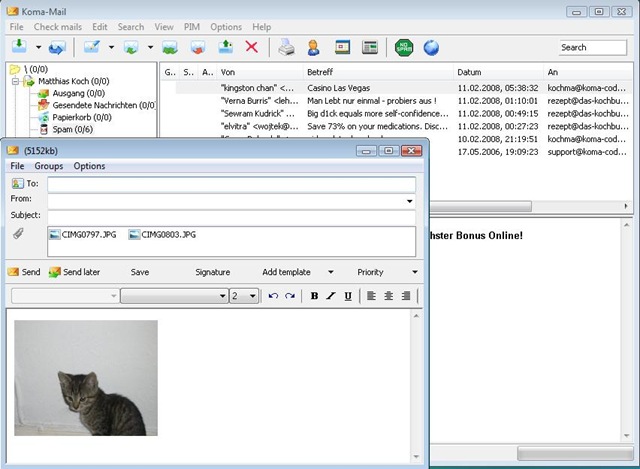
Features of Koma Mail;
- POP3, IMAP, SMTP, WebDav
- SSL and APOP support
- RSS viewer
- Calendar
- Contact management
- Displays HTML Mails
- HTML-Editor for composing
- Sends and receives mail with inline images
- Zips attachments automatically
- Mails can be marked with colors
- Free folder structure
- Automatically cleans folders
- Template module
- Several user accounts
- Several mail accounts per user account
- Encrypts user accounts
- Spam filter (including Bayesian)
- Filter module
- Unicode support
- Available in 17 languages
Koma mail supports Windows 98, 2000, XP and Vista. With all these features, Koma-Mail is a good alternative to shareware mail clients.
Img Src: Koma Mail






I have tried many Email clients and always moved back web-mail. I am not sure but for some reason I feel more comfortable with Webemail(GMail etc.).
@Jawwad,
Even I’m inclined for Web based email although I have set up Outlook. 🙂
well for me the best client is gmail, simple and no mess is what gmail is all about….although I’m going to try mail application of OS X and will write a review soon