

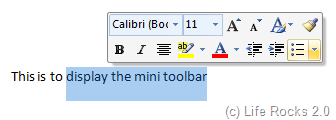
Mini Toolbar in Word 2007 displays formatting whenever we select any text. The formatting tools appear on top of the text when you select them, but this could be sometimes annoying for users. This can be easily disabled in Word 2007 and once disabled formatting can be selected from the home tab in the ribbon.
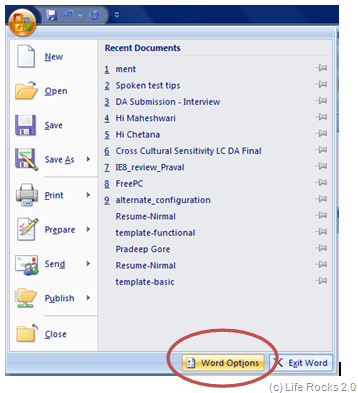
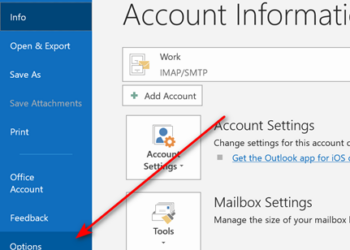
To disable the mini toolbar, click on the Office button on the top left hand corner of the document and then select Word options below.
In the word options, highlight the Popular tab and in this tab, uncheck the box against “Show Mini toolbar on Selection”.
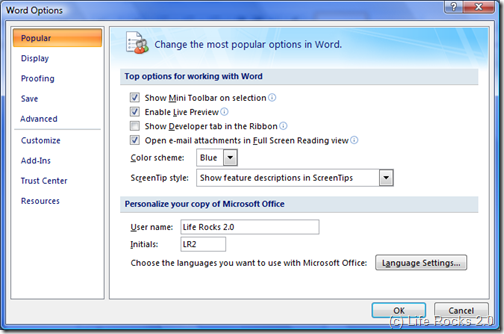
After unchecking click ok and close, now on the toolbar will no pop up while selecting the text and formatting has to be done from the ribbon.





Why? That’s one of the best features of Word and Outlook 2007. Might as well have an article on how to disable your airbags in your car or make your XBox 360 only play Atari 2600 cartridges.
Oh well, to each their own.
Awesome, That stupid fade in fade out sh*t has been annoying me so much, and the stupid placement of the toolbar from time to time. urgh, don’t get me started. thanks for publishing this.
But the stupid mini-toolbar still appears whenever you right-click on something. How do I kill the stupid thing with a stake through the heart?
That thing is very annoying indeed. I finally disabled it. Thanks