

When you want to mention that a document is confidential or a draft copy, its always good to add a watermark to the document. Watermarks informs people about the document and since they are transparent in color, they sit behind and don’t divert people’s attention from the document’s content.
Watermarks are mainly intended for printed documents and will not show up in the web Layout view of the document. To create a watermark, follow these steps;
1. Open a word document in Office 2007 and select the Page Layout tab in the Ribbon. Inside page layout, you will be able to see an option “Watermark”
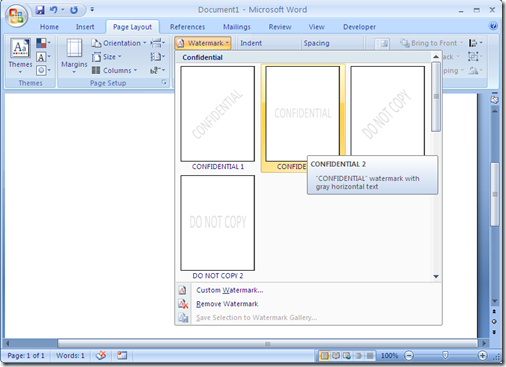
2. Here you will be able to select any of the default watermarks available or you can create a custom watermark.

3. In custom watermark, you can either select a picture for watermarking or use text.
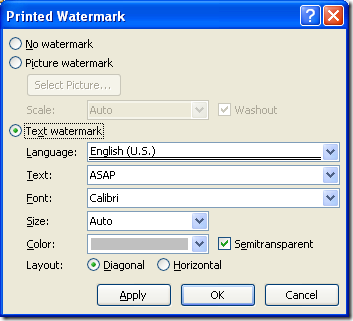
When you select text watermark, you will be able to specify the font, alignment, size, layout etc. You can also select an image from the computer as watermark. Once you are done with customizing, click OK.
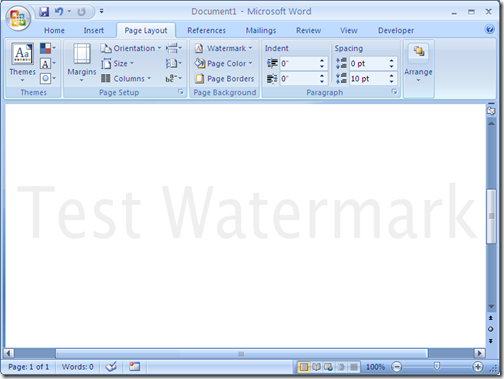
Now you will be able to see the watermark in action. All printed documents will have this watermark.






thanks for the info…i always wondered how to quickly add a watermark, but know i knew 🙂
Thanks for the info. I’ve used Office since Office 1997, and I never known this feature.
There is a much easier and more versatile way to put watermarks and other identification on Word Documents. The program is a Word add-in called StampIt for Word. The addin for Word also eliminates the need for rubber stamps for document identification. Lot’s of neat features.