

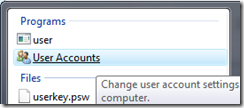
We have already written on how to reset the Windows password using a freeware. You can reset your Windows Vista password if you create a reset disk. This reset disk can be saved in USB drive or Floppy disk. To create a reset disk, open start menu and type “User Accounts” and enter.
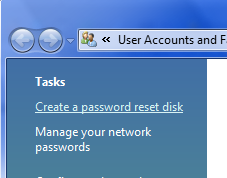
On the left menu, select Create Password rest disk. Make sure you have plugged in USB drive or a floppy drive.
Next step is to select the drive to create password reset disk.

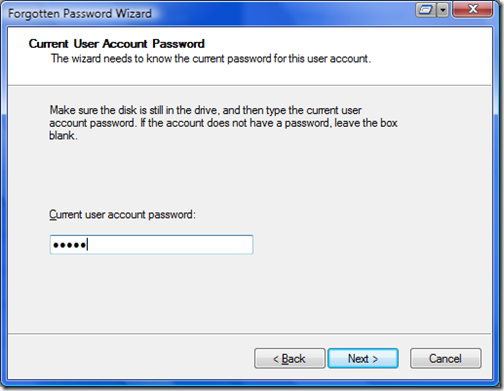
You will need to enter the current Windows user password.
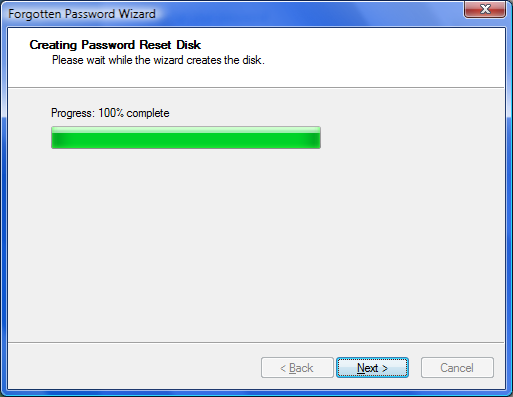
Now the reset disk will be created on the USB drive. To reset password, you need to select Reset Password option while logging in and it will guide you to reset the password.




i need your support
how to i know the current password if i have forgot it
How do I reset user password, when I forgot and don’t have a disk?
it says an error has ocurred when i tried to reset it. Wat is wrong?
With Windows Password Unlocker, you can get it, as followings
?.Login to a computer that can link to Internet. Download Windows Password Unlocker 4.0 and decompress it on that PC. Note that: there is a .ISO file. Burn the .ISO file to a CD.
?. Get out the newly created CD and insert it to the locked computer.
?. re-booted the locked computer and then followed the process of instructions. Just a few steps, the old password was removed.”’
?. Setting new password:
Step one: Open the “Control Panel”
Step two: Click the “User Account ”
Step three: Select the account you wanna to set a new password.
Step four: Click “changing Account ” and “set up password”, then fill out the form as listed. Click “Create Password”.
Thus, you have a personal login ID and Password, any one has no right to login to your computer with out this info.
1.Login to a computer that can connect to the Internet. Download http://www.resetwindowspassword.com/ and decompress it on that PC. Note that there is an .ISO file. Burn the .ISO file to a CD.
2. Get out the newly created CD and insert it into the locked computer.
3. Reboot the locked computer and then follow the process of instructions. Just a few steps, the old password was removed.
4. Setting new password:
Step one: Open the “Control Panel”
Step two: Click the “User Account ”
Step three: Select the account you wanna to set a new password.
Step four: Click “changing Account ” and “set up password”, then fill out the form as listed. Click “Create Password”.
Thus, you have a personal login ID and Password, anyone has no right to login to your computer without this info.
Download Windows Password Recovery Tool 3.0 . Note that there is an .ISO image file included in Windows Password Recovery Tool . Burn the .ISO image file to a blank CD by your favorite burner software such as Nero, Sonic, or Roxio. If you don’t have those burners, you can use BurnCDCC.exe integrated in Windows Passwords Recovery as well. With the new created password reset disk. You can reset windows vista password with great ease
A few days ago, I had met the headache things that I had forgotten Windows login password. The login screen rejected my passwords. I was frustrated because there was very important data on my disk and I couldn’t reinstall the OS. …………. However, I fortunately got to know the Windows Password Unlocker, which is a professional windows password recovery tool for us to reset windows 7 password instantly yet no data loss.
You can reset windows user account password in safe mode(F8 when booting up). But if you forgot administrator password, you must reinstall windows OS or use windows password recovery disk.
http://www.windowsloginrecovery.com
Try to use a windows password recovery tool to bypass windows vista password http://www.anypasswordrecovery.com/ ,it need can be burned to a password reset cd disk.
This sounds pretty interesting. We used a similar software at my tech support job a few years ago. Called “Windows Password Key 8.0”.
It works very prefect to regain your password .Also use boot CD/DVD.
I have download it from this website: http://sn.im/bypasswindowspassword
There are a lot of Windows password reset utilities available, but I’ve found that the Reset Windows Password 1.3 boot CD is the most effective.:
it not only supports XP, 2003, 2000, and NT, I have personally tested it with Vista Home Premium and Ultimate. It works perfectly to reset any local user account to a blank password
You can use the ISO to burn a boot CD. Follow these instructions:
1. Download ISO file from http://www.top-password.com/reset-windows-password.html
2. Burn to a CD using a CD burning tool such as Nero, Roxio or MagicISO
3. Insert CD into drive and reboot.
4. You may have to select an option in the BIOS to get the computer to boot from the CD.
5. Simply select your Windows installation if multiple operating systems have been installed on the computer, the program will list all user accounts for your selected Windows installation. Select a user account from the list, then click the “Reset” button to reset the password.
Booting up and clearing a password takes a minute or two works like a charm.
you can search Password Genius from Google
I have downloaded windows password Recovery Basic. It is a very quick and useful utility for recovering passwords. Just an easy to use bootable CD/DVD . It can also be used on a USB Flash Drive. you can search windows password Recovery Basic from Google
The best solution I found was to use the Winlogon Password Reset(link below), it got me in seamlessly and there were absolutely no problems.
http://www.windows-logon-password.com/