

If you like to have your PC wake you up in the morning, then you should be using Z-Cron. Z-Cron is a free task scheduler software which can be used as an alarm to wake you up. With the Z-Cron task scheduler with which you are able to execute tasks on your PC automatically and time-triggered. Z-Cron is a central control center for automation and scheduling of software. Z-Cron can schedule variety of tasks in Windows.
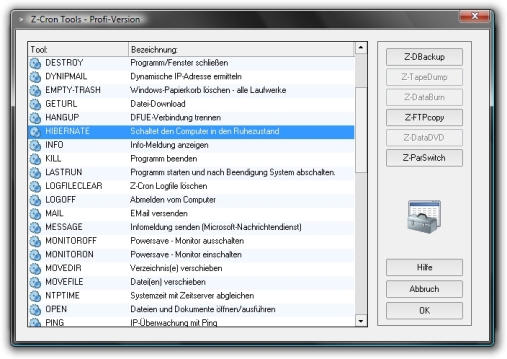
Few Possible scheduled tasks:
- Starting and stopping of applications.
- Calling or saving of Websites.
- Loading documents.
- Starting, stopping and monitoring of system services.
- Copying files and directories.
- Deleting files and directories
- Cleaning directories.
- Establishing and disconnecting internet connections (Modem/ISDN).
Tasks can be scheduled daily, weekly, monthly, once and at system startup. You can check out the complete lists of tasks which Z-Cron can do from here. Few of the interesting tasks which I liked were Alarm, Automatic back up, Schedule email sending, Shutdown, reboot and log off Windows, schedule playing of multimedia files, changing Windows desktop background picture and many more.






Very handful utility. I’ll be using it mainly because it has got alarm functionality. I tend to miss lots of classes early morning. Even my mobile alarm fails to wake me up.
hehe
🙂
This will be good while scheduling torrents . I will be able to shutdown my PC when Happy Hours of ISP end.
This is pretty good…but I also like another nifty utility called NirCmd, it’s silent, does a lot of stuff, and doesn’t even require any installation.
Nice utility, I used to use something similar for torrents, But, new version of torrent allows us to shut down in multiple options.
But this software does something more than this. 🙂