Windows 8 Release Preview is out and users can download it free of cost and use it till the time the final version of Windows 8 is released. If you have already installed the Windows 8 RP, you might have seen that Windows Media Center is not installed on Windows 8. But if you have been using Windows Media Center, you can still get it even though it is not preinstalled in Windows 8 Release Preview. If you want to use Windows Media Center, you need to add it by following these steps:
Open the Windows 8 start screen and type Control Panel.
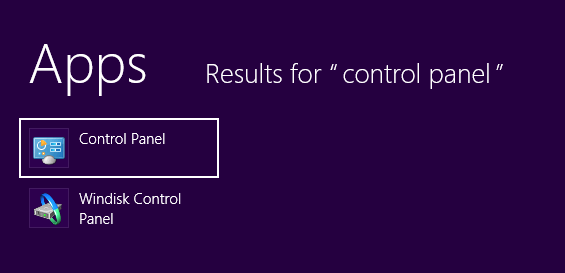
Open the Control Panel and navigate to System and Security. Scroll down and you will see an option Add features to Windows 8.
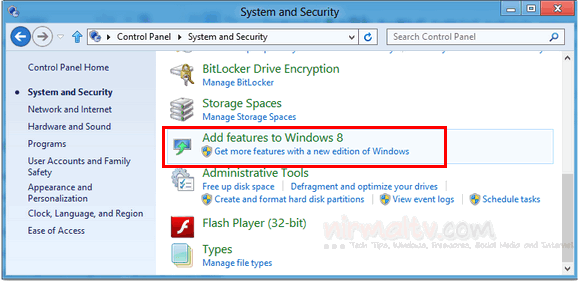
When you click this option, you will be asked to enter the product key. Enter this product key: MBFBV-W3DP2-2MVKN-PJCQD-KKTF7 (provided by Microsoft) and then click Next.
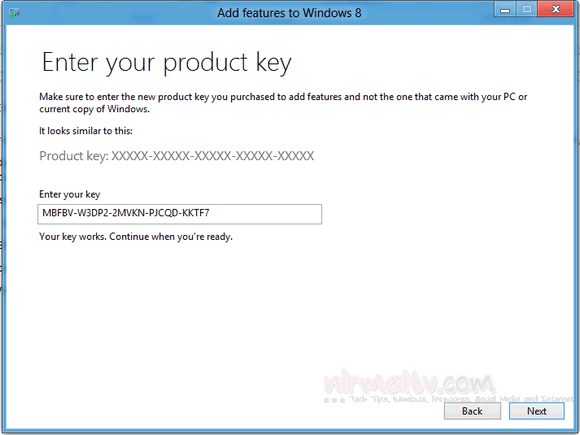
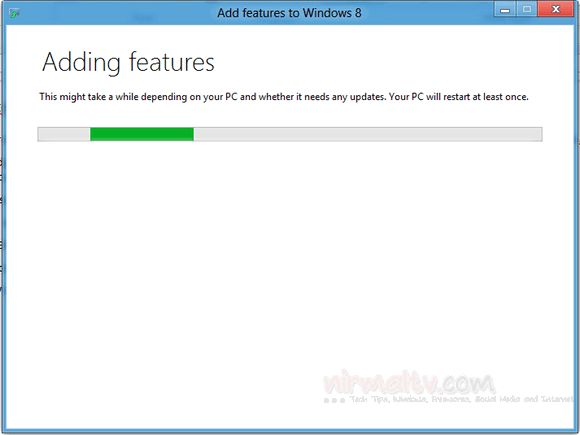
Select the checkbox to accept the license terms and then click Add features. Now Windows 8 will start adding Windows Media center and during this process your PC will reboot, so save all your work.
After PC is rebooted, Windows Media Center will now be on your PC and the tile will be pinned to the Start screen.
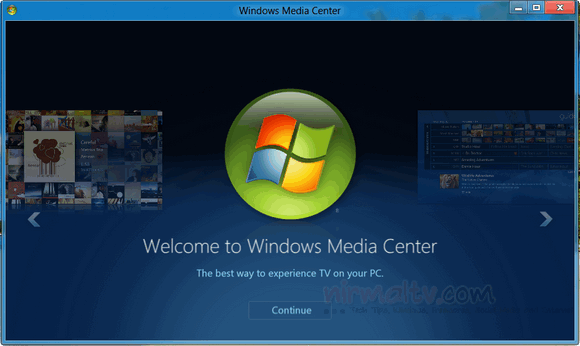
Now you can use Windows Media Center as you used it on Windows 7.