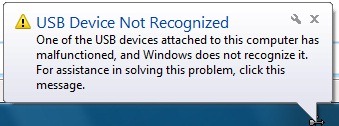
If any of the hardware device or an installed program has a problem after installing the service pack, it would be better to remove the service pack installed from your PC as it is still in beta version. Yesterday we had written detailed steps on how to uninstall Windows 7 SP1 Beta version from your PC. You can also uninstall Windows 7 Service Pack 1 beta version using the command prompt.

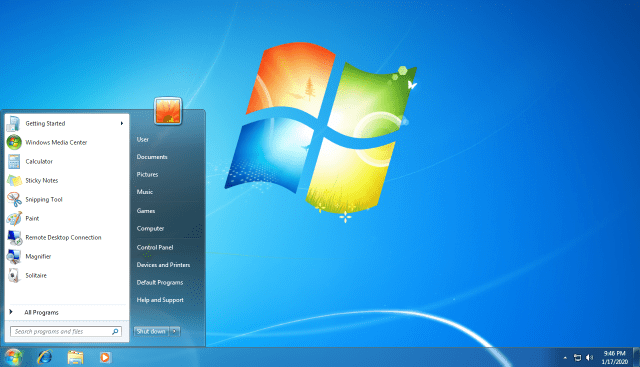
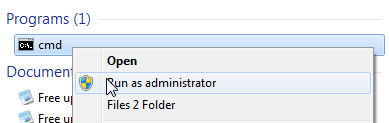
To uninstall using command prompt, open start menu and type ‘cmd’ in the start menu search. Right click the cmd in the start menu and select Run as Administrator.
Type the following in the command prompt: wusa.exe /uninstall /kb:976932
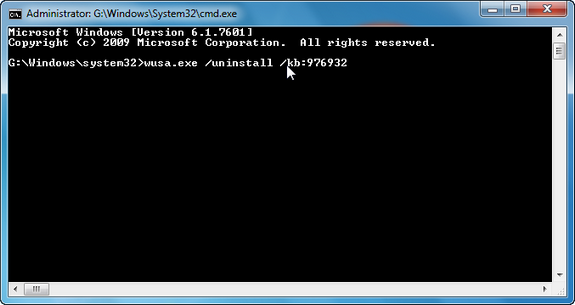
Press enter and Windows will uninstall SP1 beta from your PC. If you’ve used the Disk Cleanup Wizard since you’ve installed SP1 Beta, the backup files needed to uninstall the service pack might have been removed from your computer. If that’s the case, then use the other method using the programs and features.