Advertisements


We have previously covered in detail how to install Windows 7 SP1 step by step. In case you are having any issues working with any program or Windows 7 after the installation of service pack, you can always uninstall the updates to check if SP1 is the real cause of the issue. Windows 7 SP1 is installed like any other Windows update, you can easily uninstall service pack 1 through the installed updates option in control panel.
Windows 7

To uninstall, Open Control Panel-> Programs- Installed Updates.
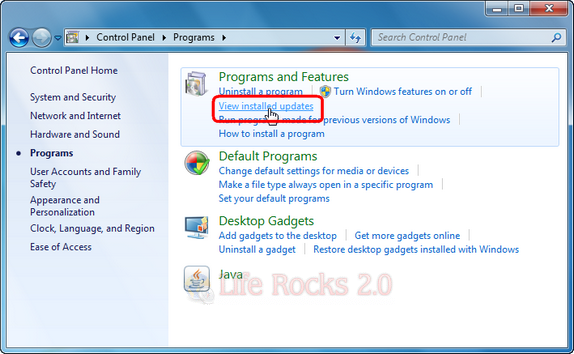
Installed Updates

Under the installed updates section, you will be able to see Service Pack for Windows listed.
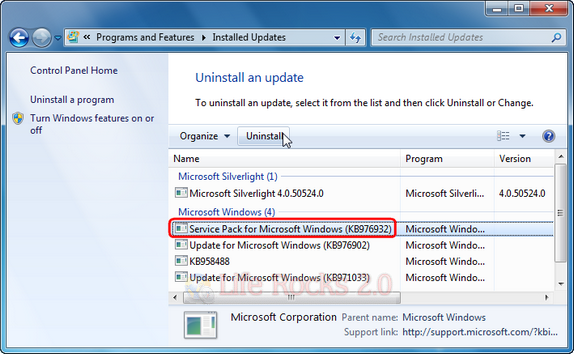
Uninstall SP1

Select SP1 from the list and click on the uninstall button on the top.
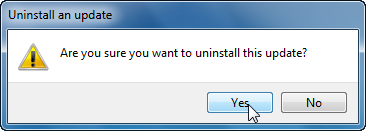
uninstall confirmation

Click Yes to confirm the uninstall operation. Now wait for SP1 to get uninstalled from your PC.

Written By Nirmal

Nirmal is a Technology Blogger and a Microsoft MVP in Windows. Nirmal is also the editor-in-chief and owner of Life Rocks 2.0. He can be contacted at nirmal@nirmaltv.com. You can also follow him on Twitter @nirmaltv

SHARE THIS
ARTICLE
digg_32  stumbleupon_32  twitter_32  facebook_32  delicious_32
friendfeed_32  reddit_32  technorati_32  yahoobuzz_32  rss_32

2 Responses to “How to Uninstall Windows 7 Service Pack (SP1)”

  1. [...] to remove the service pack installed from your PC as it is still in beta version. Yesterday we had written detailed steps on how to uninstall Windows 7 SP1 Beta version from your PC. You can also uninstall Windows 7 [...]

Leave a Reply