

As everyone knows, Windows 7 does not support installing third party or custom themes directly which tweaks the Windows Explorer, taskbar and other stuff. In case you want to apply third party tools, then you need to patch your system with tools like UxTheme or Universal Theme Patcher. So how do you go about patching files and installing new themes? Follow these simple steps you can install third party themes on your Windows 7 and Vista.

We are going to use Universal theme patcher for this tutorial. Download the latest version of Universal theme patcher and then extract the files. There will be 2 files one for 32 bit Windows and one for 64 bit. Based on your system, open the required file (in administrator mode). The application will let you know how many files needs to be patched.
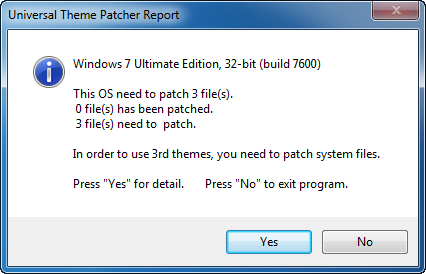
Click on yes and then the application shows up the list of files to be patched.
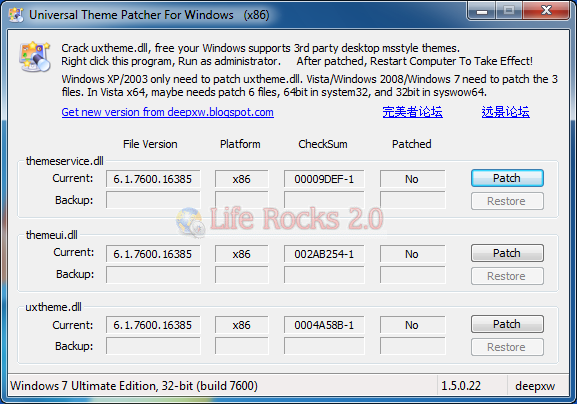
Click on Patch button corresponding to the files and it will inform you about the patching details. There is also option to restore it in case you want to revert back to old file.
Once the patching is complete, restart your PC for the changes to take effect. Once you have restarted the PC, you can now apply third party themes which have custom explorer, taskbar, icons etc. To easily apply third party themes, you can download the Windows Themes Installer, which can easily apply the third party themes on your patched Windows.
Related: Download Windows 7 Themes
Download Windows theme installer and run the portable application.
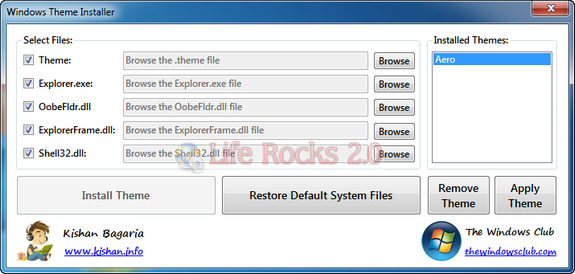
Check the boxes against which the third party theme has a custom file. Browse for the theme files and then click install theme. You can always restore the default system files from the application.


I dont see themes here where they?.?dont make this complicated?