

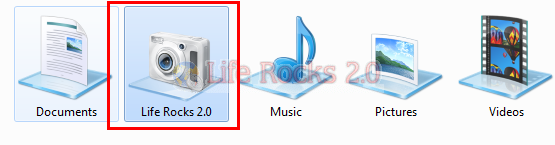
Libraries are one of the new features added to Windows 7. We have covered a in depth tutorial on how to use and manage libraries. In this tutorial we will cover on simple steps to change the default icons of libraries. Libraries are in fact collection of (or a pointer to) folders and files from different locations for better file management. You can create your own libraries and add location to it. You can also change the default icon assigned to the libraries.

1. First step is to create your own library and add all the index locations. Now navigate to this location, C:UsersUSERNAMEAppDataRoamingMicrosoftWindowsLibraries. Change the USERNAME to the actual user name on your PC.
2. In the next step, open notepad and drag and drop the library icon on to notepad. Drag and drop the library for which you want to change the icon.
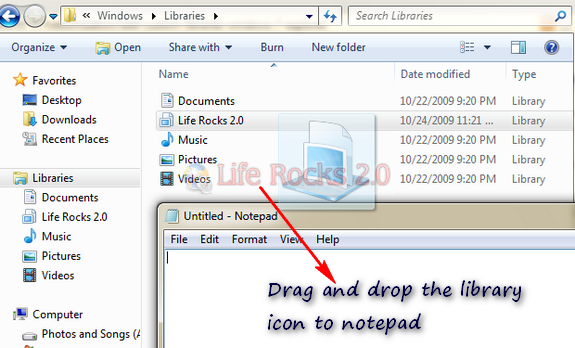
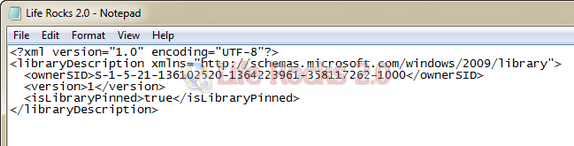
Notepad will contain text similar to the one shown below.
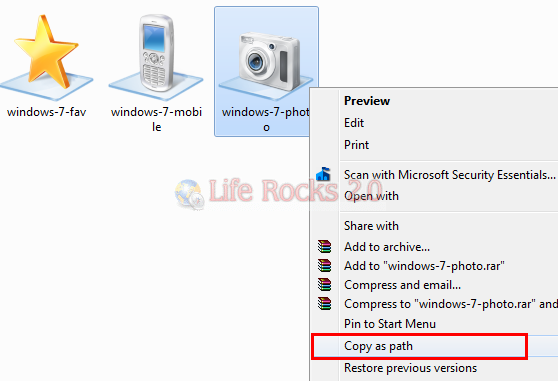
3. Now go the folder where you have the new icons saved. Make sure that you use only .ico files, no other format will be supported. Hold the shift key and right click and select the option “Copy as Path”. Alternatively you can also copy the path of the file from the explorer navigation bar.
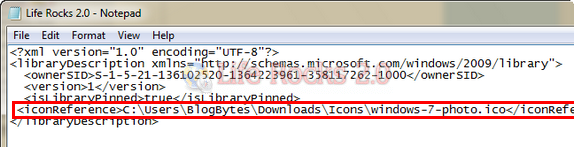
4. In the file opened in notepad, paste this line of code, <iconReference>ICON PATH HERE</iconReference>. Replace ICON PATH HERE with the path of the icon file copied. Paste this just below </isLibraryPinned> tag.
5. Save and close the file and now you can see the new icon in effect on the library.
Related: Windows 7 Libraries complete Guide


having got estatic when i found your web site and article on how to change Library Icons i now feel deflated. I got as far as stage 2 and found that i could not drag and drop the library Icon on to note pad!!!!
what have i done wrong or not done? Looking at your explanation on how to achieve this i was looking forward to some great icons.
@alexanderd,
If you are not able todrag and drop the icons, then you might not have navigated to the specified folder. Are you trying to drag and drop from the libraries folder? Please check the path Ihave mentioned, copy the path highlighted in the post, change to your username and then paste it in the explorer. It should work.
I did it once, and work perfectly
Tryed to do it again and im unable to drop on to Notepad…
I tryed rebooting
Any help please? Thank you in advance
EXE files can also be used as icon source, but you may have to identify the icon you want to use – just as it is done in desktop.ini files, e.g.:
C:\Program Files\Microsoft Games\Chess\Chess.exe,0
Oh, and for those having problems dragging the libs onto notepad: stick notepad to the taskbar, stick the lib do notepad, rightclick on notepad in the taskbar and open the now listet lib-file