

Windows 7 has been Released to Manufacturing (RTM) and the general availability is on October 22. We have already written a detailed article on how to upgrade from Windows XP to Windows 7. In this post, we will cover on how to do step by step upgrade from Windows Vista to Windows 7. Before starting the upgrade make sure that you check the upgrade chart to see if the version is supported for upgrade. Although upgrade will not effect your program files, it is advisable to take a back up of your files and folders before you start the upgrade process.

Before you begin upgrade:
- Back up your files to an external hard disk, DVD or CD, USB flash drive, or network folder.
- Check the Windows package to make sure your computer meets the system requirements, you will need Vista Service Pack 1 (SP1) installed and also 8.5GB free space on your hard drive.
- Find your 25-character Windows product key. You can find your product key on your computer or on the installation disc holder inside the Windows package.
1. Insert the DVD into the drive and start the setup for upgrade.
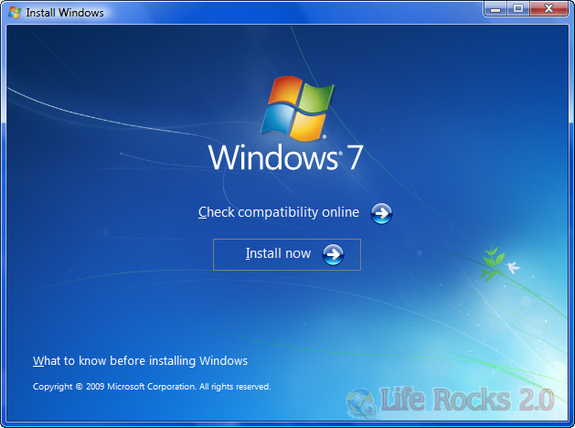
2. Click on Install now option in the Windows 7 set up and the set up will start copying the files required for installation.
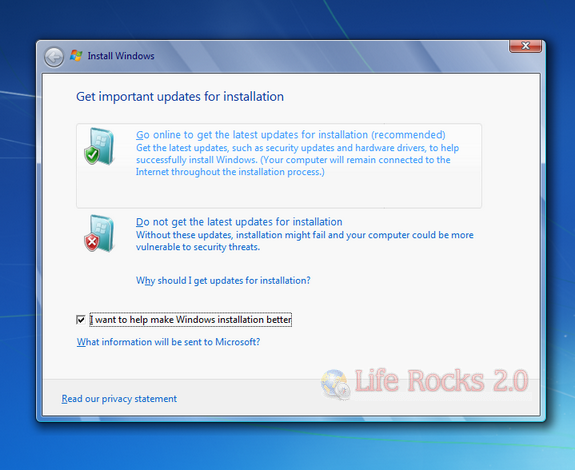
3. On the Get important updates for installation page, we recommend getting the latest updates to help ensure a successful installation and to help protect your computer against security threats. You will need an Internet connection to get these updates.
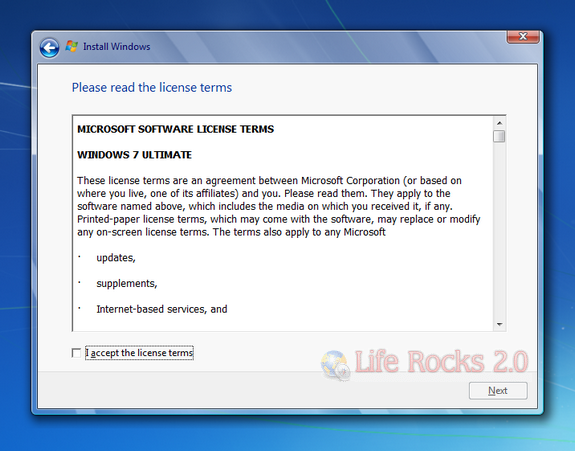
4. In the licensing page, accept the license terms, click I accept the license terms, and then click Next.
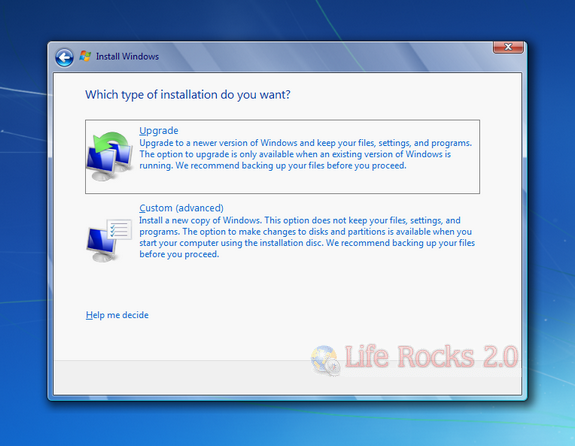
5. Click Upgrade in the On the Which type of installation do you want? page if you want to upgrade from existing installation.
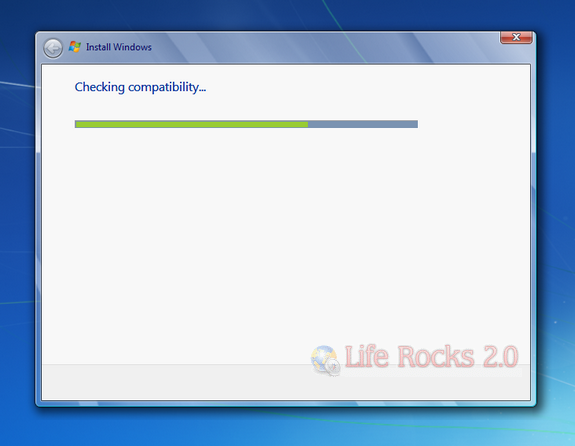
6. The installation checks for compatibility for upgrade and gives an error report in case any installed applications are not compatible with Windows 7. You will need to uninstall the programs before you start the upgrade.
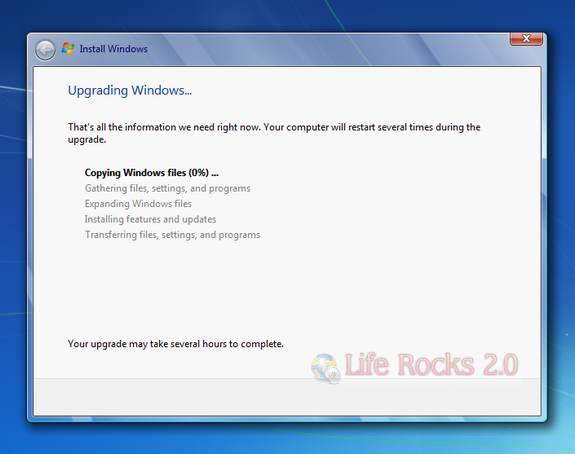
7. Once the compatibility is checked, it starts the upgrade process and follow the steps on the screen to configure final Windows 7. The set up will ask for the Windows 7 Keys during installation, so keep it ready.
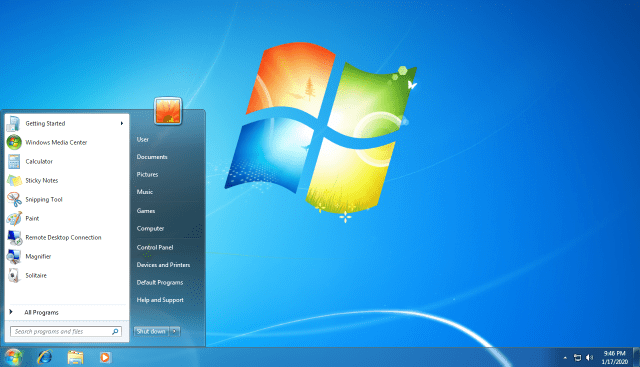
Note: If you are upgrading from Windows Vista, changes made to default Windows tasks, services, and other system settings in Windows Vista might be overwritten with the default configuration for Windows 7.


Great overview, thanks. I’ve seen a few now, but I haven’t figured out yet how to upgrade with/from a clean install.
I have Vista Business and want to upgrade to Windows 7 Professional (which according to the upgrade chart is the way to go). However, I prefer to do a clean install: wipe the drive, repartition and reformat, before installing Windows 7. Is there any point where the upgrade asks for my Vista info (as it won’t be able to find it on the drive anymore)?
i update my vista to Windows 7 successful?Unfortunately my visual studio unable to work
It looks nice.
It gonna be my next OS, which I am going to upgrade soon.
Thank you for your post nirmal!
Have tried to load W7 upgrade into HP notebook 6735S with Vista Home premium installed. I get to step 7 when the compatibility is checked then it leaves a desktop icon and refuses to proceed to the installation process. Just reverts back to the window which invites me to install now and we go through the whole thing again round in circles. Any help please
@D D G,
Can you post a screenshot of the error you are getting?
I upgraded Vista to Windows 7, but my PC shows that the Default OS is Vista, although the desktop shows that it is Windows 7. This is annoying because I am not sure if my PC still running Vista or Windows 7. My PC is also slow, basically the same as it was before I installed Windows 7. What do I fix this problem without loosing my data and settings?
Help me plzzz i have re-installed my computer to the original settings. so everything is how i bought it. windows vista is on but i keep getting an error. What to do????
mail me if you want to help me. so i can send a screenshot.