

Windows 7 has lot of changes in the UI when compared to Vista and one of the changes is the way wallpapers are controlled. In Windows 7 you can change wallpapers automatically from a collection after a specified time. If you have selected more than one wallpapers in Windows 7, then you can change desktop wallpaper quickly from the right click menu in Windows 7. For this features, you first need to make sure that either your theme has multiple wallpapers or you have selected multiple wallpapers from a folder.
To do this, right click on the desktop and select “Personalize”. Navigate to desktop backgrounds and select multiple wallpapers, you can also browse for any folder where you have wallpapers.
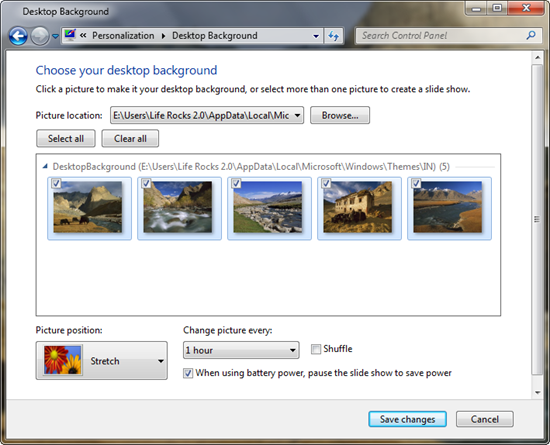
Once you have selected the wallpapers in desktop background settings, then you can change wallpapers by right click on the desktop. When you have multiple desktop backgrounds set, the right click menu shows an additional option “Next Desktop Background Picture”.
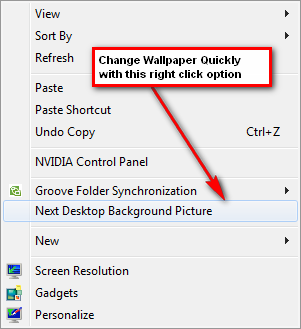
When you click on this option, the next wallpaper in the list will be set the background picture for your desktop. This way you can quickly go thought the set of wallpapers enabled. This option is automatically enabled if you theme has multiple wallpapers.



when i right-click , there is no personalize option. How can i change my backround w/o it???
Yeah, I am having he same problems, I just want to change my background! I shouldn’t have to download an app to do so.
I dont have the personalize option, eitheR?
Apparently changing the background is not an option without third-party software on Windows 7 Starter
Well for this option to work, your theme should have multiple wallpapers attached to it, otherwise, right click on the desktop, select personalize and then you can see the desktop wallpaper option at the bottom of the personalization window.
BTW which version of Windows 7 are you guys using?
mine doesn’t have the option either, and thankfully i’m not the only one but if tht is the case then how can that be fixed? is there a way to have the personalization option put in?
windows 7 starter does not have that option…
when i right click on desktop ther’s no personaliza option now how can i change my wallpaper?
right click “Next Desktop Background Picture” disapear.
Before it works but now it gone, How can i restore it?
in my windows 7 laptop there is no personalisation option please guide me
I am wanting to change my wallpaper to one of the pics I have saved in my pictures folder. It is not giving me the option to do that. How can I do it? I am new to this version of windows and I am wanting pics of my daugher as the wallpaper.
Dear, I am not Nirmal, I am impure. I followed your instructions but there is no personalize option when I right click the desktop. But however thank you very much for your kind help. I think I will stumble to some solution on my own.
Yeah, I don’t have the personalize option either. HELP!
Changing wallpaper is just another one of MS BS options. I went to the trouble to purchase Windows7 Pro …”to get a better set of options”……..what a laugh! I have set up the program for the wallpaper to change every 10 minutes………..it doesn’t. I have done this every day since I installed Windows 7 and it has a different wallpaper every day……..the one that is current when I set it up! Shades of XP Pro…………..it doesn’t come up to expectations!
i dont have the personalization either. i hate windows 7. is there any solution
umm well my dosent have a personalise!! wat do i do so i can change my backround!!
There is no wallpaper options for me needer!!!!!! I don’t understand!!!!!!
If you ppl are using Windows 7 STARTER edition, it does not have this feature.
then how should we change my desktop picture?
there is no personalization option also on mine…It is a windows 7 starter netbook…
Ok , I have starter edition also, so obviously I don’t have the personalization option either. My question is what is the third party application I need to download to get the “personalize” option?
To change you wallpaper follow these steps:
1. Open regedit (aka registry editor; you can access it from the star menu by typing “regedit” in the search box…)
2. Go to “HKEY_CURRENT_USER\Control Panel\Desktop\” folder and click on it
3. On the right hand side find there are a bunch of entries. Find the key named
“Wallpaper” and double click on it and put the path of the picture you want as
your new wallpaper (example path is “C:\Users\Bob\Pictures\new_wallpaper.jpg”)
4. Right-click on the “Desktop” folder in regedit that you found in step 2 and click Permissions.
5. Click “Advanced”
6. Go to “Owner” tab, highlight your name in the box that says
‘Change owner to’ ( There are only two choices the other is Administrator )…
once your user name is highlighted click “OK”
7. Click on “Advanced” again
8. Uncheck the button that reads “Include inheritable permissions from the object’s
parent”… click “Remove” when prompted
9. Click “Add”
10. Type “Everyone” and click “OK”
11. Check Allow “Read Control” and click “OK”
12. Click “OK” again
13. Highlight “Everyone” and check to Allow “Read” and click “OK”
14. Restart Computer and enjoy new Wallpaper
It’s a little long but this is the only way I know to change the wallpaper (C’mon I’m just 13!)
Hope this helps! 🙂 ?
(By the way, Windows 7: Starter does not have the ‘Personalize’ option.)
followed Umika’s exact steps now i have a plain black background and it will not let me put in another path for wallpaper
dear..,
i’m using windos 7 starter and if want want to change wall paper what should i do?
Here’s a quicker way (devised by this French guy): http://pt.kioskea.net/download/baixaki-2695-windows-7-starter-background-changer.
It adds the Personalize option to Windows 7 Starter. Even though the installation language is French, the actual result is in whatever language your desktop is set to display. Once installation is finished, right click on your desktop and select Personlize.
tq umika…. 4 helping us out…..
I dont have this personlize option either. so there is chance to change the wallpaper?
i followed all the instructions and ended up with a plain blue desktop and no pic… HELP???
i followed the instructions & as well ended up with a black screen & no pic…
HELP??
in my aspire one acer laptop how could you change wallpaper
uhmmm i hav the same problem 🙁 how can i put wallpaper in window 7 if ders no personalize?
http://www.stardock.com/products/mycolors/downloads.asp
I dowloaded it on my computer like a year ago and I haven’t had any problems.
If you have a netbook the best picture size is 1024×768.
i am not getting the personalize option in my desktop wen i do right click
Right! That’s it! If you can’t even change the wallpaper easily in Windows 7 Starter then I’m off to apple. Well done microsoft….. what a mess!
Am using Windows 7 Home Premium 64 version, and it does have the Personalize option. I have selected multiple wallpapers and saved the theme, still the screen does not show any pictures. I also tried selecting different themes still the desktop does not display any picture. I have changed the background color to Black to be easy on eyes, and thats all the desktop has. On the right-click menu in desktop, i do see the ‘Next desktop background’ clicking it does not show any picture either. If any of you can shed some light it would be much appreciated. Thanks.
found the answer for changing desktop in Win 7 Home Premium edition at the following link http://social.answers.microsoft.com/Forums/en-US/w7desktop/thread/837ac30a-8f66-4760-bb12-05b120b4eef8
Just do the following:
Control Panel – Ease of Access – Ease Of Access Center
Click on Make the computer easier to see
Scroll down to “Remove background images (where available) and confirm that it is unchecked.
Item unchecked, still defaults to initial selection after shutdown and reboot. Have tried every suggested option found online and wallpaper defaults to initial background chosen during initial setup…reinstalled os with same results!
Hellp please? Been trying to do this for ages, Yes I’ve went to ‘Make computer easier to see’ and the box that says ‘Remove any backgrounds’ , well its already unchecked! Wow Microsoft nice work!
i don’t have the personalize option and i just want to change my wallpaper!! HELP PLEASE!!!!
there is no personalize option help
Is there a Key Board short cut to change to the next desktop background. The right click works for me. I am running Win7 Pro.
Question – I am running Windows 7 Home Premium and am trying to change my wallpaper. I have a photo I wish to use and have set the wallpaper through control panel to display that photo. I hit “apply” then “save” and my photo becomes the wallpaper. But every time I restart the computer, the wallpaper is reset back to the original settings and I have to perform the process all over again. Does anyone know what I am doing wrong? I followed the instructions listed under “help” EXACTLY as written at least 50 times and still the wallpaper resets each time the computer starts!
@Jack,
May be you can save the theme with your custom wallpaper as a new theme which means even if you restart the machine, theme shouldnt change.
Nirmal – Thanks for the suggestion. I will try to figure out how to do that.
Steve – I will let you know if I am successful
Nirmal – No luck in figuring that one out yet…any suggestions?
Jack,
i have the same results…even reinstalled OS thinking error may have occurred at manufacturer.
Please let me know if you find a solution that lasts after reboot.
Thanks
Steve,
On my system I found that by going into start-programs-asus-settings all I needed to do was to uncheck the standard photos being used in the windows wallpaper slide show. When I unchecked them, my system was able to accept my wallpaper change and after a few seconds the wallpaper reverted to my selected setting without even rebooting. On reboot, my settings remained in place. Hopefully this works for you too.
how i change desktop background in my compuer???means i want to change white background…plz mail me.
that is easy just goto
1. Control Panel
2. Appearance
3. Display
4. On the left you will see “Change Color Scheme”, Click it.. then a window will pop-up
5. Then you will see “Advance” Click it..
6. You will see “Color 1” just click it and choose what color you like…
Just do this:
1. got to start menu
2. all programs
3. then you ill you see there..
It works well on my Lenovo S10-2 Ideapad.!!
thank you so much… 😀
tnk u so much umika. yeah its a long way but its one of the best way to change wallpaper for windows 7 starter.
again, tnk u 4 ur time posting. hope it helps to all.
i follow all instruction of umika but same problem my screen turns to black wat’s my next step some body pls help me i want to change my desktop background thanks…….
Hello, this is a seriouslyexcellent post. In principle I’d wish to produce like this as well – taking time and real energy to make a great post.!!!. but what can I say.!!!. I procrastinate alot and never appear to acquire anything done. Thank You
dear all
u can use this program to solve ur problem
http://www.sevenforums.com/tutorials/47294-desktop-background-change-windows-7-starter.html
I have windows 7 ultimate and I when I go to the personalize menu, I select various pictures but I am not able to see the option to change the time options
Hey how do you put the wallpaper which u download.? I mean it not happenening?
You Can download a Apps here to change the wallpaper in your windows 7 starter
Starter backgroud changer
http://www.fileserve.com/file/TB3ngCw
Thanks,
Jon
there is no personnalisation option either. I tried another ways:
1. in picture viewer program – open a picture, rightclick – set as wallpaper – it seems as it works but nothing changes.
2. in Paint – I open a picture and use it’s own “set as wallpaper” button.
I go back to desktop and there is still the same image – which I have got when I bought the laptop.
@jon
I have downloaded the programs but it seems like it doesn’t work.
how to make a shortcut to this command like start+N
You can do something like this:
set WshShell = WScript.CreateObject(“WScript.Shell”)
WshShell.SendKeys(“^ “)
WshShell.SendKeys(“+{F10}”)
WshShell.SendKeys(“n”)
WshShell.SendKeys(“{Enter}”)
you can easily change the wallpaper with a wallpaper changer tool. I use Bionix and is really useful: http://www.bionixwallpaper.com/articles/change%20the%20background%20wallpaper.html
try and see by yourself! 🙂
For instructions on changing your wallpaper or background image, please refer to Microsoft’s article Change your desktop background (wallpaper) . 2020 Acer Inc. This website is best viewed using Internet Explorer 10, Chrome, Safari and newer browsers.