

System Restore helps you to restore the computer to a previously saved state in case any thing goes wrong with your OS. You can configure System Restore for one drive or all drives in your PC, so that when you create a System Restore point, only those drives are restored where this functionality is enabled. To configure System restore, right click on ‘My Computer’ and select Properties. In the left hand side of the properties window, click on the link ‘System protection’.
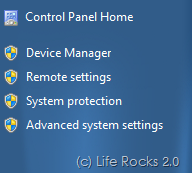
This will open up the System protection tab where you can configure System Restore.
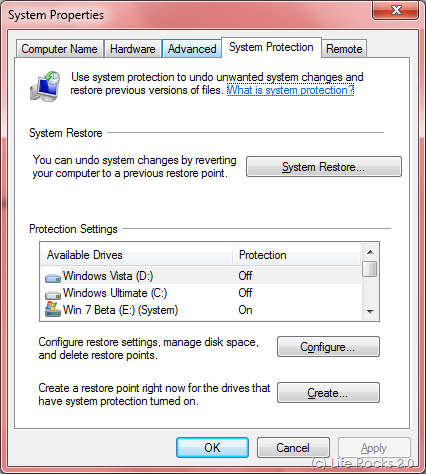
Here you can see which all drives are having System Restore enabled. You can change the setting by selecting the drive and clicking on Configure button.
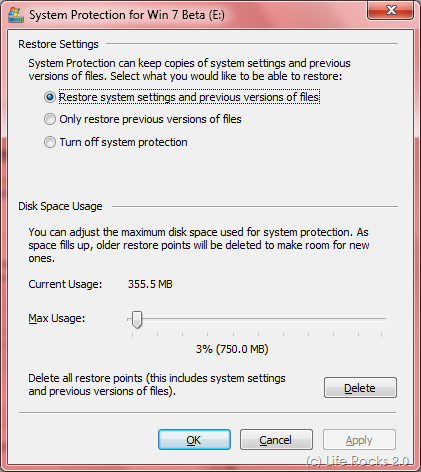
Here you can turn off or on System Restore for the selected drive and also configure the disk space for System restore by dragging the slider. Since enabling System Restore consumes hard disk space, you can it turn off on drives which does not need them.



Thanks for this post, last week i installed windows 7, its simply superb.
Whats is the command line instruction for System Restore in Windows 7?
Can we run System restore from DOS or any emergency Disk?
Not helpful. Does not say how to enable the radio button which would then enable the restore service. This information starts at a place I cannot get to…
If your radio button is not enabled, then you most likely have the wrong filesystem type on the drive in question. FAT is not supported.
Check the below link for command line way of turning off system restore feature..
http://www.windows-commandline.com/2010/09/enable-disable-system-restore-service.html