

Windows 7 has one of the major changes in UI in the form of task bar which is called Super taskbar. Windows Live Messenger or any other IM clients generally minimizes to system tray in Windows Vista, but in Windows 7, even when minimized it stays in the task bar. If you feel the task bar gets crowded with icons, you can minimize messengers to system tray using the simple hack.

1. First close any running instances of Windows Live Messenger and then open Program files-> Windows Live-> Messenger folder
2. Here you can find msnmgsr.exe file. Right click on the file and select properties.
3. In the properties window, select compatibility tab. Tick the check box for Run this program in compatibility mode for under “Compatibility Mode”, and then select Windows Vista from the drop down list.
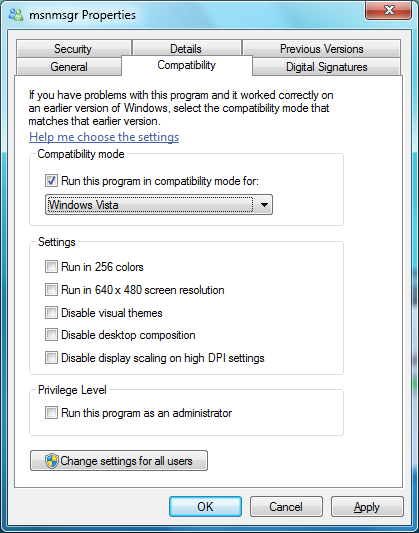
4. Click OK and now sign in back to Windows Live Messenger. Now if you minimize the messenger, it goes to system tray.


This is a nice tip as we “Win 7 beta” testers are getting used to all of the Windows 7 changes. Thanks a lot!
This doesn’t seem to work for me, maybe because I’m in 64 bit, but it just crashes and does an MS error report.
I tried this tip aswell, it worked for about 2-3 hours. Now when i try to open it, i get an access violation error. If i uncheck Compatbility Mode, it starts fine, but then i can’t minimize it to the System Tray.
Any help would be greatly appreciated.
@Nick and Nate,
Thanks for the feedback.
This might not be a permanent hack and its not tested on 64 bit. We have used this on 32 bit machine.
anyone have a working fix for this as changing comp mode doesn’t work and hasn’t work for me since i first tried
must be some registry hack to force to sys tray
please help
I’m running the 64 bit version and it worked great! thanks a lot
😀
thank god… it was so anoying.
works fine in x86.
Thanks for this, saved me some time screwing around =]
Thanks. This works for Windows Live Mail too.
THANK GOD for this!
I was just about to buy a ticket to Redmond and a shotgun to go with it!
Have they been smoking pot when redesigning the taskbar or what??
Yeah lets make thing better, by adding at least two extra windows for ONE instance of Messenger!
Way to go MS!!!
The uselessness leaves me lost for words! ( almost).
Thankx man… that was a life saver…
I’m always struggling to have only a few windows on the task bar… and then out of nothing 2 windows for the same instance of messenger… out of with one we could never close..
Microsoft Never Ceases to Amaze Me, with their lack of product testing…
Best Regards
Thanks. I can’t believe it was set up like that. It took me a few days to realize that it was actually shutting down MSN every time I closed that on my taskbar. Thanks for the fix. Running x64.
I think micro$oft forgot to ask their usability testers opinion in this matter.
Works for me. Put it in Vista SP2 mode. I’m on Windows 7 RC 7100 x64.
Thank you so much for posting this! It worked like a charm for me… running Windows 7 RC 7100 x32.
Worked great for me on x64. Thank you!
I’d suggest compatability mode to Vista (w/o service pack). Minimizing to Systray works great (I’m using W7 RC- 64 bit).
When I choose XP it runs as administrator, and messenger is not a program you want to give administrative permissions to.
Utter silliness to omit such an easy and defacto standard in coding! Why not put a checkbox in the options? Works perfectly fine in x64 build 7200. I did, however do mine a different way.
Find Win Live Messenger in the start button and right mouse click, then go to properties. Next, on the bottom, open file location. after explorer launches and shows you the absolute path back to the file, now right mouse click and go to properties. Set properties for all users, and set Vista Compatibility mode on the actual program instead of the shortcut.
This keeps it strait for all users, and will make sure it launches right if it’s in your startup (I know wasted CPU but what good is a Core 2 Quad, 6GB of RAM, and a 9800GX2 video card otherwise?)
Don’t check run as administrator unless you want UAC popping up every time you launch!
i suppose my method is just an easier way to find anything with a shortcut, because you are also changing the program itself and not the shortcut. Derp… sorry I just saw compatibility mode and that’s all I needed to hear!
thanks very much for that tip i like all the new features in vista but that is definitely not one of them
Works for me on Windows 7 RTM x64. Much thanks!
Thanks,
Simple and helpfull.
Worked fine for me
wow thanks man! windows 7 RTM 64-bit here!
but i guess you have it incomplete. it’s this for the gents in still trouble:
1. follow above instructions by the dude nirmal.
2. after opening the WLM window, right click its icon in the taskbar, then select Hide window when minimized.
3. try minimizing the window and poof! it’s gone!
hehe..hope i’m not double posting. actually this is the WLM 2009 build 14 version (so far the latest version).
It works when I start it, but once I maximize it, it goes back to default when minimized.
So as long as I don’e use it, it is in the systray instead of on the taskbar.
Genius. Thanks. I’ll keep that in mind for other programs too.
very helpful thanks!!!
OMG have you tried “exiting” msn messenger? you almost can’t. if you close the window or sign out it goes back to task bar, you can’t exit from tray, and close from client minimizes it to task bar. Close window from taskbar, instead of closing the window, actually exits..
Top 3 annoyances in 2 days on Windows 7:
1) Quicklaunch removal
2) System Tray changes
3) Messenger & System tray behavior
I have Windows 7 Home Premium-64 bit. Just confirming that this DOES work for us as well. Thanks for the tip. 😉
Works fine for me, thank you very much for removing this annoying ‘improvement’!
Thanks for the tip! .. Geez messenger should stay tray’d.
WOw thanx!!!
I’m was looking for a Win Live MAIL option to minimize to system tray, nothing works but this works perfect.
WIN7 ultimate x64
work for me.
thanks! was really annoyed by the icon in the taskbar! this works perfectly!!!
Thx very much for your advice!!
I don’t know about the rest of you guys but I selected the “Windows Vista (Service Pack 3)” mode and in my 64bit OS worked just fine…
You are the smartest !!!! Thank YOU
now that was really smart, and very helpful. cheers mate 🙂
nice tutorial buddy
works here with Windows 7 x64 Ultimate
thx alot
Wow, amazing, thanks so much. Works with Win7 x64 Ultimate
works great for me on 64bit win7 home premium
Thanks, works great under Win 7 x64 Ultimate!
thank you so much !!! it works so great!!!
Awesome! Works like a charm.. thx man
worked like a charm! thanks ! it was so annoying
Thanks a bunch. It worked great for me.
Great tip! It drove me nuts not having the system tray icon and being stuck with 2 taskbar icons in its place. Working great on Win 7 Pro 64-bit.
Nice…
Thanks much. Very useful hack.
Awesome! Thanks for helping me put Messenger back in the task bar where it belongs!!
Also that drag to share thing is really cool. How do you do that?
That didn’t work at all, unfortunately.
Figured it out… instead of using the “minimize” button you have to click the X (close) button and it’ll stay open but minimize to the system tray.
thank you ..
for turkish ..
http://virtualsecrets.wordpress.com/2010/01/28/windows-live-messenger-ve-windows-7/
Champion! thank you!!
Thanks!!! 😀
Thank you
Useless microsoft can’t even fix their own software!
Thnx a lot! i spent hours trying to figure out exactly wht to do with it!
Nice, quick easy fix!
This is great – works like a charm on Windows Live Messenger, but it doesn’t seem to work for AIM no matter what compatibility mode I choose. Is there a way to fix that?
Stop using AIM newfag
now to the real question, how do i make it start when i login? i tried run as administrator, it still doesnt start, and i try to run it, no matter what i do, it always gives me that stupid stupid prompt of user account control, that i dont want to switch off because i know its important in other places! so whats the solution then?
Awesome!! Thanks very much – great find!!
Thanks, big help. Saved me from Windows rage.
Thanks so much!
Great fix, Nirmal – much appreciated.
hi,
thank you for your tip, really its working fine.
Thanks a bunch, much appreciated.
Thanks, I was about to go back to XP, just because of that
It works! Thank you very much 🙂
Hey, thanks alot for this tutorial. Much help, no fuss, really quick too. Worked a charm.
I will be telling friends about this 🙂
thank you – that was very helpful. such a relief to get it off taskbar. it just doesn’t feel right there.
Thank you very much
its very useful
awosome, thank you very much
Thanks a lot.
thanks so much for the solution!
Works – thanks a lot!
Thank you so much! Ya gotta love the Internet!
thanks…was a verry annoying for me…thanks again
thanks
Not sure what I’m doing wrong, but X’ing out of the window closes the program on both the task bar and system tray… I changed the program to Vista compatibility.
thank you… very useful findings/hack indeed
Nice hack! One thing that I had to change to get it to work though – after you’ve put it into Vista compatibility mode and you’ve re-started it, you have to right click on the Mail icon on the system tray and check “Hide window when minimised”. Otherwise, it will just minimise to the taskbar or close when you press the minimise/close button.
Thanx nice fix…! Microsoft should be that creative
Thank you Indeed Man, pretty easy action saved me the headache i had because of this stupid two items on the task bar as well as the ability to minimize to system tray, my appreciation
Thanks man! It’s a stupid thing to get annoyed about but it is nice to have everything work ‘just so’.
thx a lot man 😛
Finally!
thanks a lot!!
🙂
Thanks a million.
Thanks. That’s worth a lot of time. Thanks!
thank you. worked like a charm. 🙂
Hi Nirmal,
Thanks so much. I think i will need lot more help from you now. I just bought a new laptop and windows 7 looks so different. im so used to vista. I will ask you questions if you dont mind.
thanks.
Great tip. I hate having msn messenger on my task bar.
Thank, you’re awesome!
I usually use another client for msn, but at work I have to use the official one and it was really annoying to have it in the bar. Thanks!
not working in here plz hel i have win 7 ultimate 32 bit i tried what you awl said but nothing done … wlm icon doesnot fit in there .. plzzz help me
Great fix! thanks a lot!
Thanks man.Worked like a charm
Windows Essentials was recently updated and this doesn’t work anymore. Anyone have another suggestion?
many thanks!!! that was driving me crazy!! I hate things in the task bar!!
Thanks a lot. Excellent post
Really, it done. I’m Feeling lucky. very good help, I get ever. many thanks sir.