Techniqued- Technoloy, Review and Tutorials
  • Android
  • Freewares
  • Tutorial
  • Windows 11
  • macOS
No Result
View All Result
Techniqued- Technoloy, Review and Tutorials
  • Android
  • Freewares
  • Tutorial
  • Windows 11
  • macOS
No Result
View All Result
Techniqued- Technoloy, Review and Tutorials
No Result
View All Result

How to Scan QR Code received on Phone Without Using Another Phone

Nirmal by Nirmal
February 7, 2026
in Android
0
Share on FacebookShare on Twitter

We use QR codes to scan items, especially when it comes to making payments via UPI. Making payments via UPI is now the most popular method. But what if the QR code is sent via WhatsApp or email to your phone? In such cases, how do you scan the QR code without having to use another smartphone? Here is the simple trick to scan QR codes received on a phone without using another phone.

Related Reading: Desktop QR Code Reader for Windows
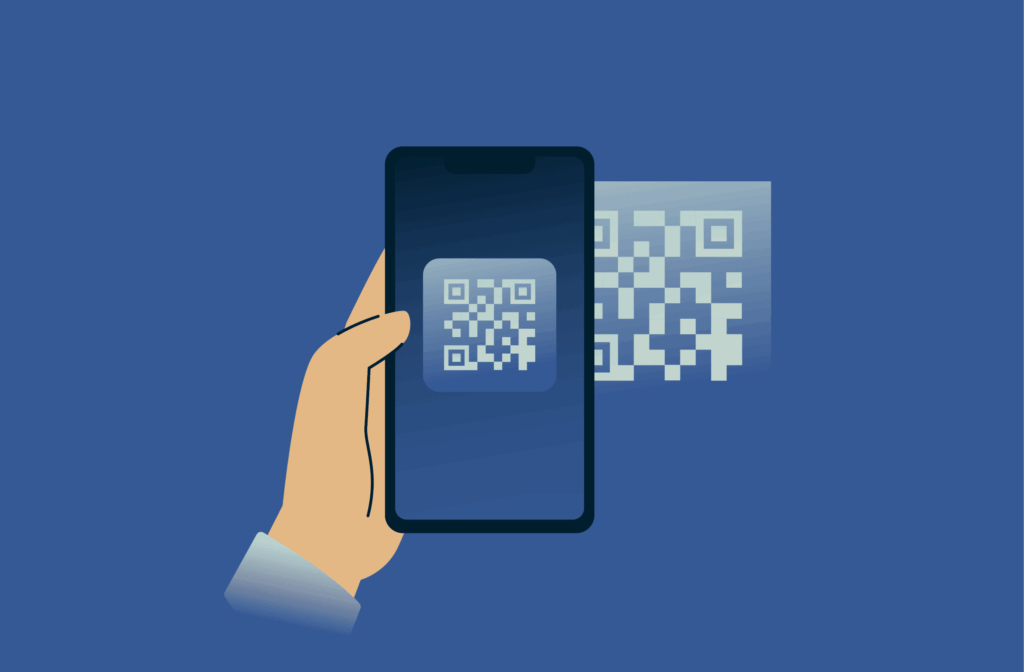
Scan a QR Code Received on a Phone Without Using Another Phone

How to Scan a QR Code Received on a Phone Without Using Another Phone

Google’s Android system has multiple options using which you can scan any QR code that you receive on your phone. Here are the different ways.

Step 1: First step is to open the Google search option on your phone. You will see a small icon on the search bar on the right-hand side. This is called Google Lens. Alternatively, you can also install the Google Lens app or access Google Lens from your camera app (if your phone supports it).
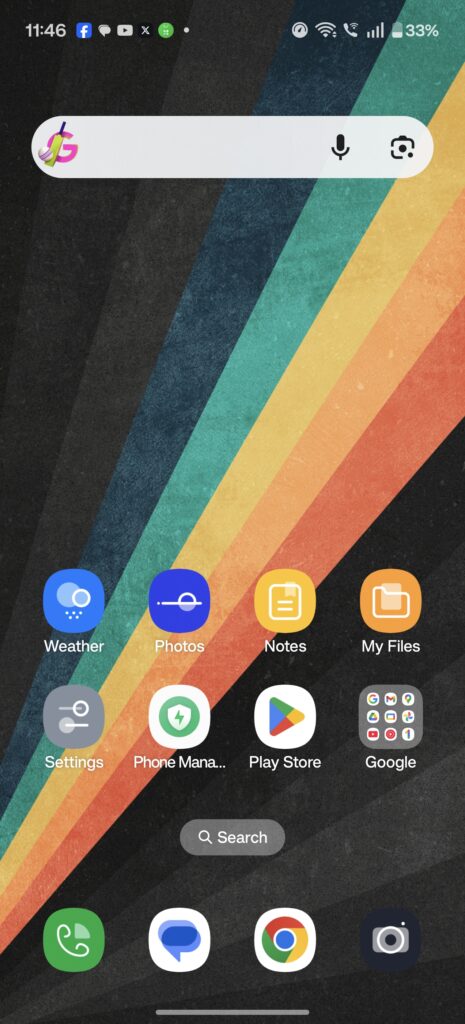
Step 2: Click on this option, and it will prompt you to scan anything using the camera.
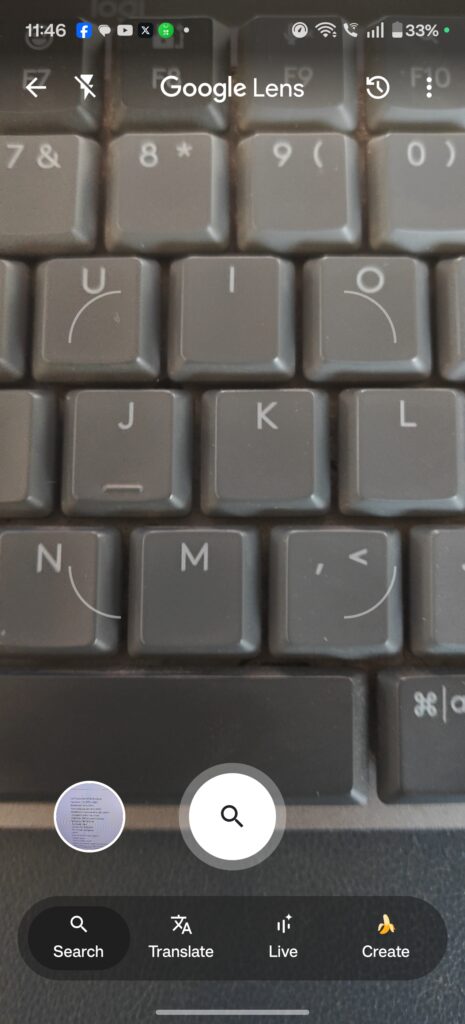
Step 3: Since the QR code is already in the phone, you will need to select the image from the gallery. Here you will see an option to access the images available in the gallery.
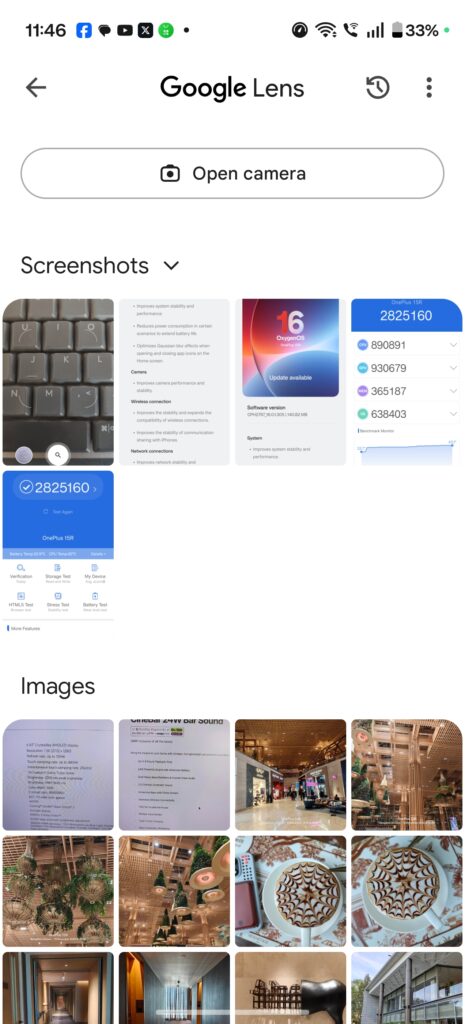
Step 4: Find the image using the gallery option and select it.

Step 5: Once you select it, Google will automatically scan the QR code for you.

Another method is to use the Circle to Search option in Android phone. To do this, first open the QR code on your phone, and when you press and hold the bottom bar of your home screen, this will bring up the Circle to Search option.

Here you will be able to circle anything on the screen. You can circle the QR code, and Google will scan it for you.
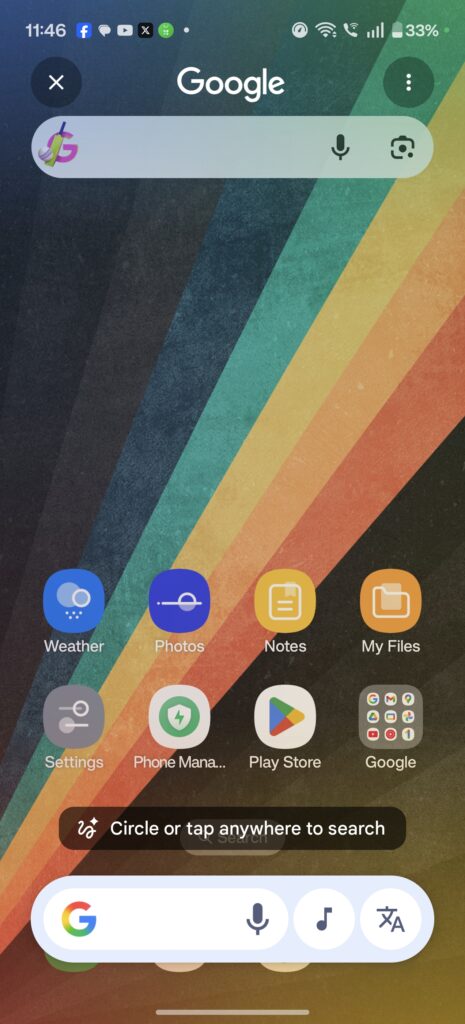
These are the two easiest options to scan a QR code on your phone without using another phone.


ShareTweetSendSend
Previous Post

How to Fix “Installation can’t continue” when trying to Update Nvidia Graphics Drivers

Related Posts

Android

Hyundai Bluelink Subscription Cost in India

May 13, 2024
Android

Why Every Android Smartphone User Should Enable Glance Smart Lock Screen On Their Phone

December 17, 2023
Android

10 Best Android Auto Apps [For Car]

December 6, 2023
Android

10 Best KWGT Widget Packs for Android

November 14, 2023
Android

5 Best Minimalistic Android Launchers

October 27, 2023
Android

How to Find Hidden Apps on Android

September 19, 2023

Leave a Reply Cancel reply

Your email address will not be published. Required fields are marked *

This site uses Akismet to reduce spam. Learn how your comment data is processed.


Latest Articles

How to Scan QR Code received on Phone Without Using Another Phone

How to Fix “Installation can’t continue” when trying to Update Nvidia Graphics Drivers

Download Windows 11 24H2 ISO (Offline Installer)

Can I Run Windows 11 without Activating

How to Use Snapchat on PC

How to Delete YouTube Search and Watch History on iPhone

Techniqued- Technoloy, Review and Tutorials

© 2021 Techniqued - Technology, Tips, Tricks and Reviews

Navigate Site

  • About Us
  • Advertise with us
  • Contact Us
  • Copyright Policy
  • Disclaimer

Follow Us

No Result
View All Result
  • Android
  • Freewares
  • Tutorial
  • Windows 11
  • macOS

© 2021 Techniqued - Technology, Tips, Tricks and Reviews

This website uses cookies. By continuing to use this website you are giving consent to cookies being used. Visit our Privacy and Cookie Policy.