

Microsoft has rebranded the Hotmail webmail service to Outlook.com and also released a new look webmail service with lots of new features along with option to create an outlook.com email address. You can either rename the account or create an alias for your account. Microsoft also warned Windows Phone users not to upgrade the account if using the same account on Windows Phone. One of the features of Outlook.com is creating a list of contacts which are blocked. If any email is sending you spam or unnecessary newsletters, you can always add the particular email account to the blocked list and from there on, you will not receive emails.
How to Block an Email ID in Outlook.com:
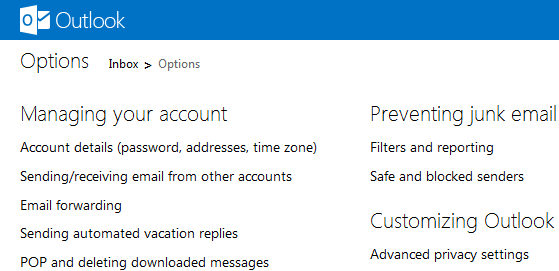
To block an email ID in Outlook.com, open the settings icon on the top right corner and select “More mail settings”. From the options select Safe and Blocked senders listed under Preventing Junk email.
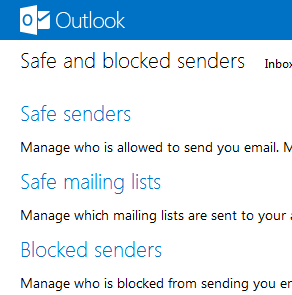
Under the Safe and blocked senders, you can see the option “blocked senders”. Here you can manage the blocked senders list.
You can add or delete an email account to the blocked list.
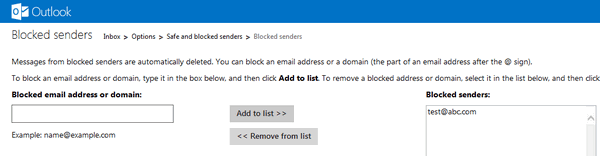
All emails from the blocked senders are directly deleted from the email inbox.








Awesome post thanks for sharing
great tips thanks a lot