

Android Ice Cream Sandwich or 4.0 is the latest version of Android and was released back in October 2011 along with the Google branded phone Galaxy Nexus from Samsung. Android 4.0 has many improvements and features along with a new UI and launcher. As mentioned previously the adoption rate for ICS by manufacturers have been very slow and we have only 5% of the total Android phones using ICS. If you are yet to receive ICS for your phone or if your phone does not have an ICS update, you can try out ICS from your PC.
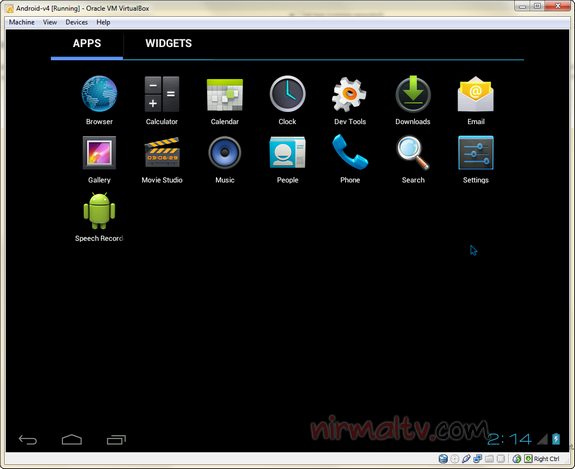
So if you want to just try out ICS and find out the features including the look and feel, then you can try this virtualization options available. Follow the below steps to get started.
- First step is to download Oracle VM VirtualBox, to do this head over to their download location and download the the relevant VirtualBox binary for your computer based on your OS (Windows/Mac OS X/Linux/Solaris).
- Once downloaded, install VirtualBox.
- Now head over to VMLite website and download a copy of the Android ICS which has been preconfigured for virtualization. The good feature of this package is that it supports mouse gestures. The download size of the file is around 90MB.
- The downloaded file will have a name Android-v4.7z. Now extract the file on your PC.
- Open the folder Android-v4 and then double click the file named Android-v4.vbox.
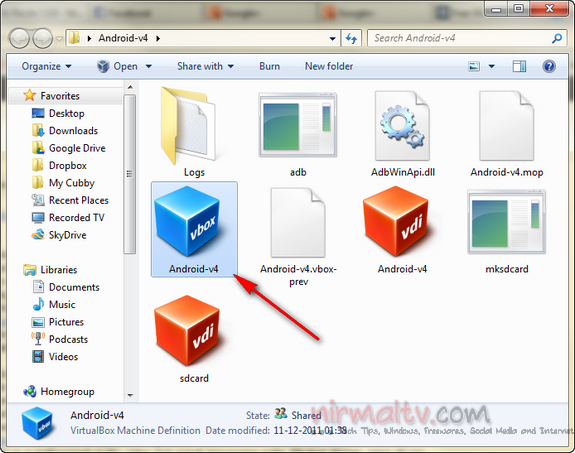
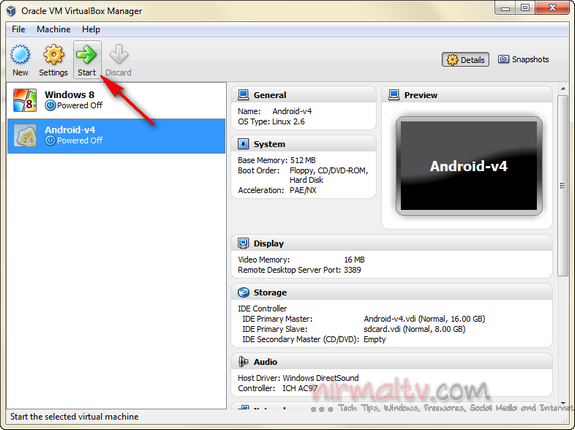
- This will open VirtualBox with Android ICS pre configured. Now select the Android-V4 option and then click the start button on the top.
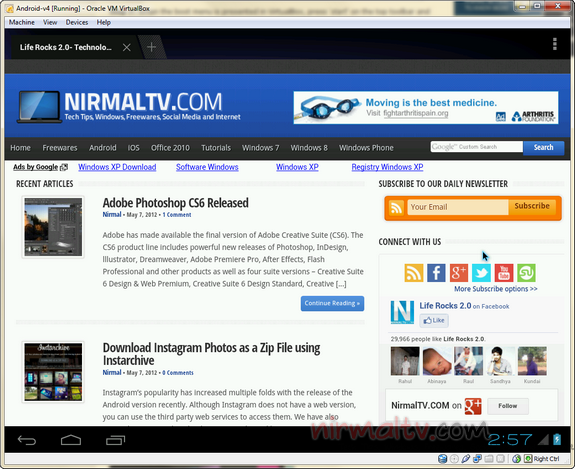
- This will boot up Android ICS and if asked, select the ‘Android Startup from /dev/sda‘ option. You can now enjoy the basic features of Android ICS on your PC.
You can also download other x-86 versions from here.
Thanks to Redmond Pie for this tutorial.








I have installed as per your screen shots but the error message appaers :
Unable to boot – please use a kernel appropriate for your CPU.
Did u try the default ICS enabled for visualization or downloaded it from Android-x86 site?
Same prob here. I have done everything you said. But error comes.
Does your processor support visualization? Not all processors have this ability.
Yeah of course. I have latest intel 2nd gen i7 processor. let me try the tweek from Amit Bhavani. Thanks.
You have windows 8! how did you get that?