

We have covered free tools like Skydrive Explorer and also Gladinet which can help you to access Windows Live Skydrive as a network drive. If you do not want to use a third party tool to access Windows Live Skydrive, you can still map it as a network drive and access any folder in Skydrive. For mapping Skydrive to Windows Explorer, we are using the SSL connection and for this we need the unique ID (WebDAV access) for connecting which can be obtained using a small portable tool.

1. First step is to get the WebDAV access address for your Skydrive account. For this there is a simple portable tool called SkyDrive Simple Viewer developed by Mike. Run the tool and login to your Skydrive and select the folder which you want to map.
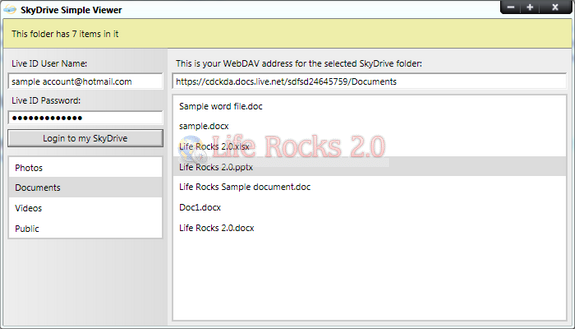
In the image above, you can see an address corresponding to the folder I have selected. The address looks like this-
https://cdckda.docs.live.net/sdfsd24645759/Documents.
Here the sdfsd24645759 refers to the path which is the same as a personal sub domain when logging on to SkyDrive the normal way from your web browser. It can look like “http://cid-sdfsd24645759.skydrive.live.com/”. The sub domain cdckda refers to the your account and the folder you are trying to access.
2. Next step you need to make some modification to the URL.
The original URL- https://cdckda.docs.live.net/sdfsd24645759/Documents
Modified URL- \cdckda.docs.live.net@SSLsdfsd24645759Documents
We are connecting using the SSL for Windows Live Skydrive.
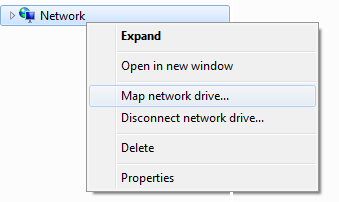
3. Open Windows Explorer, right click on the Network and select Map Network Drive.
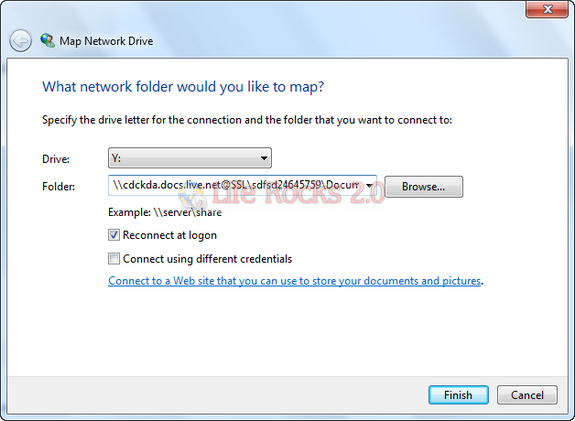
4. In the Map Network Drive option, enter the folder as \cdckda.docs.live.net@SSLsdfsd24645759Documents. You can also chose to reconnect at Login and if you want to connect using multiple account, check the second box as well.
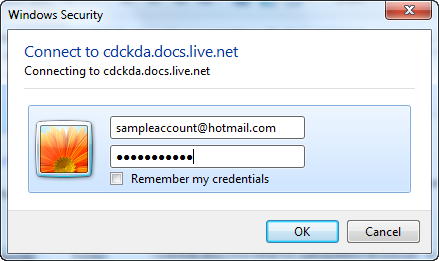
5. It will prompt you to enter the Windows Live credentials after attempting to connect to Skydrive.
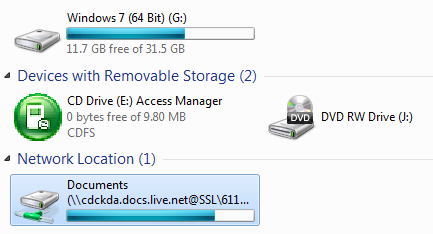
Now the network drive will be connected and you can see the drive in Window Explorer.
Thanks to Mike for this detailed tutorial.







Great summarization of how to use the tool. I’m glad you found it useful.
Another similar tool is “SkyDrive Explorer”. I love it 🙂
Very cool but the drive name that shows up makes me want to barf, especially when I was hoping to make this a Z: drive, but instead it is asdfjasod.docs.live.net@SSL
oh well a small price to pay..a little barf never killed anyone
Great work! Thank you very much for this documentation.
just cuz im obnoxious like this.. actually people can die from barfing… but anyways… thanks for the tutorial! i hate using the web interface!!!
Hi I was glad to see your post on how to network Map Skydrive. I downloaded the Skydrive viewer and tried to run it. I found that it replyed I had the wrong username or password. I know the username and Password are correct, I can log on to Skydrive directly. Any Ideas? Thanks
@Peter – try changing ur network settings.. my office network doesn’t allow connections from the Skydrive Viewer.. I disconnected and connected using another open wifi and it connected and brings up all the addresses.
must be the same for you.
I keep getting an error saying the network could not be mapped on windows xp..
Drive always fails to reconnect on Windows 7 restart. Any suggestions?
It does not work. One address that DumpUrls gives me looks like this:
https://l182o2.docs.live.net/cbc0de0044197e09/TODO
but mapping this address does not work:
\\l182o2.docs.live.net@SSL\cbc0de0044197e09\TODO
Was there a change recently which broke this or do I have some problem with my ISP blocking filesharing over SSL?
You are mapping it wrong.
I believe it should be:
\\l182o2.docs.live.net@SSLcbc0de0044197e09TODO
You have slashes in the middle. Hope that helps. I noticed most people with this issue are mapping it with too many slahes.
Always double check what you have typed before anything else..
yes you are correct this is the correct way we were mapping it wrong before
Gladinet FTW
Excellent tutorial… thanks for sharing.
Getting a drive is useful because we can share the same drive in multiple computers (linux as well) unless I can figure out how to map drives in linux.
Thanks for the useful tips.
Type your comment here..I run the console tool and get the following URL:
https://cqlg7s.docs.live.net/e10f30688e80ea25/^.Public
which I translate to:
\\cqlg7s.docs.live.net@SSL\e10f30688e80ea25\^.Public
but when I use this in the ‘Map Network Drive’ dialog I get the error:
“The network path … could not be found”
I’m using XP still (I know, I know….)
Any ideas?
Thanks.
Hi there,
You are also mapping incorrectly.
You have slashes in the middle. Hope that helps. I noticed most people with this issue are mapping it with too many slahes.
Works great.. Very helpful.
Thanks! =)
Does this work for Windows XP? Or is there another workaround besides the pay programs? It looks like it doesn’t like the network address.
I am able to connect to my Skydrive folder but when I try to upload a 13.5KB file I get an error saying the file “is too large for the destination file system.” Huh? 13.5 Kilobytes is tiny.
For the ones having problems in XP, run Add Network Place Wizard. When asked for the address, just copy and paste the URL from the SkyDrive Simple Viewer. No modification to the URL. needed. Bonne appetite!
I have the same problem as Ron. I try to copy a tiny file the network drive and windows complains “too large for the destination file system”. This is on Windows7 64bit. Any ideas ?
I also get the “the file is too large for the destination file system” error using this method — It happened on a 90kb file, but I was able to drag and drop the file using the manual interface, when I looked on my map drive it was there, still 90kb and nothing wrong.
So the message is definitely erroneous, but what’s the fix?
hmm….i can see the drive fine after i map it but i get permission denied when trying to copy a file. i can however create new folders just fine.
There is a problem with the solution. Mapping the drive works fine. However, you will get the message “the file is too large for the destination file system”. This is because you can only copy files with extensions like DOC, XLS, PDF. I was even able to copy a DBF file. When you try to copy EXE, ZIP or others, you get the error. Any suggestions?
no go for my XP PC (cannot find the share).
no go on my WM2003SE pocket PC with Resco Explorer – same issue
This apporach (mapping a cloud storage device as a network drive to any system) would be the ultimate and ONLY useful approach for online file access, albeit it seems not to work with any of the currently services I tried, too bad…
Hello,
I get the same problem. I can dowload files from SkyDrive but I cannot copy any file to it. I can create a new folder but then I cannot rename it afterwards.
I run XP Home version SP3.
Did you find a solution to this problem?
I’m having the extension problem that everyone else is having. Anyone have any idea how to get around this problem? I was hoping to use the skydrive as a file storage for web files.
Thanks
I installed Gladinet & SDExplorer and I can copy any files without any problems.
But using Windows 7 64 Bit Network mapping method as described here I cant copy any jpg files in Windows Explorer. Only doc files and stuff.
I get a Destination Folder Access Denied: You need permission to perform this action
Im confused since it does work with Office 2010, with Gladinet and SDExplorer.
Anyhelp is appreciated.
I created a little cmd file to deal with the file extension limitations. It will add a “.bak” extension to a file to allow it to be copied to the mapped SkyDrive. I use the S: drive but you can change it to whatever mapping you use. Then you can use the SendTo shell option to copy the files to SkyDrive.
rem Syntax: SkyBack {filepath}
rem Copies files to the S: drive appending a .bak extension
rem Note: add a shortcut to this batch file in the SendTo folder
rem and make sure there is no startup directory specified (it should be blank)
copy %~nx1 S:%~nx1.bak
pause
modified script – now takes files with spaces in them and also uses the directory structure off the source drive. (you need to create the folder structure first – use xcopy source dest with the /t switch.
Echo off
rem Syntax: SkyBack {filepath}
rem Copies files to the U: drive appending a .bak extension
rem Note: add a shortcut to this batch file in the SendTo folder
rem and make sure there is no startup directory specified (it should be blank)
copy “%~dpnx1” “U:%~pnx1.bak”
pause
Could you modify it to check the 50MB limit? Also, is there a way to choose multiple files? It only copies the first one….
I had trouble doing this too.
I created a blog with my solution here:
http://blog.itinc.biz/2010/12/how-to-map-driver-to-your-skydrive.html
Awesome tutorial! I use to be able to map a network drive to skydrive simply by copying the web address to that skydrive folder, but recently when I logged into windows it didn’t reconnect the drive and I clicked on disconnect which completely removed the drive from My Computer. When I went to re set it up it wouldn’t connect. This method works like a charm though, thanks.
Apparently this way doesn’t work anymore, but I figured out how to make it work. Go to Map Network Drive (like before), but this time, put in the entire link that you get from SkyDrive Simple Viewer. I got it set up like that easily and I’m able to transfer text documents but for some reason I can’t transfer images. If anyone can figure out how to transfer images this way, please let me know.
It’s very useful, thank you very much!
why does my extension look different?
https://cid-289d2eaa04a8b206.office.live.com/browse.aspx/.Documents/music
It works but shows the total and free space of the C drive
My Sky drive is not 1.81 TB with 1.16TB of free space
Whenever I enter my username and password into the Simple Viewer application, it tells me that I have 0 folders in SkyDrive. Has anyone else encountered this issue and/or figured out a solution?
Are you going to update these instructions soon, now that SkyDrive appears to have changed a bit yesterday (6/20/11)?
Thanks for the instructions. Had to go to EI and set auto detect off for lan and finally connected.
Now it comes up just like another drive. My issue is that it says the folder is empty and I cannot see any files. I know I have over 25 files.
When I run Mike Plate’s command line thing, it just comes up with < not expected at this time
Why is this?
I have tried this on several machines. Win7 and win2008R2.
It works fine if i use the slashes (backslashes also shown in pic 5.) \\q6rpe5.docs.live.net@SSL\2984629647354\Skydrive_online
If i use it without the backslashes in path it looks like its connected but drive is empty. Also write “WWWDavR..” in front of the maped drive.
I have another machine with windows 7 that just wont connect with or without slashes. Also tried remove “auto settings” in IE Lan connections. any ideas? i will return if i find the “bug”
@ Nico: I have the same problem with Win7. I just cannot connect, it keeps asking for my credentials :-s. I searched on the internet and some people say that it can be the service WebClient (must be running and set to Automatic). But this is not the issue :-s. Win7x64 btw. If you find solution, please post it.
Just a heads up for those of you going to use this method. I had this method working for 3 months on my desktop. I just recently started mapping it on my Laptop, and it’s causing a strange bug in Windows. I just managed to narrow it down to the skydrive mapping. On startup, after login, it runs the Winsat tool, and then simply stops at a white screen. Can’t ctrl+alt+del, cant do anything. Safe mode/system restore fixes it, but as soon as I map it again it messes up. Very strange bug. Might just be my computer (Sager 5125)
Little addition to post. Those, who are still on XP, just copy url from Simple Viever and only replace prefix ‘https://’ onto ‘\\’ and use your Live Passport login and pass to map drive. Sorry for my english. Good luck with mapping.