

If you are using Windows Live Hotmail, you might be knowing that you can have push email on Windows Mobile. Google has now enabled push email for Windows Mobile users using Active sync. You can set up Active Sync on your Windows Mobile to enable push email for Gmail. Using Google Sync, you can synchronize the built-in Mail, Calendar and Contacts apps on your Windows Mobile device with your Google account. To set up push email on Windows Mobile, follow the below steps.
1. Open Active Sync on your Windows Mobile from the programs.
2. Click the link “Set up your device to sync with it”.
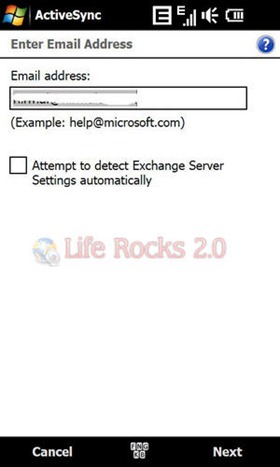
3. Enter your Google email ID and click next.
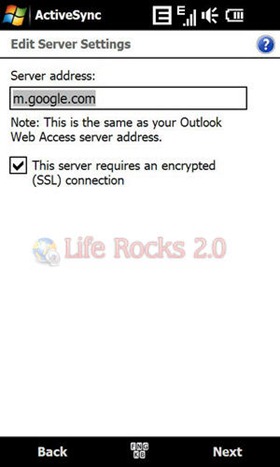
4. In the server address, enter m.google.com and click next. Check the box against “This server requires an encrypted (SSL) connection”.
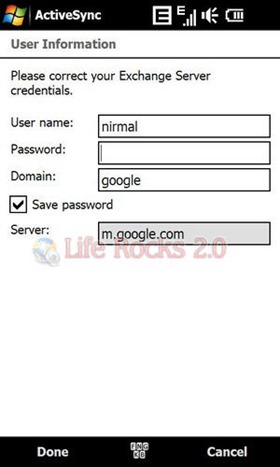
5. In the next step, enter your login credentials, leave the domain blank, but in case it is not allowing without entering domain, you can enter it as google.
6. Next, choose the data you want to synchronize.
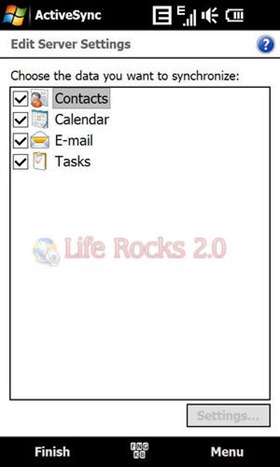
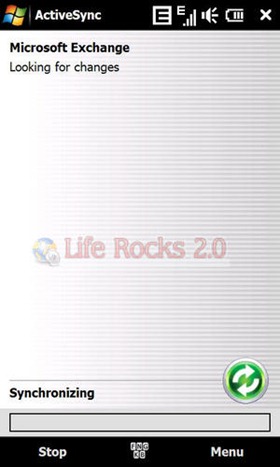
7. That’s it, Active Sync will try to synchronize Gmail with your Windows Mobile.
If you are using Google Apps, your administrator will first need to enable ActiveSync before you can take advantage of this feature.





Didn’t this already exist? I’ve had Gmail on my iPhone (set up by choosing “Microsoft Exchange”) for a long time now. What is the difference between what I had and this new setup?
Hellow,
i have htc hd2,
i have tried with the above,
but it did’t work at first time, at second time i inserted
“@gmail.com” on the end, and it works 😀
regards
Thank you for the details.
Regards,
Saurabh