

Opera 10 Beta version has been released and it comes with new features and one of the important update in this version is the turbo mode. Turbo mode in Opera 10 increases your internet bandwidth speed on slow connections using data and image compression technologies. This feature uses Opera proxy servers to compress the traffic before it reaches the Opera browser installed in any PC.
This turbo feature can be configured on your Opera and to do this, right click on the bottom left corner icon and select configure Opera Turbo.
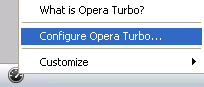
In the configure box, you can set the mode of turbo. It can be configured to be automatic, On or off.

- Automatic: Turbo will enable only if it detects a slow network
- On: Optimize pages with Turbo so they load faster on slow networks
- Off : Load pages normally
- Notify me about network speed: Network speed indicator becomes visible within the Opera Turbo icon on the Status Bar
So have you seen any increase in speed with turbo, share in your comments.







I had used this for a while & tried Opera Turbo too, it is true that Opera Turbo work..
thanks.
BUT – one thing you forgot to mention: you need to have the Status bar enabled in order to do so.
with turbo on, I could not access twitter ,and had no idea how to disable it because the Status bar was not enabled. Thanks Dan
this is the kind of stuff that drives me crazy…
WHERE IS THE BOTTOM LEFT ICON I AM SUPPOSED
TO CLICK ON?
I cannot find this – ” right click on the bottom left corner icon and select configure Opera Turbo.”
Turbo slows my computer down!!! I have spent nearly an hour trying to find out how to turn it off!!!!!
Bill, go to Appearance, Toolbars, and enable Status bar. Then you will see the icon.
Thank you for the tip about enabling status bar to turn Opera Turbo off! I decided to enable it one day, and had no way to turn it off! I enabled the status bar long enough to disable Turbo and then disabled the status bar once again – Wahoo!
damn turbo shit slowed my stuff down lol, also once it turned itself on i lost the top of the window so to close the browser now i have to do it from task manager!
i also have nothing in the bottom left corner to click on!