

Adding a signature to your e-mails will add a professional touch to your emails especially if sending corporate emails. Adding a signature to emails is the same way as in Outlook 2003, only difference is that you can add a signature using the ribbon feature in Outlook 2007.
Open Outlook and click on compose new email, when the new page comes up, select the Insert tab on the ribbon.

Click on add new signature and enter a name for your signature. Enter the details you want in the signature and then save it. You can choose a default signature if you have more than one signatures. You can set you font, size and colour of signature.
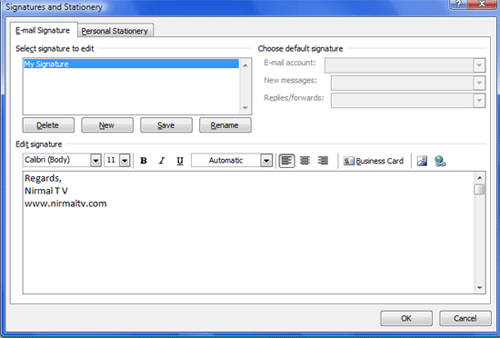
Now select this signature from the Signature menu in Insert tab.






Nirmal, I am sure this will do wonders, especially for corporate emails. I wish I had this facility then (1o-12 years back) when I was working in the corporate world. Anyway, if not me, then, of course the present day corporate world can try this out. It will sure leave a positive impression of the emails. 😉
Sangeeta
http://www.worldinurpocket.com
lol! I’ve been trying to figure that out for the last 20 minutes… Just gave up and googled it and found this tip 🙂
thanks a lot and damn MS ! 🙂
Mitch
i can add signitures to my email but how do you add more than one to an email as i try to add more and it just replaces the one i had put in previously…im confused as you can do it in the older versions but not on this version
Hi,
Because corporate emails are normally controlled and managed through a single point (normally your IT department), it is far more effective to design and apply these through Exchange Server and a tool such as Exclaimer which is designed specifically for email signatures
http://www.exclaimer.com/products/outlook-email-signatures.aspx
how to send html page in email?
Good going buddy. Keep up the following forum job.
Hi every body ….i need some help please …..i need some flash signatures to add it to my e-mail outlook if any one having any disign please send it to me through my e-mail ([email protected] )
vytvorte cokolvek funkcne (html, txt) a vlozte sem
“C:\Documents and Settings\[USER]\Application Data\Microsoft\Signatures\”
Hi there, You’ve done a great job. I will certainly digg it and personally suggest to my friends. I’m confident they will be benefited from this site.