

Have you ever sent emails by mistake or to the wrong recipients? You can avoid sending emails by mistake by cross checking the mail before sending, but then this is not possible all the time as some mails might have been sent urgently. Here is a simple Outlook tip to avoid sending mails by mistake using rules in Outlook. All you need is to create a new rule for sending emails.
How to create rule in Outlook 2003/2007
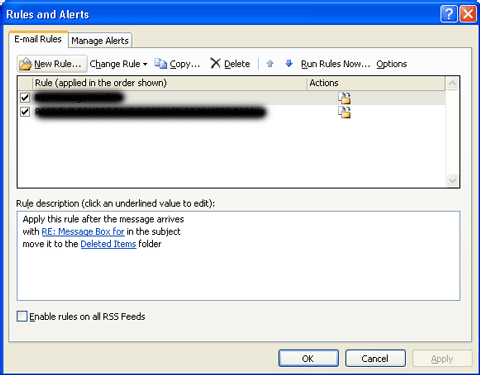
1. Go to the Tools menu and Click Rules & Alerts.
2. In the Rules & Alert box, select New Rule button.
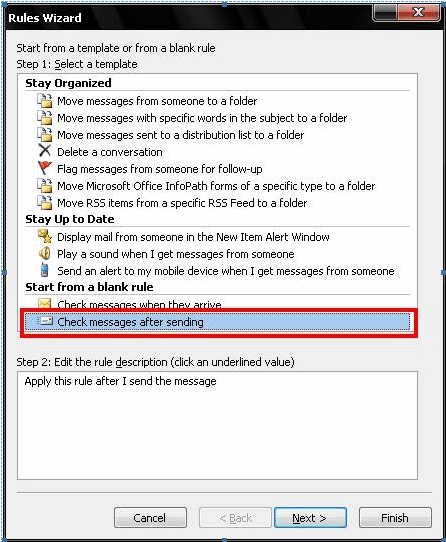
3. In the Rules Wizard dialog box, Start from a blank rule. Highlight Check messages after sending. Click Next.
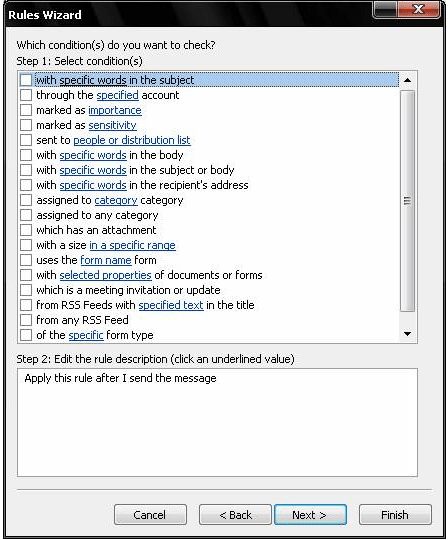
4. Click Next button in the next dialog box.
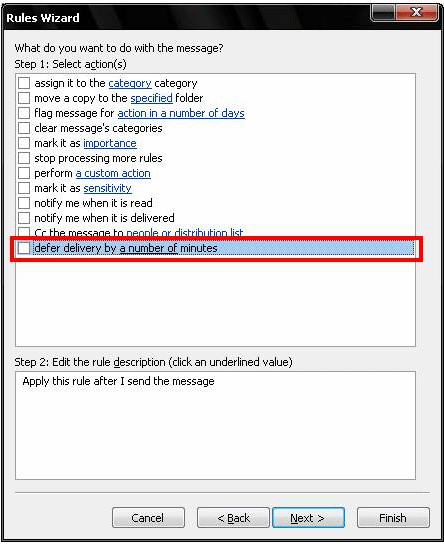
5. In the next box, select defer delivery by a number of minutes action. In Next Step, click a number of to set the number of minutes that you would like to delay delivery.

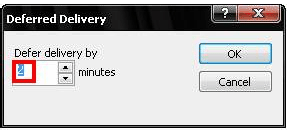
6. A pop up dialog box appears asking you to select the number of minutes you would like to delay delivery. I have selected 2 minutes here. Click OK and then Click Next.
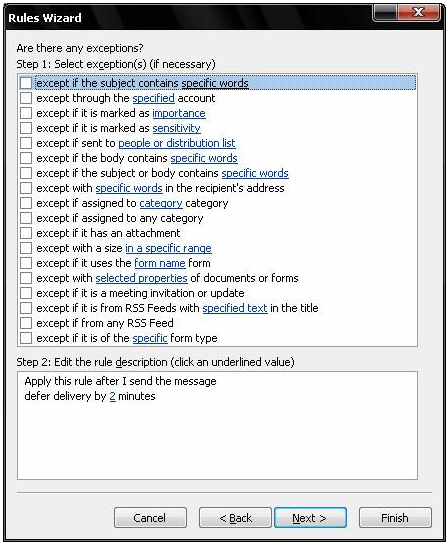
7. Next, you can set exceptions to this rule if you need. You can check the appropriate one which suits you.
8. In the final step, give a name to the rule and turn on this rule. Click Finish and Apply. That’s it, next time you send a mail, it will be deferred by 2 minutes. In the meantime, you can cross check the mail and delete it if it was sent accidentally.
If you liked this tip, please give it a Thumbs up. 🙂






Good for outlook users(corporate users??) 😀
@Rajesh,
Indeed this is useful for corporate users. 🙂
I thought I was the only one using this trick!. I have it as ‘2 minute rule’ 🙂
@Vinod,
These simple tricks are not used by many. 🙂
You deserve a link for this tip. Will be here shortly. Thanks for this nice trick. Its very important for people like us who use outlook in office
Very important and useful tip many a times emails get sent out by mistake and then I start cursing myself for it.
While sending emails with attachment, many people just shoot the mail, only to realize later that they forgot to attach the desired file.
To avoid it, I have made a practice to write the name of the recipient in the last, after finishing the writing work.
This prevents me to accidentally press SEND. It looks like a common tip, but has really saved me embarrassment many times.
@Ashish,
Glad that you liked the tip.
@Keith,
Indeed this is a simple yet useful tip.
@Silky,
What you have mentioned is also a good way to prevent it.
This is a nice tip, useful for outlook users.
Thanks for tip on how to defer the mail for a few minutes but I would like to get subject checked automatically… If I get a way I would update here
Hey I did it.. Please extend the post for exception rule where you can add “except if the subject contains ‘a’ or ‘e’ or ‘i’ or ‘o’ or ‘u'”
Using this all messages containing one of the vowel would be sent immediately (that means you didn’t forget writing subject) and others would remain in outbox!
@Jalaj,
Nice find. I think we can set lot of conditions using the rules. 🙂
Thank you for the tips. I was easier to set it up than what it seems. I hope I can use when I actually nedd it.
Thanks, I needed this.
Altho this is a saver, how about just typing your e-mail and then just send it to the Outbox. It will stay there until you release it for sending. You can read and re-read as often as you wishm and edit it too. This way you don’t have a clock doing a countdown on you.
Hi I find this tip very useful and inovative idea. Great keep shareing most updated ideas like this
Very helpful tip. Allowed me to solve two user questions in one go!
Very useful, been doing it for years. But – in Outlook I can’t find a way to then snet it immediately if I’m just about to shut the computer down. In Eudora I had the same rule but could just hit ‘send’ again, and it went. Can anyone help?
Great………! It was very helpful to me as i always make mistakes while sending mails……… Thanks
@Silki
You’re cute. I like this tip too. Want to go out?
I second Jenny’s point. I want to be able to immediately send it by clicking send and receive. I much prefer to have a deferred check (automatically send/receive every 10 minutes) unless I explicitly click send and receive.
One work around is to make an exception when the message is flagged with High Importance, but that’s still kludgey.
Isn’t there an option somewhere to tell Outlook to only send/receive periodically when online?
Great tip.
An alternative, esp. for those of you who want to be able to do an “instant” send & receive, is to turn off automatic send & received (Tools > Send/Receive > Send/Receive Settings). After you press Send for a message, click the Send/Receive button in the Inbox toolbar or just press F9 and off they go. You can then shut down your computer.
This can also be a good time management tool, because it prevents the continuous flow of emails into your Inbox. Instead, you control when you want to receive email by clicking Send/Receive in the toolbar or pressing F9 when you want to. A constant barrage of emails into our Inbox, especially if you tend to work with your Outlook inbox open all the time, can be very distracting.
Nice tip. Useful for corporate people. I am one…. 🙂
Btw one other thing which i would like to link here if you don’t mind Nirmal.
How to receive twitter messages in MS Outlook
Exactly what I was looking for. More descriptive than the Outlook Help files. I miss having this setting in 03 w/o having to setup a Rule.
great tip thx
Dude!
I wish I had read your article before I installed Office 2007 – which of course had all new settings. I have had two embarrasing situations now that could have been avoided. Of course, you don’t know there IS a problem until it raises its ugly head. I believe your recommendation here will help me behead this particular beast.
Thank you ever so much!
In Outlook 2003, it was easy to set this up (a checkbox in one of the Options screens). They gave me a new laptop with 2007 installed and my mail wasn’t going out because I unchecked “Send Immediately” but couldn’t find the delayed send setting. Thanks.
Cool
Please help,
I have to send some request mail every Friday evening , is it possible that i make a scheduled for sending that mail instead typing the mail every Friday.
I have applied this rule but I cannot find where you are able to stop the email if it was sent by mistake. If you find out you have sent an email to the wrong person how do you stop the email within the 2 minutes?
But-how can I override the delay and send a message immediately? The older version of Outlook would do that by clicking on the “Send/Receive” button.
Marilyn,
I have the same issue. I figured out the delayed send myself after I inadvertently sent 2 mails on the same day without all the information in it forcing me to recall them etc. etc.
But now I often find that I will walk over to my neighbour in cubeville after having sent him something to discuss but when I get there the mail has still not arrived.
The tips were very useful and I will use the deferred send method until I get this figured out because my outlook is sending the email when I’m in the middle of typing it. It’s as if a short cut to send has been put on the key board but I can’t figure out which key it is. I have disabled the control C to sent. If anyone has any ideas. I am on a lap top so someone suggested it might be the mouse pad but I’ve tried hitting that to see if it does and it’s not it.
Ctrl-Enter is often a short cut to send
don’t know how many times I wished I had this rule in place! Great tip!
But be aware: In Outlook 2007 this will override your delay send if you have used Options to set messages to be sent the next day or after Opening of Business.
Excellent tip! I always wanted to know how to do that.
Its a very helpful attempt! I am sure many of my colleagues doesnt know this.
great to read, can you help with i send emails but they go to outbox then i have to send again
What we do at my firm is to use an add-in called SafeSend Software that prevents us from sending sensitive information to the wrong recipients.