

Each time when Windows downloads and installs new updates from Microsoft website, it asks for a reboot. The annoying thing is that each 20 minutes or so, the pop up asks whether you want to reboot now or later.
Auto Reboot Remover is a program enables or disables the automatic reboot feature of windows XP SP2 after an update has been installed.
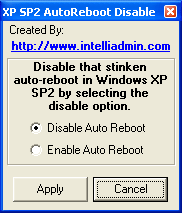
The software is very simple to use, when you run the application, there are only 2 options, either to enable or to disable the Auto Reboot.
This is a handy software especially when Windows reboots after a specific time and you are in the risk of losing data when you are away from your system.





Nice application. Am looking for this one from long time.
Thanks 🙂
This is a nice software something that I was looking for. I recently upgraded to Windows XP SP 3 and was freaked out when it repeatedly asked me to reboot.
I had even stopped and disabled automatic update service but my antivirus One care automatically restarted it every 30 mins. I guess this will come in very handy for me next time. Stumbled 🙂
@Raj,
Glad that it was useful for you.
@Keith,
I had lots of trouble with this Auto reboot, thats y I was searching for this software.
Thanks for the Stumble. 🙂
guess this has been developed by a very frustrated man…the tile “Disable that stinken auto-reboot…”
says it all…
@Rajesh,
Indeed looks like the developer was really frustrated with the auto reboot. 😀
Frustrated or lazy, who knows
This is a great little app. That auto reboot is annoying. Cool find buddy.
@Hifi Guy,
Yea that guy might be lazy as well. 🙂
@BrownBaron,
Glad that it was useful for you.
I have disabled auto reboot in XP using some registry hack. But don’t remember now, what the hack was 😛
Nice find Nirmal. That thing was really annoying.
Upgraded to Windows SP3???
Who fooled you into that one?
Btw – try this and you don’t have to install any software:
Click Start, Run and enter the command “net stop wuauserv”
or do it manually:
* Click Start, Run and enter the command “gpedit.msc”
* Select Local Computer Policy->Computer Configuration->Administrative Templates->Windows Components->Windows Update
* Open “Re-prompt for restart with scheduled installations”
* Change the value to max. 1440
* Close the Group Policy Editor
* Click Start, Run and enter the command “gpupdate /force”
Disabling Auto Reboot from Windows XP is also possible from Administrative Policy setting. but making simple this tool is helpful for non technical users.
Go To Run > MMC > Hit Enter
At “Console1” Select “File > Add/Remove Snap-in”
“Add/Remove Snap-in” Click on “Add”
Add Standalone Snap-in” Select “Group Policy” and click “Add”
Select Group Policy Object” Click “Finish
Add Standalone Snap-in” Select “Close”
“Add/Remove Snap-in” Click “OK”
At “console1” expand “Local Computer Policy > Computer Configuration > Administrative Templates > Windows Components >” click on “Windows Update” and double click on “Configure Automatic Updates” on the right.
At “Configure Automatic Updates” select “Enable” and in the first dropdown menu select “Notify for download and notify for install”
You can change is the amount of time between the nagging popup. There is no way to completely remove this popup if you are doing scheduled updates.
——————————————————————————————————–
If the status is set to Enabled, Automatic Updates will not restart a computer automatically during a scheduled installation if a user is logged in to the computer. Instead, Automatic Updates will notify the user to restart the computer.
Be aware that the computer needs to be restarted for the updates to take effect.
If the status is set to Disabled or Not Configured, Automatic Updates will notify the user that the computer will automatically restart in 5 minutes to complete the installation.
Note: This policy applies only when Automatic Updates is configured to perform scheduled installations of updates. If the “Configure Automatic Updates” policy is disabled, this policy has no effect.