

If you are bored seeing the default look of removable drives in Windows, here is a simple tutorial on how to change the default look. The Removable drive looks like this, without any customizations and its confusing if you have more than one drives connected to your PC.

The default look of Removable drives like USB pen drives, Memory cards for phones and cameras can be changes using these 3 simple steps.
1. First step is to find a good icon which will represent the removable drive. Make sure that the image has .ico extension.
2. Open Notepad. Type in whatever is given in the image.
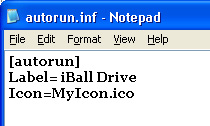
Here Label denotes the text which you want to display in My Computer when the drive is connected and Icon represents the icon image name. Save this file as autorun.inf.
3. Copy both files (autorun.inf and Icon file) to your removable drive. You can make both files as hidden, if don’t want to see those files when you are connected to drive
Now unplug the drive and connect it back to USB and now you can see the effect of your customizations.


Have a look at the customizations of my removable drives (iBall USB drive and SE W700i cell phone 1GB drive).







A Cool tip. I’ll keep a icon of my blog’s favicon!
mmm interesting tip. It works only for removable drives ?? what about individual drive partitions ?
Nice tip! Every time I use a USB card reader for SD cards, the icon looks like a bunch of others I have. Now I can change it to something a bit more different! I probably won’t though due to laziness, but I hope I remember. (#):)
Very nice! But I like to keep my removable drives with the same icons so I remember that they are, in fact, removable drives. 🙂 Nice tip though.
This does seem to be a fun thing to do. Now that I have a lot of stock icons with me, I sure will try this out!
Great tip Nirmal , will surely help me to diffrentiate between my pen drive and cell phone .
Nice one, turn your drives from boring looking icons, to your favorite icons. this is surely going to give some fun 😎
@Arpit,
I have not tried with Individual partition drives. May be you can try it tell us the result. 🙂
This tip is mainly to differentiate between partition drives and Removable drives.
Whenever I see the autorun.inf file, I jump to the conclusion that the stick has a virus and delete the inf file.
So, if you have made this modification – don’t give the stick to me without warning me first 🙂
Do you have any idea to write about how to kill USB toy virus or how to prevent from attacking ? Because we all still have been attacking by this virus a long time ago and still can’t beat it.
Thanks you.
Great way but just a question … is it safe?
Nice tip i will update my icons
Cool! I will change my icon too! This idea is fresh for me! 🙂
@Binny,
Even I had this perception that all .inf files are virus. 🙂
@Myo Kyaw Htun,
I have never encountered the situation mentioned by you.
@Rishi,
Did you mean to ask if it damages the drive or safety in terms of virus attack?
I’ve tried this.. and it’s a pretty sweet tip 😀
Nice tip
Love the Sony Ericsson icon.. 😀
@Vikram,
Thanks for the comment.
@Kuanhoong,
Glad that you liked it. I did a lot of search for good SE icons. 😀
cool handy tip
The trick you have mentioned would also work with Cds and Dvds.
[However in case of Cd and DVD it is a good idea not to use long file names with capital letters and special characters].
@ Arpit : Icon Packager ( http://www.stardock.com ) would do the job. After installing it simply right click on the partition you want to change icon for and set the icon from “Properties”.
Great….trying it out.
Came through Rishi.
@Pallab,
Thanks for the information. Icon Packager is a great software to change icons.
@Techzilo,
Thanks for the visit, hope you liked my blog. 🙂
Cool, now I’ll probably end up changing it every week (maybe not every week, but quite frequently at least).
Quite interesting
Hmm. This didn’t work for me. Do this trick also works on Windows 2003? I pondered. 😐
@Chris,
I’m not sure about Windows 2003 as I have not worked on it. I dont have a system to test this also.
Heh. It doesn’t. It probably have to do something with the performance/preference settings. However, I tested it with Windows XP and it works just fine. Thanks! 😀
Thank you for this tip.
On a related but not connected topic, would you know how to set change the default path of the ‘My Pictures’ short cut in XP.
Default points to ‘My Pictures’ folder in ‘My Documents’. I would like to change it to point to ‘Pictures’ folder on an external NAS drive. (Something like Y:/Pictures)
Anyone else have an idea on this?
@RJ,
I have not tried out the point mentioned by you, if I get a work around, I’ll surely post it. 🙂
@RJ
that can be done by tweaking registry, if u are not aware of that, better get some tweaking software, lots of such softwares are available..
great share, thnx alot!
I found your tip from a google search…i was looking for how to change the folder icons on removable storage drives. This one is a good start.
Do you know if there’s a way to customize the folders on a flash drive so that the custom icons are changed in any vista machine you plug the flash drive into?
Is there anything i can put in the autrun file that will do it?
Exactly what i need!!
It just uses system default after replugging it.
there must be a configuration file with specified commands for the icon.
I used once such file in a windows XP to change a background images for folders (i mean inside the white background area in a folder).
I know this file works with 7 and vista (we need it for vista).
Here’s some info:
the file you need to write any folder attributes is located inside each folder in your system, you just can’t see it. When you creating this file you override the system default file.
file name has to be: desktop.ini (can and should be hidden)
the commands i used for bg image is:
IconArea_Image=path+”filename”.jpg/.png/.bmp – this specifies the location of the image to be drawn in the folder’s background. for example – C:\picture1.jpg
IconArea_Text=0x00FFFFFF – specifies the color of the text of the folder, if you have let’s say “music” folder then the color of the the text for music will be 0x00FFFFFF which is the hexadecimal color code of White.
you can see other codes here: http://www.december.com/html/spec/colorhex.html
Dude!!
B*I*G C*H*E*E*R*S on this!!
By far one of the coolest tips given and easily understood!
Much obliged,
Patrick
Cool tip, need to check it
To change a folder icon on a removable disk, first create a folder in your My Documents and name it what you want the folder to be on your flash drive. Then, change the icon (Right-click > Properties > Customize > Change icon). Cut the folder onto your flash drive, and move the files from the old folder into the new folder, and delete the old folder.
I have tried this it didnt work for me can i get some help?
My icon is a converted image to .ico could that be the problem?
[autorun]
Label=Cruzer
Icon=favicon.ico
That is what i have wrote in notepad and than copied both the notepad file and the .ico image to usb but nothing has happend when i have taken the usb and out in reinserted it into a usb port :S
what am i doing wrong any idea? and my usb is a Sandisk Cruzer could that be it?
Many thanks for this.
– nice
– and make ICO and INF files hidden
– Thanx
Thanks for your useful article friend. It really helped me.
I found one working Icon Changer software over here:
Exe Icon Changer
I guess this will be helpful for all over here.
Wow! Cool! It really works. Making it in windows it works on Macs?
Anyway, Thanks!
An tip to others: Made both .ifo and .ico files hidden, so you don’t see them in the open folder, and no one will know how you did it! lol
thanking you
not working for me in windows 7
you sir are a genius!!!
nice tip men..very easy to apply..
What if i want to attach icons for inside folders?
How can i do that? what commands are needed for it?
For example, I have in an external HDD with 6 folders: Music, Games, TV Series, Movies, Software, Pictures. And i have 6 icons for each one. What i did was changing each folder’s icon in it’s properties, but when i reconnected the device, the icon’s didn’t appear. No icon was removed from the specified dir’ i have given before. The icons used were the system’s default folder icon dll file.
Please if i can configure it somehow and you can tell how, give it a help, i really appreciate any help.
btw, OS is: Vista ultimate x64, HDD is: WD MyBook 1TB
All icons is located inside the drive so the icons can be mounted on any computer. It’s in G:/Software/Folders Icons/”filename”.ico
Thanks alot!
This is really interesting, You’re an excessively professional blogger. I have joined your feed and stay up for in quest of extra of your wonderful post. Also, I’ve shared your site in my social networks!
Its great, I found something more from,
http://www.smartusb.net
It is not changing at all
Seems not to work any more in Windows 10 – is there an alternative for that operation system?