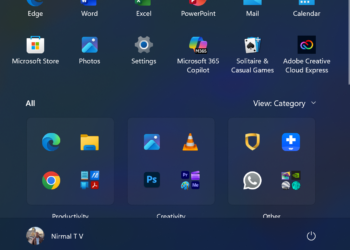
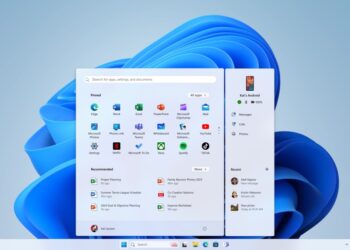
If you are using a Windows 11 PC, you might already know that the start menu is one of the important features of the OS. You can access all the installed applications, settings, and other options from the start menu. Microsoft has made it possible to customize the start menu over a period of time, but one of the features still missing is the ability to resize the start menu in Windows 11. Microsoft is planning to bring this feature, probably in the next major iteration. But right now, if you want to resize the Start menu in Windows 11, here is a workaround.
Related Reading: How to Use Energy Saver on Windows 11
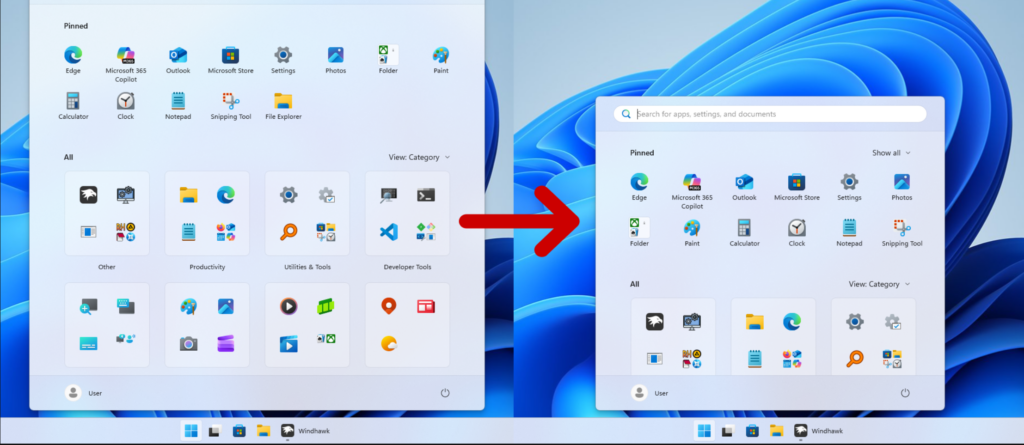
How to Resize the Start menu in Windows 11:
If you want to resize the Windows 11 start menu, you need to download a third-party app that will enable you to do so.
The name of the application is WindHawk, and it is one of the most prominent customization tools in the Windows community. Apart from this, the tool does not replace your system files, and mods can be uninstalled, updated, and disabled. You need to download and install the application from the link above.
Here is how to do it:
Step 1: Run Windhawk and click Explore.
Step 2: Search for the “Start Menu Size” mod.
Step 3: Click Install to install this mode on your PC.
Step 4: Once the mod is installed, click Settings (as shown in the image below). You can enter preferred height and width, then click Save changes.
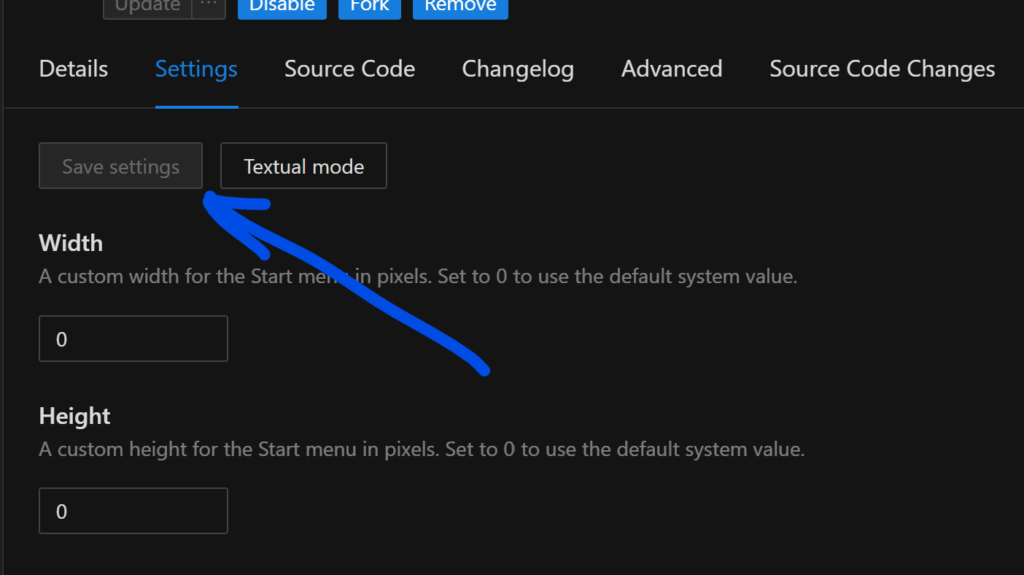
Once it is saved, the app will apply changes immediately, with no need to restart the system. If you want to change the size, you need to enter the preferred value each time in the app.
WindHawak is currently one of the best customization tools for Windows 11, which offers a lot of modes that can be applied to the system without any system file changes.