Techniqued- Technoloy, Review and Tutorials
  • Android
  • Freewares
  • Tutorial
  • Windows 11
  • macOS
No Result
View All Result
Techniqued- Technoloy, Review and Tutorials
  • Android
  • Freewares
  • Tutorial
  • Windows 11
  • macOS
No Result
View All Result
Techniqued- Technoloy, Review and Tutorials
No Result
View All Result

How to Remove Unnecessary System Clutter and Improve Windows 11 Performance

Nirmal by Nirmal
February 24, 2026
in Freewares, Windows 11
0
Share on FacebookShare on Twitter

If you are using Windows 11, you might know that a lot of settings and details run in the background. While some of them are really useful and core to the OS, a few others are basically called slop. The term “slop” refers to low-value system components that come pre-installed in the OS and have no meaningful functionality. These elements consume valuable resources and can reduce user efficiency by limiting overall control over the system. WinSlop is one such tool that can remove unnecessary system clutter from Windows 11 and improve its performance.

Related Reading: How to Find the CPU Temperature in Windows 11

Using this tool, you can also disable all the ads in Windows 11. You can disable file explorer ads, set up ads, lock screen tips and ads, personalized ads, and settings ads. These options are otherwise not easy to find and execute on Windows 11.

Once you have downloaded the app (link available at the bottom of the article), you can run the app, and it shows the screen as shown in the image. You need to click on the Inspect System button at the bottom.
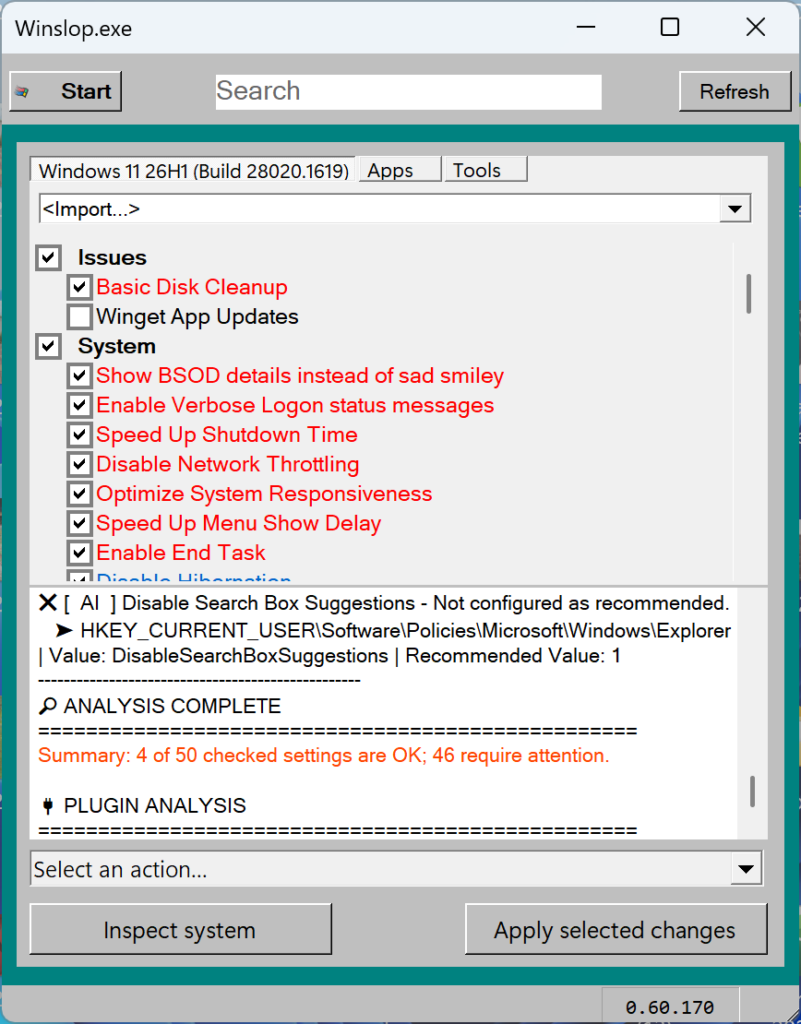
Once it finishes the process, it will show the slop items in red. You can read all the items one by one and decide if you want to disable them or not. You can turn off all the ads in Windows 11 using this tool.
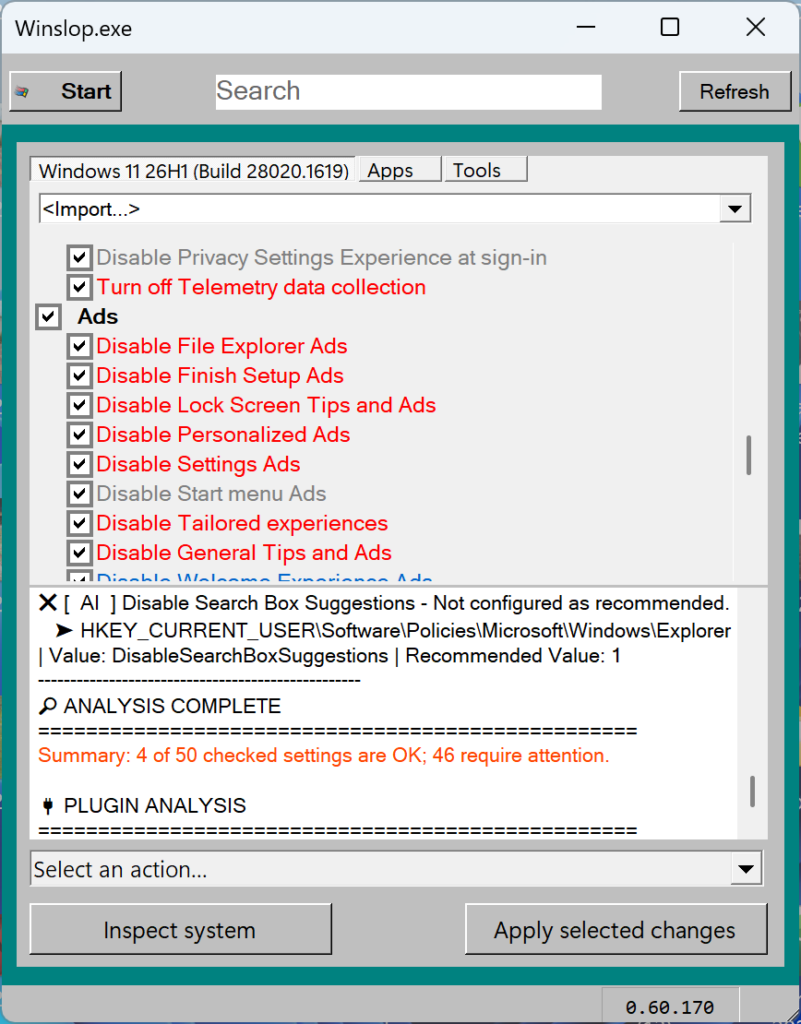
Once you are ok to make the changes, you can click on the Apply selected changes button below. This will make all the necessary changes to remove the slop from your Windows 11.

If you feel you want to rollback the changes, there is an option available in the app. Click on the start button, and you will see an option “Undo last changes”. This will rollback the changes you made to the system.
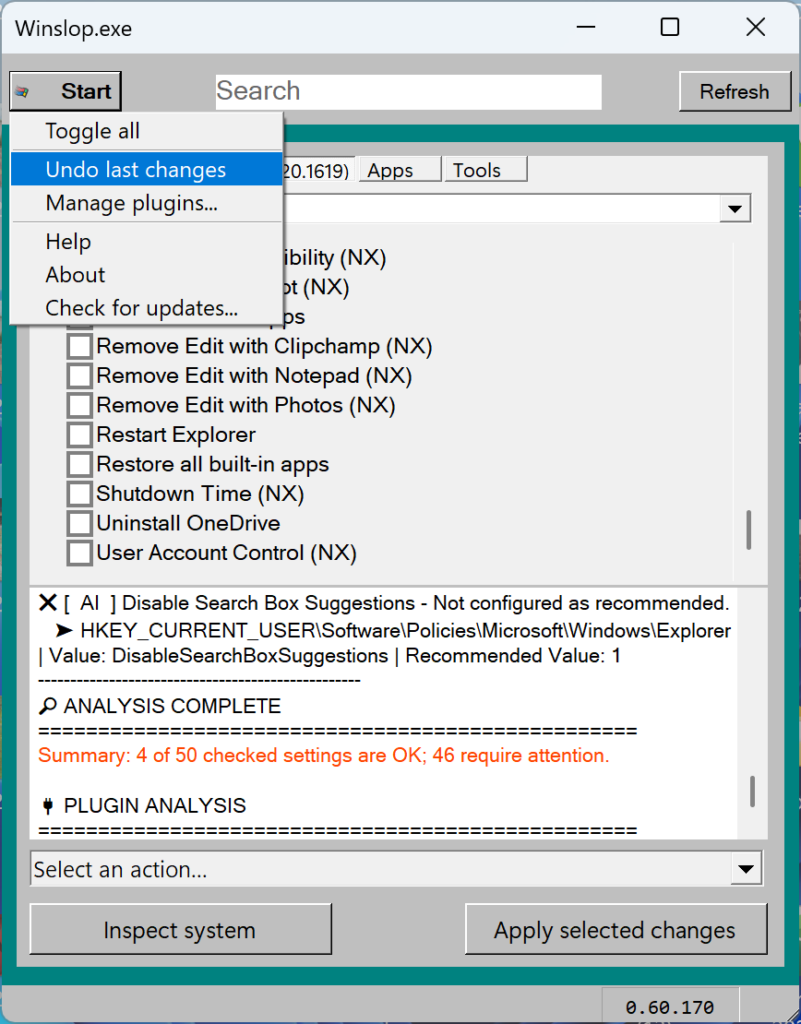
Unlike many maintenance tools on the market, Winslop offers you a clear overview of the changes being made. This transparency empowers you to review alterations before they are finalized and easily revert actions if needed.
Download Winslop

ShareTweetSendSend
Previous Post

How to Resize the Start menu in Windows 11

Related Posts

Freewares

How to Resize the Start menu in Windows 11

February 24, 2026
Tutorial

How to Rename your Windows PC

February 23, 2026
Windows 11

How to Fix “Installation can’t continue” when trying to Update Nvidia Graphics Drivers

October 8, 2024
Windows 11

Download Windows 11 24H2 ISO (Offline Installer)

October 7, 2024
Tips and Tricks

Can I Run Windows 11 without Activating

June 14, 2024
Windows 11

How to Use Energy Saver on Windows 11

May 15, 2024

Leave a Reply Cancel reply

Your email address will not be published. Required fields are marked *

This site uses Akismet to reduce spam. Learn how your comment data is processed.


Latest Articles

How to Remove Unnecessary System Clutter and Improve Windows 11 Performance

How to Resize the Start menu in Windows 11

How to Rename your Windows PC

How to Scan QR Code received on Phone Without Using Another Phone

How to Fix “Installation can’t continue” when trying to Update Nvidia Graphics Drivers

Download Windows 11 24H2 ISO (Offline Installer)

Techniqued- Technoloy, Review and Tutorials

© 2026 Techniqued - Technology, Tips, Tricks and Reviews

Navigate Site

  • About Us
  • Advertise with us
  • Contact Us
  • Copyright Policy
  • Disclaimer

Follow Us

No Result
View All Result
  • Android
  • Freewares
  • Tutorial
  • Windows 11
  • macOS

© 2026 Techniqued - Technology, Tips, Tricks and Reviews

This website uses cookies. By continuing to use this website you are giving consent to cookies being used. Visit our Privacy and Cookie Policy.