Techniqued- Technoloy, Review and Tutorials
  • Android
  • Freewares
  • Tutorial
  • Windows 11
  • macOS
No Result
View All Result
Techniqued- Technoloy, Review and Tutorials
  • Android
  • Freewares
  • Tutorial
  • Windows 11
  • macOS
No Result
View All Result
Techniqued- Technoloy, Review and Tutorials
No Result
View All Result

How to Rename your Windows PC

Nirmal by Nirmal
February 23, 2026
in Tutorial, Windows 11
0
Share on FacebookShare on Twitter

When you are using a Windows PC, it will have a default name assigned. This name is important when you are sharing files from one device to another. It will also be needed when you have enabled network sharing. But what if you want to change the name assigned to your PC? Windows offers an option to change the name of the PC. You can easily rename your Windows PC from the settings. Here is how to do it.

Related Reading: How to Use Energy Saver on Windows 11

How to Rename your Windows PC:

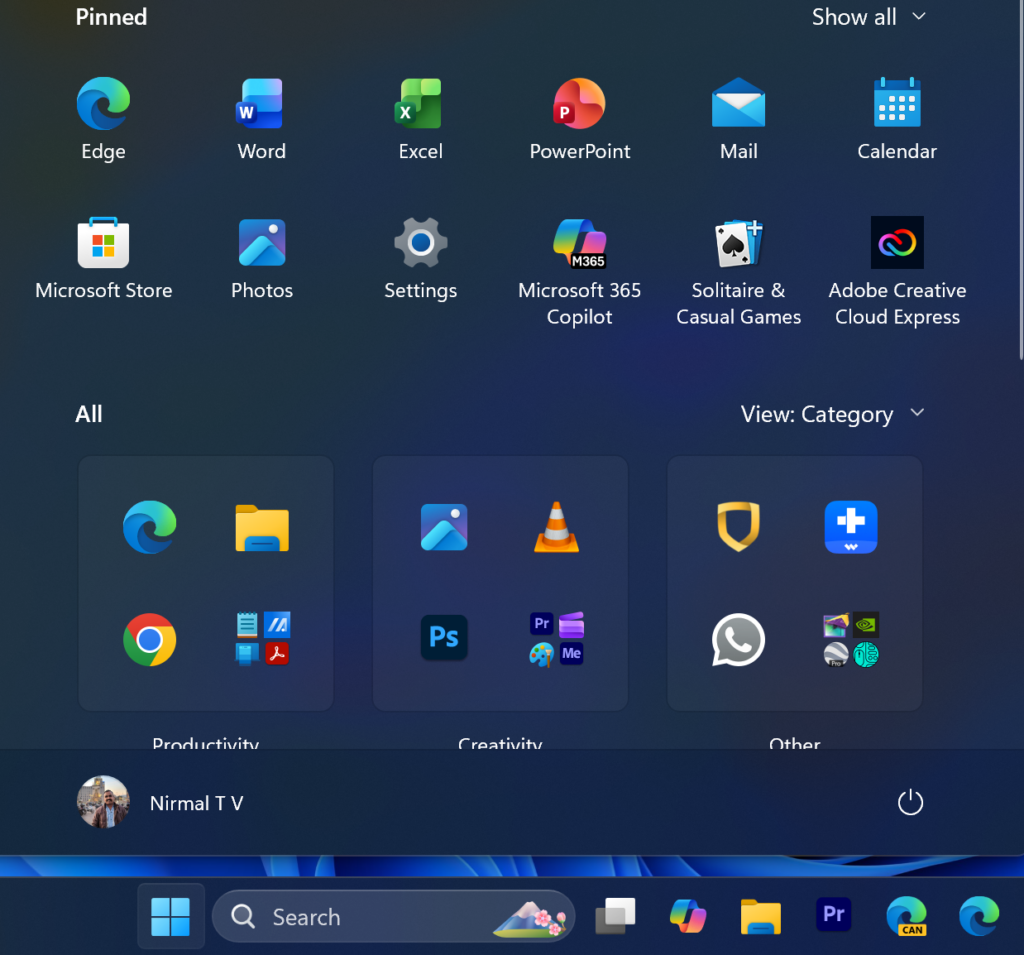
Step 1: The first step is to open the Settings panel in Windows 11.

Step 2: To do this, click on the Start menu and type settings. You will be able to see Settings in the list, and click on it to open it.
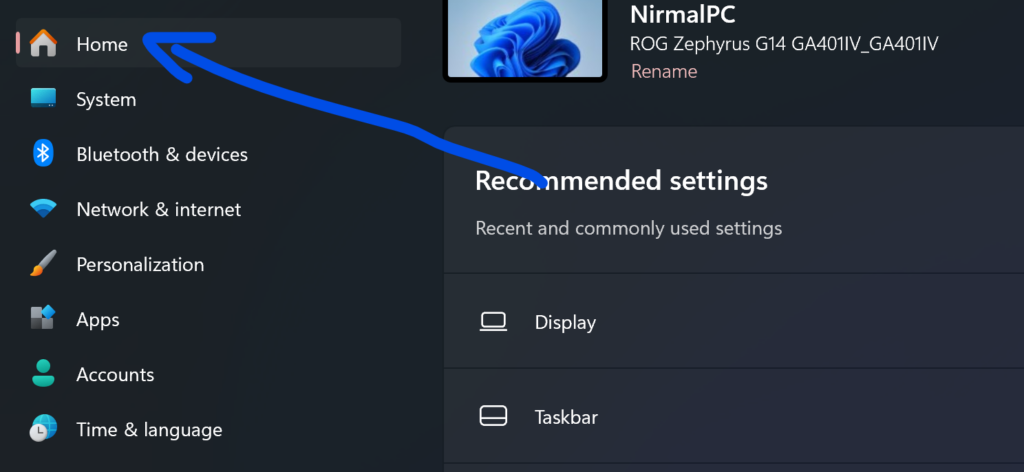
Step 3: Under the Settings panel, select Home at the top left-hand side of the menu.
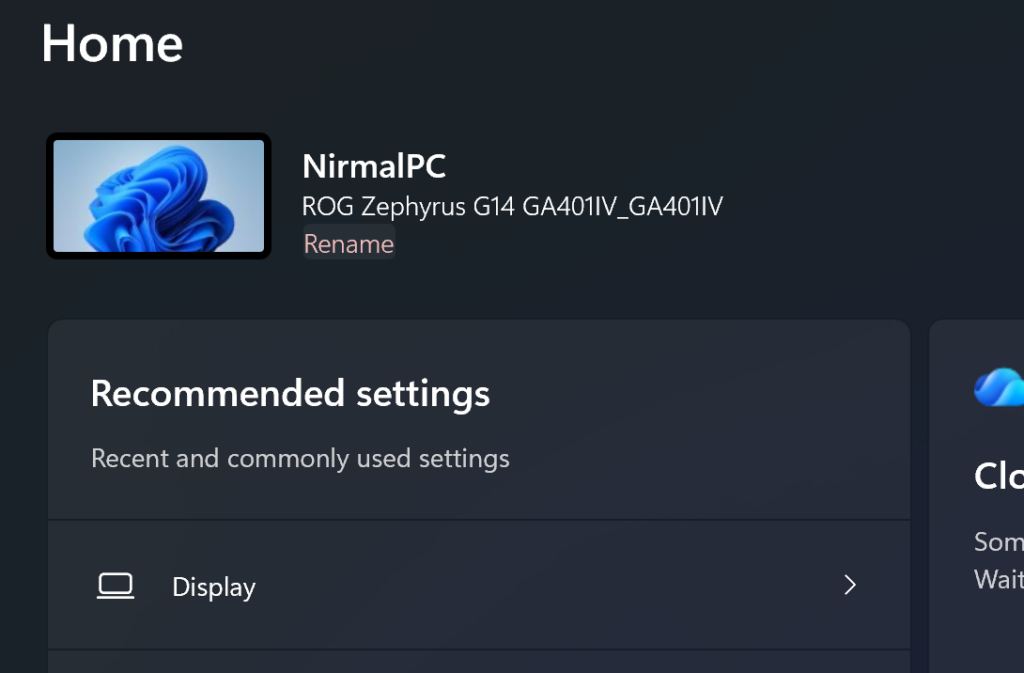
Step 4: When you have selected Home, you will be able to see the name of your PC on the right-hand side panel.
Rename your Windows PC

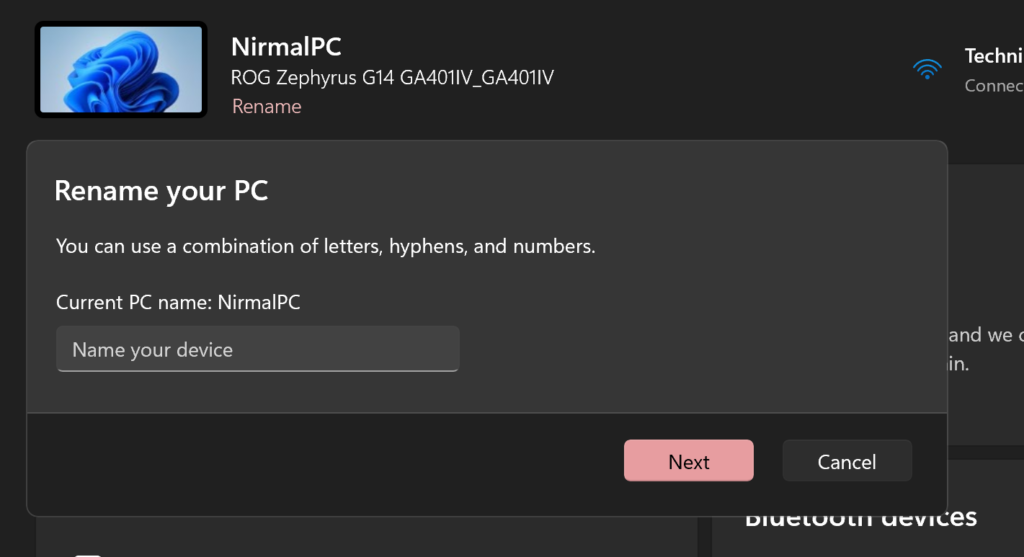
Step 5: Here, you will be able to see a Rename link; click on it to open the rename box.
Rename your Windows PC

Step 6: This will open a small pop-up window, where you can change the current name. You can use a combination of letters, hypens and numbers for your Windows PC’s name.

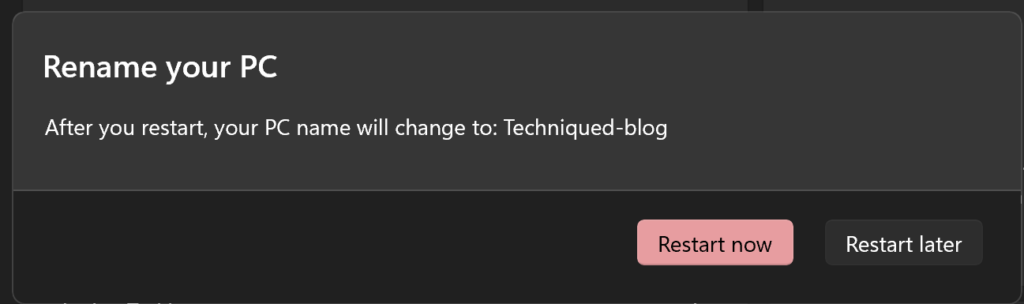
Step 7: Once the name is saved, you will be prompted to restart Windows to have the new name show up.

Rename your Windows PC

ShareTweetSendSend
Previous Post

How to Scan QR Code received on Phone Without Using Another Phone

Related Posts

Windows 11

How to Fix “Installation can’t continue” when trying to Update Nvidia Graphics Drivers

October 8, 2024
Windows 11

Download Windows 11 24H2 ISO (Offline Installer)

October 7, 2024
Tips and Tricks

Can I Run Windows 11 without Activating

June 14, 2024
Tutorial

How to Use Snapchat on PC

May 21, 2024
iOS

How to Delete YouTube Search and Watch History on iPhone

May 18, 2024
Windows 11

How to Use Energy Saver on Windows 11

May 15, 2024

Leave a Reply Cancel reply

Your email address will not be published. Required fields are marked *

This site uses Akismet to reduce spam. Learn how your comment data is processed.


Latest Articles

How to Rename your Windows PC

How to Scan QR Code received on Phone Without Using Another Phone

How to Fix “Installation can’t continue” when trying to Update Nvidia Graphics Drivers

Download Windows 11 24H2 ISO (Offline Installer)

Can I Run Windows 11 without Activating

How to Use Snapchat on PC

Techniqued- Technoloy, Review and Tutorials

© 2026 Techniqued - Technology, Tips, Tricks and Reviews

Navigate Site

  • About Us
  • Advertise with us
  • Contact Us
  • Copyright Policy
  • Disclaimer

Follow Us

No Result
View All Result
  • Android
  • Freewares
  • Tutorial
  • Windows 11
  • macOS

© 2026 Techniqued - Technology, Tips, Tricks and Reviews

This website uses cookies. By continuing to use this website you are giving consent to cookies being used. Visit our Privacy and Cookie Policy.