

Windows 8 has been already in RTM (Release to Manufacturing) and it is expected to hit shelves in October this year. Meanwhile people who have MSDN or Technet Subscriptions can get hold of it now as it has been released. One of the good things about Windows 8, apart from the features like start screen, Windows Explorer etc, is that you can upgrade to Windows 8 from, Windows 7, Windows XP and also Windows Vista. Back in June, we had provided details on the upgrade plans available for existing Windows users.
Even if you are upgrading from Windows XP, you can still retain your personal files and folders, which is a pretty good feature of Windows 8. In this article, we will detail on how to upgrade from an existing Windows OS, namely Windows XP, Vista and Windows 7. Here you can either upgrade using the boot menu or upgrade after booting into the installation you want to upgrade.
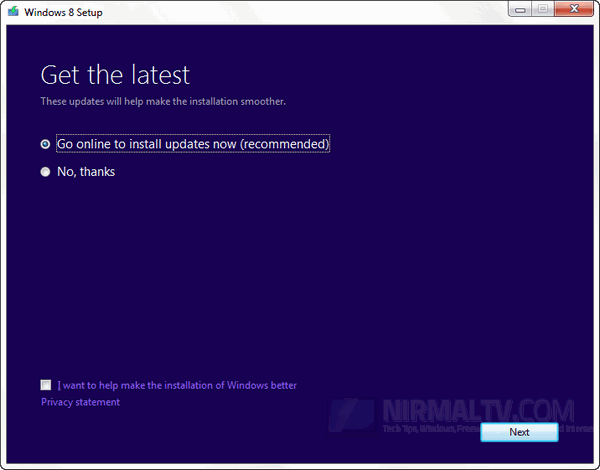
First step, boot your existing Windows installation and run the setup.exe file from the DVD ( or extract the ISO). You will be presented with the below screen. For this article, we are upgrading from Windows 7 to Windows 8 Pro.
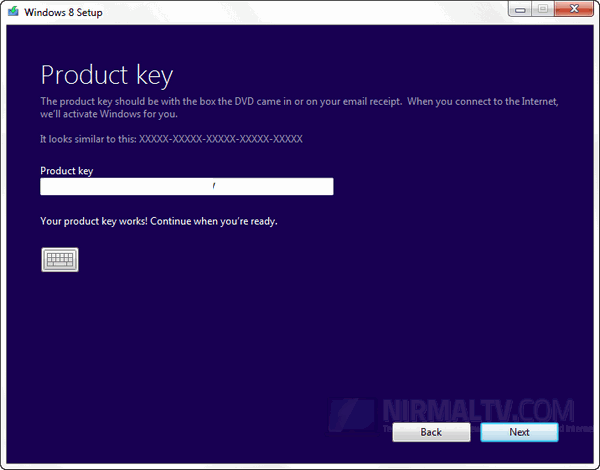
Enter the 20 digit product key for your installation.
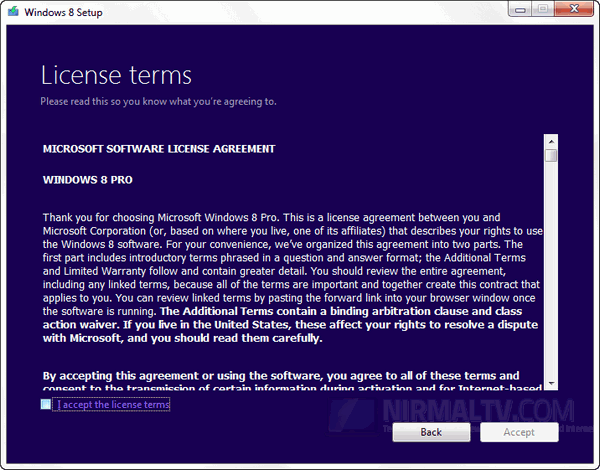
Accept the licensing terms of Windows 8.
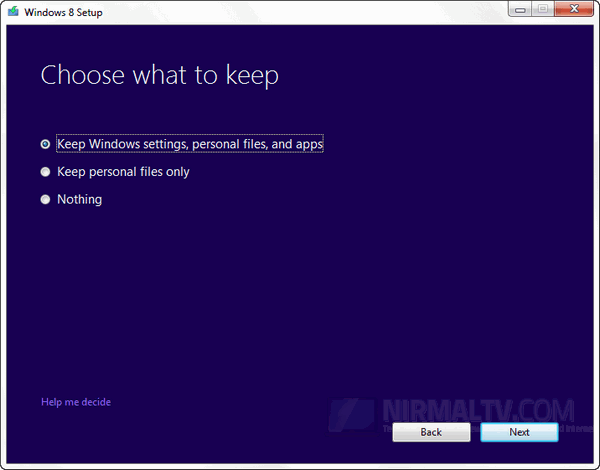
In this step, you can choose to retain your files and apps (only for Windows 7) or keep the files only (for XP and Vista) or do nothing (full fresh install).
The set up will get ready to install Windows 8.
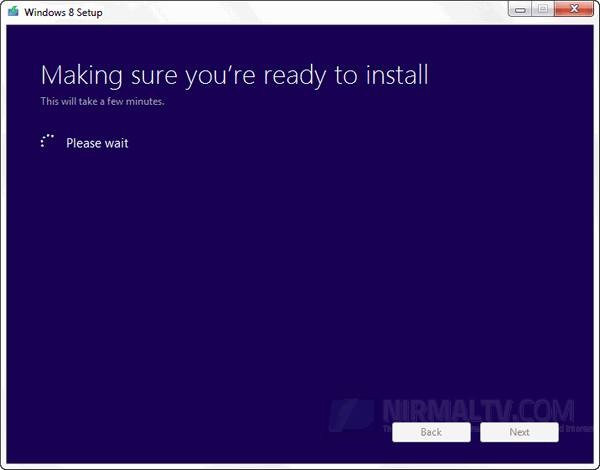
The set up will check for any apps available in the current installation which is not compatible with Windows 8. You will need to uninstall them before you proceed.
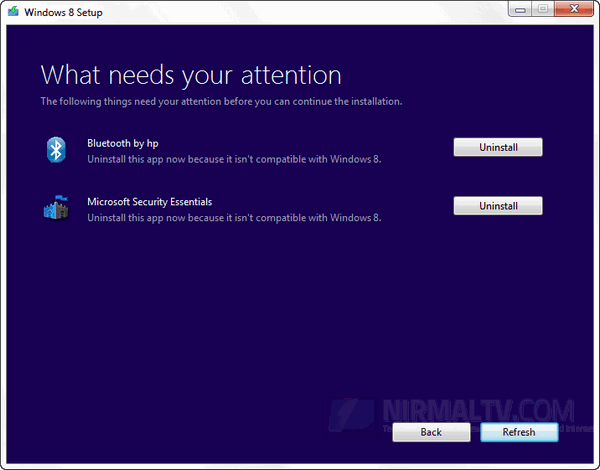
Once the uninstall is complete, sometimes a reboot might be required, but once rebooted, the set up will continue from where it was left off.
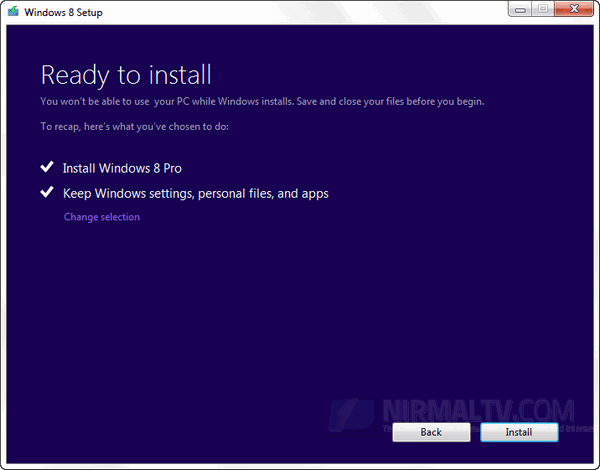
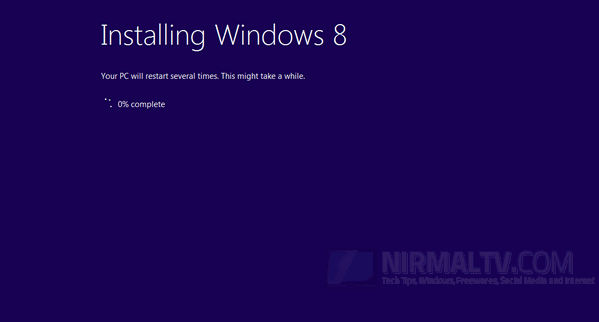
Now the set up will start the upgrade process. Windows will restart several times during the process. You can now follow the onscreen wizards to complete the installation. You can check our Installing Windows 8 guide to see the rest of the steps.




upgrade does not work,if it does I would like to hear any success stories ?