

Some times when you delete files or folders in Windows you get the error message that the file or folder is in use and cannot be deleted. This is because of the fact that some running apps or services might be using the file and locking it, preventing it from deleting. In case you have faced the situation where in you are not able to delete files or folders because of locked state, you can try File Governor. The app will search for all the locked files and folder and allows you to unlock them.
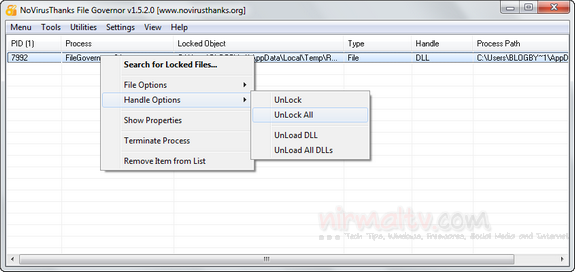
The app is available in portable version as well and you can search directly from the main interface. You can select the locked file and then unlock it from the options available. Once a file or folder is unlocked you will be able to force-close the file’s handle, rename, delete etc.
Related Reading: Unlock/Delete Files Locked by Other Programs
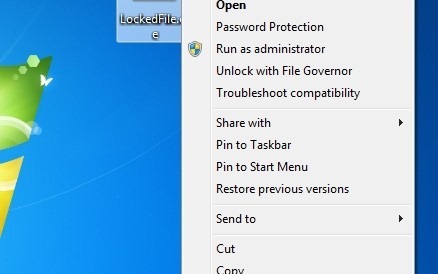
If you want to unlock a particular file, then you can do it from the context menu as well. Just right click the file and then select the option Unlock with File Governor. The app helps you in situations like;
- Cannot delete folder: It is being used by another person or program
- Cannot delete file: Access is denied
- The file is in use by another program or user
File Governor is compatible with 32-bit and 64-bit Windows XP, Vista and Windows 7.







i prefer unlocker, other alternative seem not working right with some situation.
Unlocker does not work on my windows 7 64bit, I found that IObit Unlocker works well for me
I just download and use “Long Path Tool” guarantees to fix your error fast and easy.