

Windows 8, the upcoming OS from Microsoft has many new features including the start screen, new Windows Explorer and the task manager. Apart from these, other features include the new options to logon- PIN and Picture passwords, which we have covered on this blog. Any user can turn on picture password or PIN option from the control panel. But in case you want to disable this option and let users have the traditional way of logging in, then you can turn off these from the settings.
To turn off or disable PIN and picture password logon, open run command (Win +R) and then type gpedit.msc and press enter.
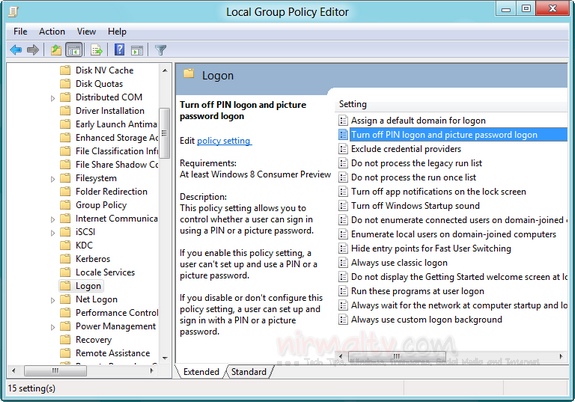
Now navigate to Computer configuration-> Administrative Templates-> System-> Logon. On the right side panel, you can see the option “Turn off PIN and Picture password logon”. Double click the option and select the button “Enabled”
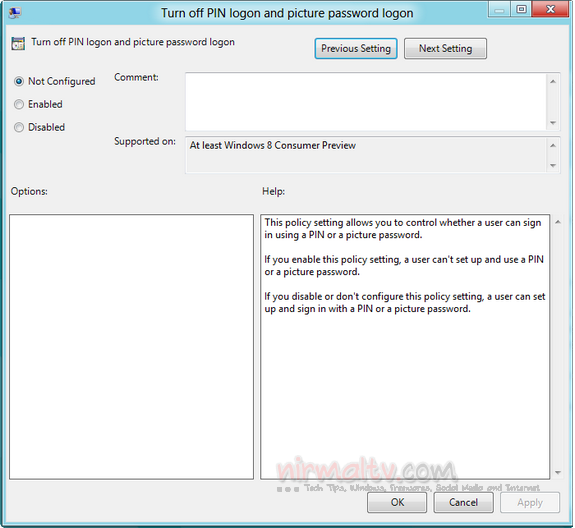
Click OK and close the Group policy editor. If you enable this policy setting, a user can’t set up and use a PIN or a picture password.
Please note that Group policy Editor might not be available in all versions of Windows.




Instead of having to remember long complicated passwords or pins, all you have to do is draw a picture which is much easier for the majority of people