

Microsoft has made available the consumer preview (beta) version of Windows 8 and is available for public download. The first technical preview was released back in September 2011 and if you are running the technical preview, you can easily upgrade to consumer preview by retaining your personal files. But the app which you had installed on technical preview will not be available when you upgrade to consumer preview. Below, you can see the step by step process of upgrading from technical preview to consumer preview.
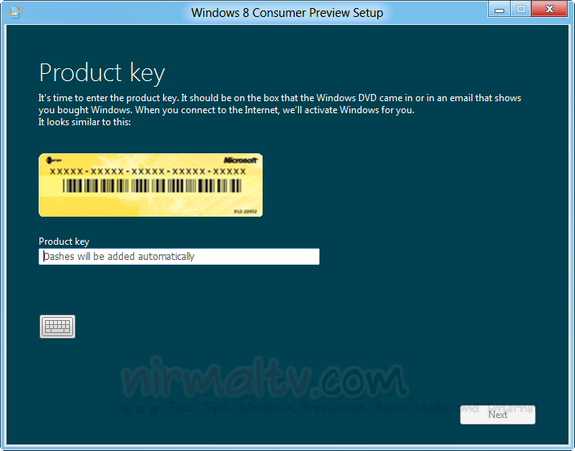
First step is to boot your technical preview version and then run the step.exe file either from local drive or DVD. It will prompt for product key, which is provided by Microsoft.
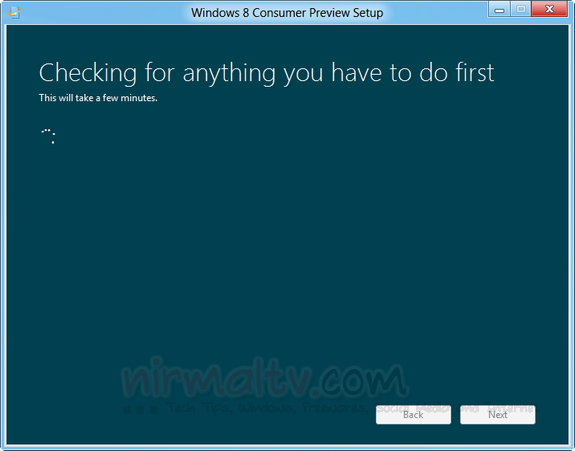
In the next step, set up will check your PC and let you know if any thing has to be done before the upgrade.
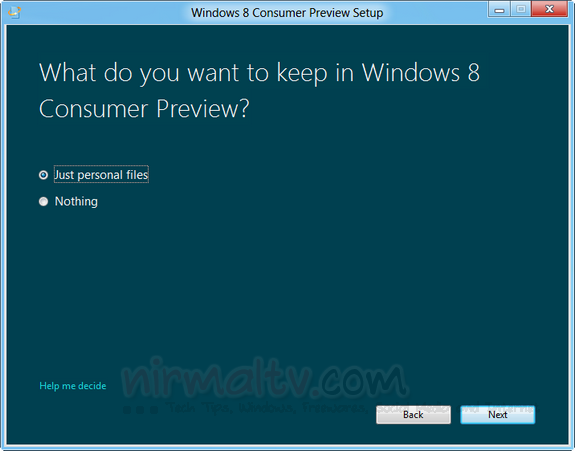
You can opt to keep the personal files or simply upgrade without keeping any files.
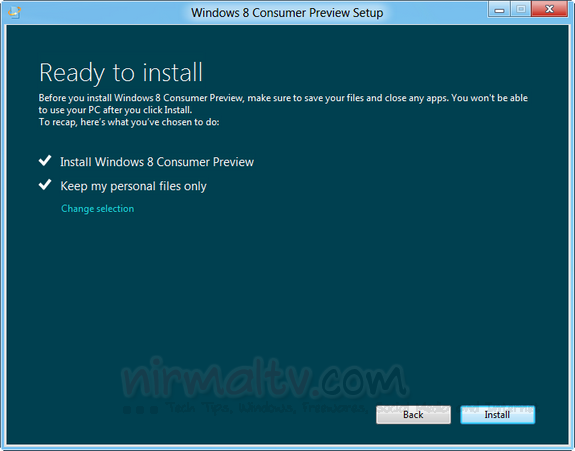
Once you click install, you need to wait for some time as the set up copies the files and starts the installation process. The system might boot multiple times during the installation.
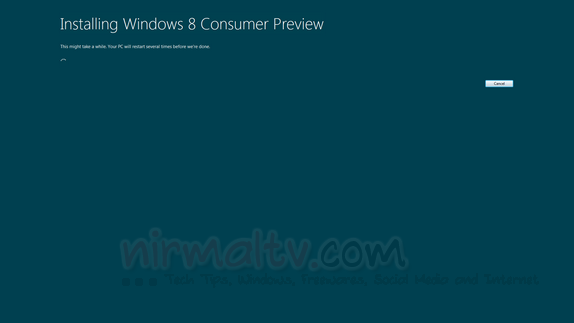
Once the installation is complete, you will need to enter the password and also select the personalization color for the Windows 8 consumer preview. You can log in with your existing password used for technical preview or create a new account.
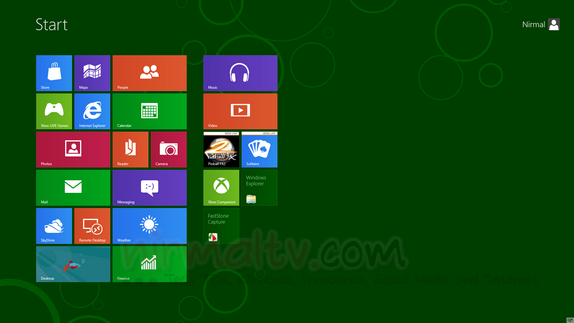
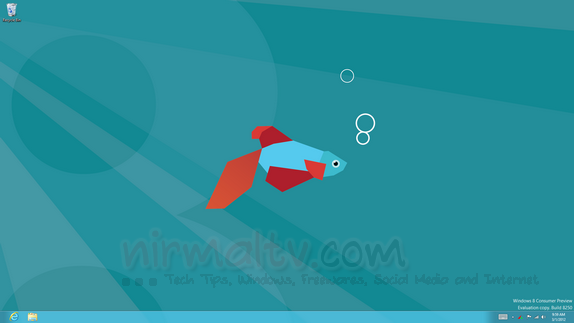


still the same task bar :/
Window 7 is better than all
Nothing Much Feature from the previous one.