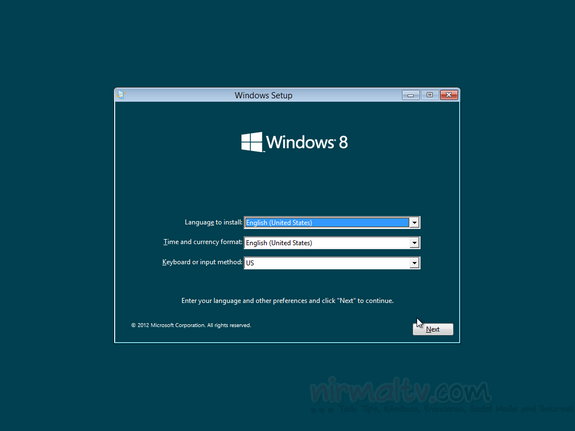
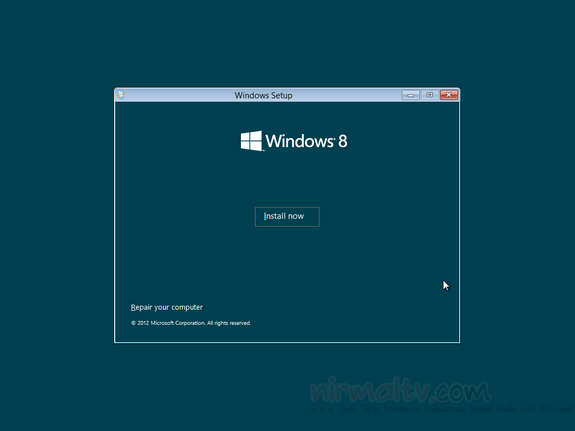
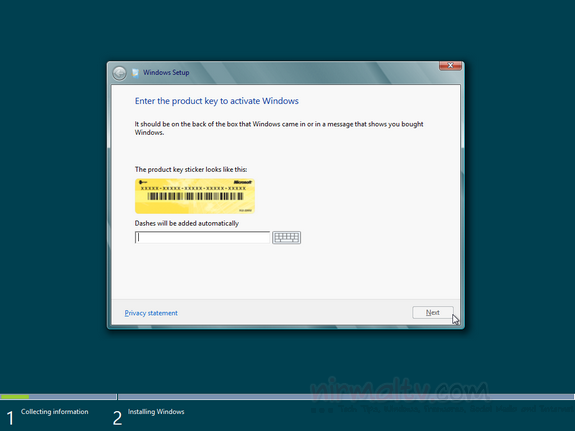
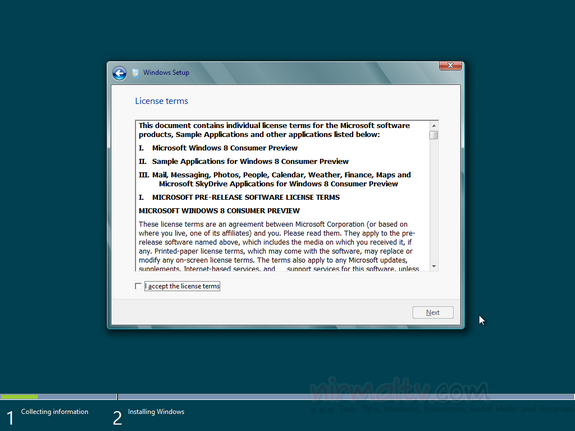
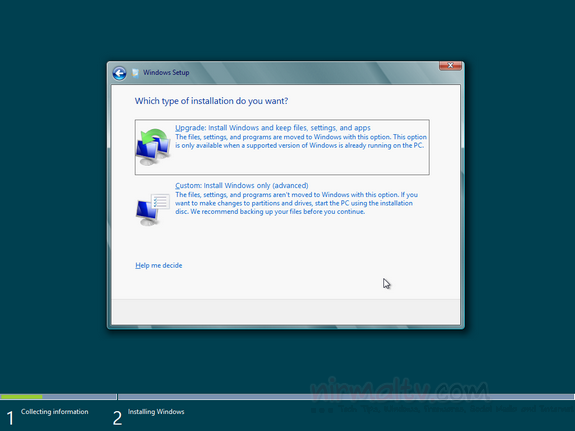
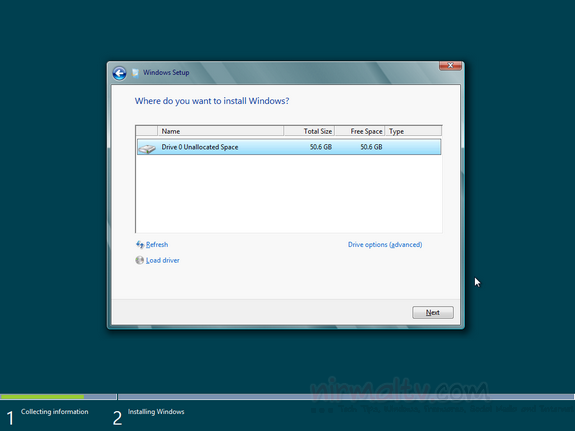
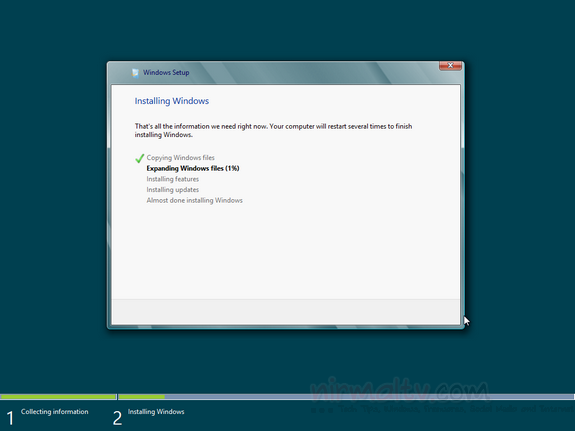
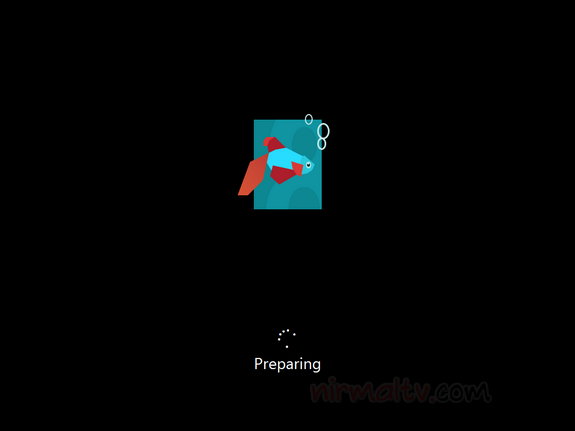
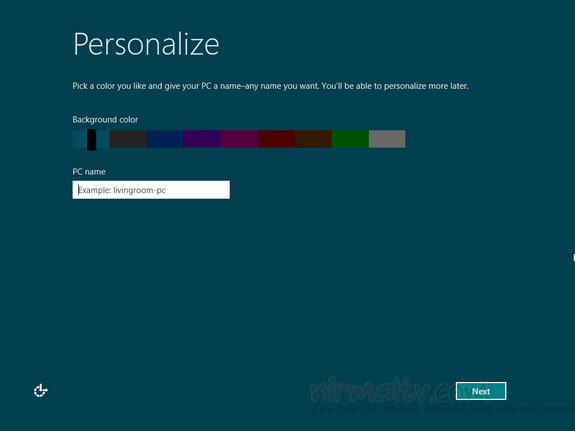
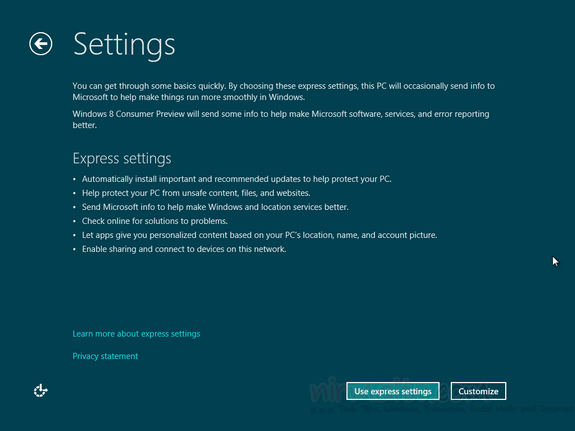
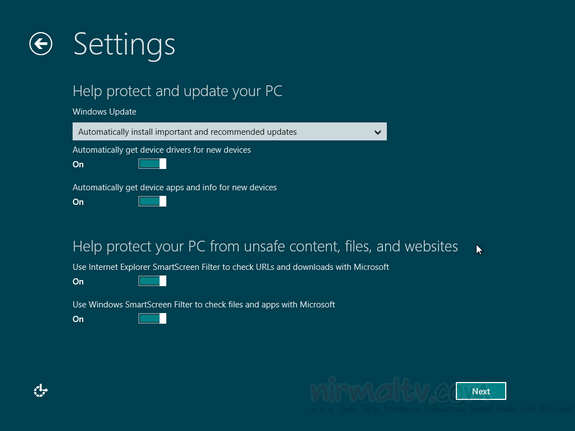
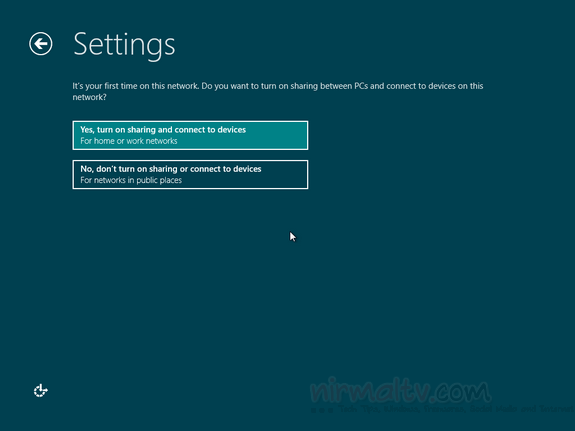
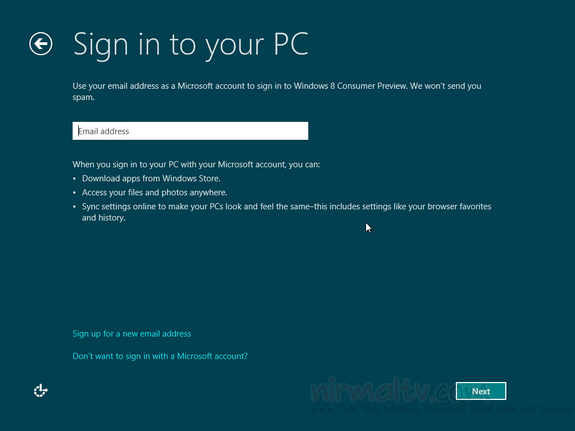
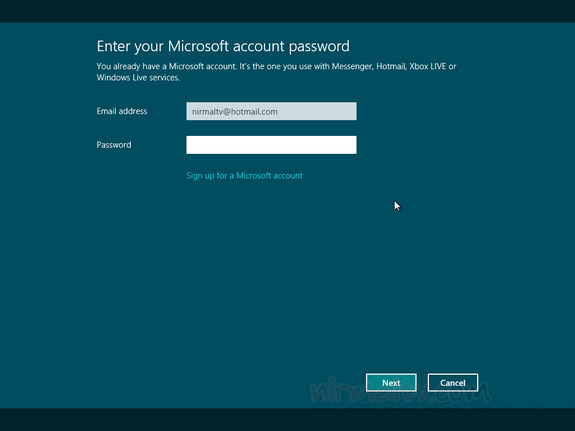
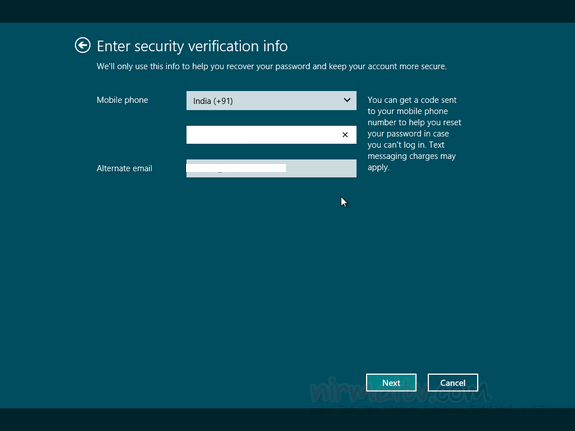
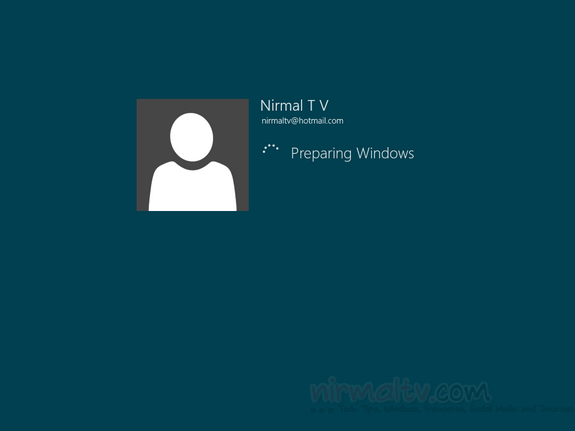
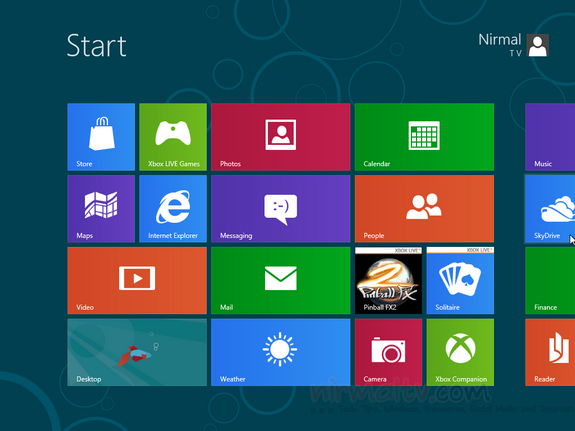
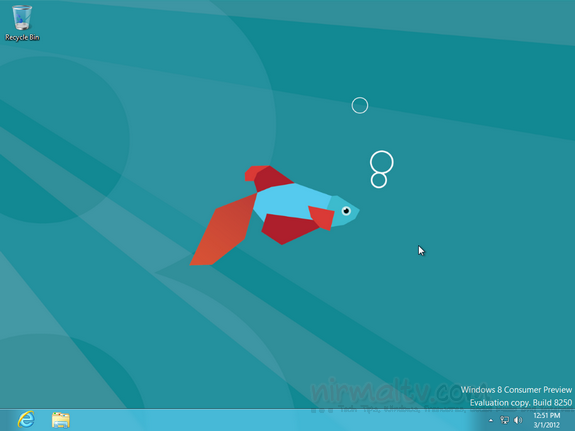
Windows 8 Consumer Preview is now available for public download and comes with lots of new features and improvements when compared to the technical preview version released back in September 2011. If you are running Technical preview version, you can upgrade it using the tutorial we had published. In case you are doing a clean install, below are the steps. The clean install on Windows 8 varies a lot with Windows 7 set up as new features have been added. Overall, the set up experience has improved and is much faster when compared to Windows 7.

If you have any questions regarding installing Windows 8, do post in comments.