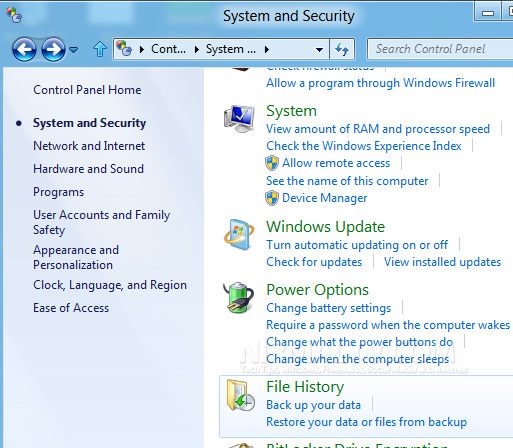
File History is a new feature in Windows 8 which allows users to take a backup of their files to a particular location at selected intervals. This feature will allow Windows 8 users to backup their libraries, desktop, contacts, favorites and other files and folders. To make use of this feature, users will need an external hard disk or a network drive or a USB pen drive. To use this feature, open Control panel-> System and Security-> File history.
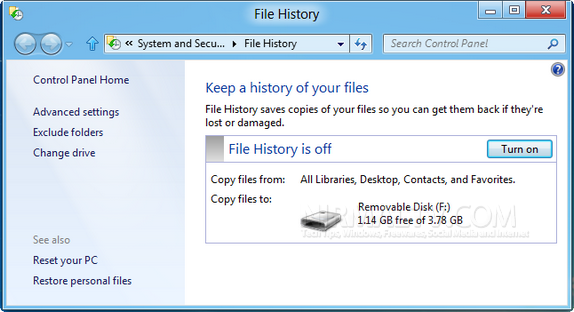
You need to connect the external drive to enable the feature. Once connected, you can click on the Turn on button to start backup.
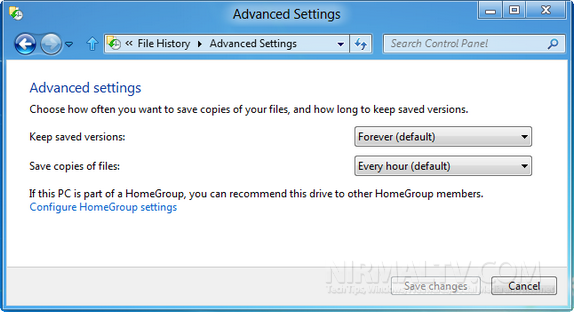
This feature in Windows 8 comes with three options. First feature is to set the versions of files, you can set the file forever or change it based on your requirement (the advanced features can be got by clicking the advanced link on the side panel). You can also set when to save copies of your files.
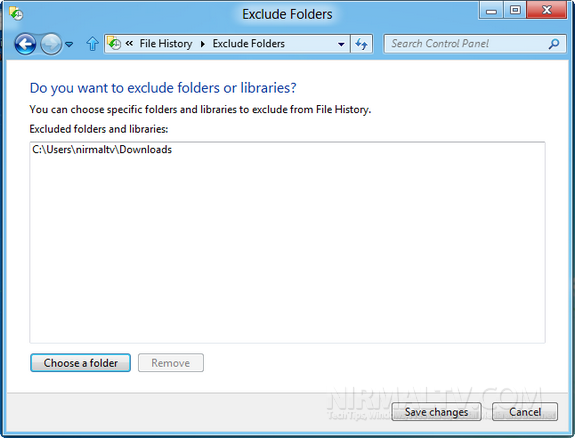
You can also exclude certain folders from the file history and this can be set from the Exclude folders option on the left panel. You can specify the folders which needs to be excluded from the backup.
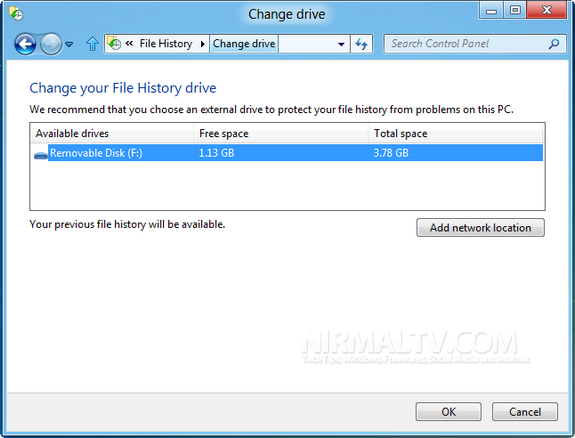
There is also option to specify or change the location to which files are saved, you can add a network location as well.
File history is a very useful feature in Windows 8 and it lets you to backup your files automatically.