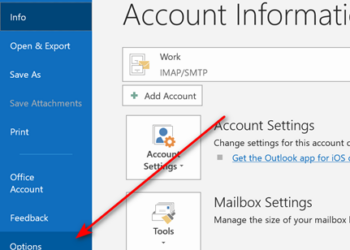
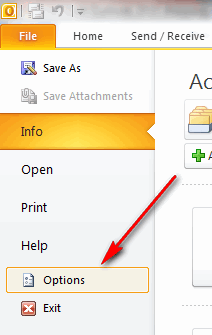
Outlook 2010 is one of the best desktop client for emails with tons of features. Normally when you open Outlook, it opens with email page as checking emails are the primary task. But you can also set Outlook to start with other pages like calendar, contacts, tasks, notes or even journal. Sometimes you might want to check your calendar even before you check your daily emails. To change the default start up folder, click on File-> Options.
Under the options, select Advanced. Inside the Advanced, you can see the section Outlook start and exit.
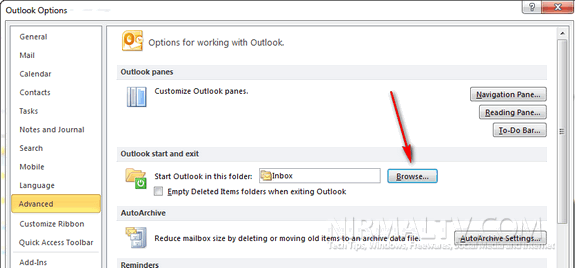
Click on the browse button and then select the folder which you want to start Outlook with.
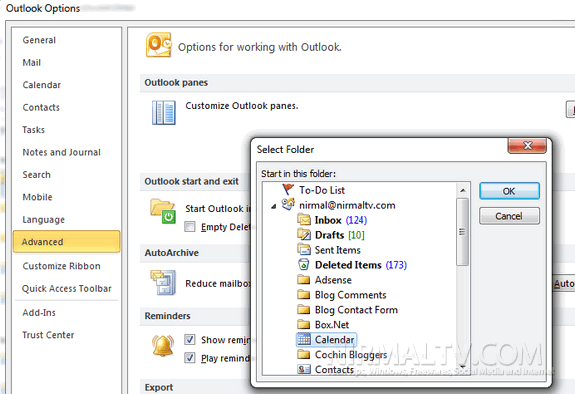
You can choose what folder you want Outlook to show you first: Calendar, Contacts, SharePoint Lists, RSS feeds, or any of your other folders. Now close the options and next time you open Outlook, you can see the set folder in action.