

Battery is probably one of the most important aspects you consider when you purchase a laptop. Most of the laptops give an average of 3-4 hours on battery, but if you are not getting enough battery life, you can try the fix for Windows 7 provided by Microsoft. Fix It download is provided fits Microsoft Support website and is designed to make laptop batteries live longer. You can run this FixIt tool and then check for problems and fix it using the suggestions made by the tool.
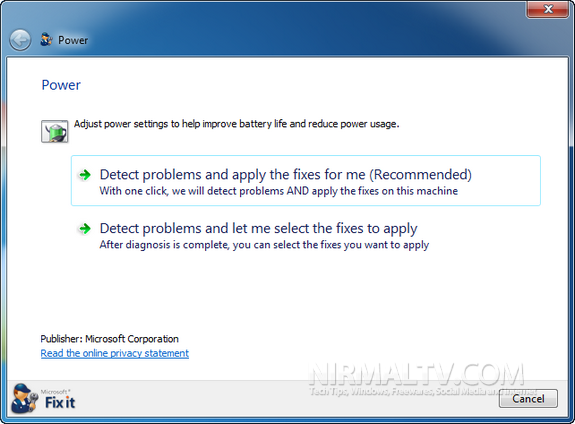
You can either apply the fixes automatically or selectively fix it. This tool automatically detect system settings that can affect power usage, such as timeout and sleep settings, display settings, and screensavers, and restore them to their default settings.
What it fixes;
- Period of time before the computer goes to sleep is set too long
- Screen saver is used instead of setting the computer to enter sleep mode
- Display brightness is set too high
- Power plan is not set to the most efficient power plan
- Wireless adaptor in not optimized for power saving
- Minimum processor state is set too high
You can download the Fix It solution from here.



I think the ‘fixes’ are more like obvious settings you can set yourself. I’m using BatteryBar. Besides that it gives accurate battery time predictions, it can also automatically turn off Windows Aero etc. when on battery mode. It’s a free program, but definitely worth the little price for the advanced version!