

Firefox 4 which was released few days back comes with lots of improvements in UI and features. Tabs also have undergone changes in the new version of Firefox. Although all the tabs have same width, you can increase the width of the active tab in Firefox 4 using a simple CSS hack. This means that whenever you select a tab in Firefox, this tab will have a different width when compared to other tabs making it stand out of other tabs. To do this, open Firefox and then type about:Support in the URL bar and press enter.
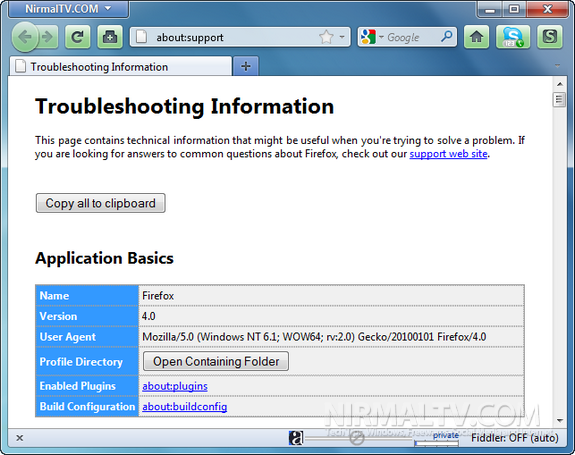
In the About Support page, click on the button “Open Containing Folder” and this will open the folder where the Firefox user profile is saved. In the profile folder, open the chrome folder, and open the userChrome.css file. If this file is not available in the folder, then copy the userChrome-example.css file as userChrome.css.
Now this line of code to the end of the file .tabbrowser-tab[selected=”true”] {width: 200px !important;} . Save the file and now restart Firefox, you can see the active tab having more width when compared to other tabs open.
Thanks to MozillaLinks for this tip.






For anyone who doesn’t know, Firefox doesn’t make a chrome folder anymore so you’ll have make your own or move one into the profile folder from a backup.
Didn’t work for me. May be because of Tab Mix Plus.
If this doesn’t work for you, I found something that works with the Stylish addon if you have it.
http://userstyles.org/styles/44083/ff4-ff3-increase-active-tab-minimum-width