

Windows Live team has announced that Windows Live Spaces will be moving to WordPress.com. Windows Live Spaces was quite a popular blogging platform but with limited features, now with the tie up with WordPress.com, users will be getting better features and still have the integration with Windows Live Services. If you were having a Windows Live Spaces blog, you will be now prompted to move to WordPress.com.

When you login to Windows Live Space, you can see this message. There are quite a few options available,
- Upgrade to WordPress.com
- Download the Live Spaces blog to PC.
- Stay with Live Space for now (only available for short time, Live Spaces to be shutdown in 6 months)
- Delete your Live Spaces blog.
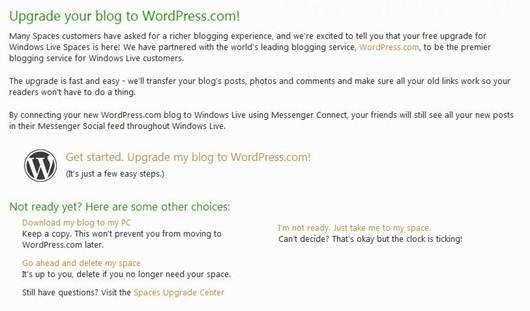
The best option would be to Upgrade to WordPress.com. Once you click Upgrade my blog to WordPress.com, you will be prompted to connect.
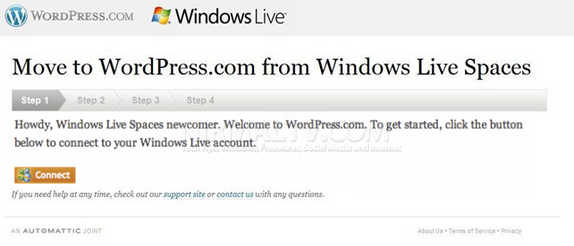
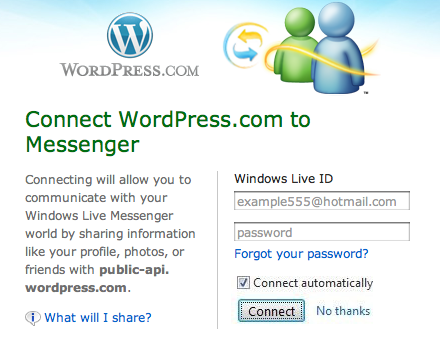
If you are not able to see the connect button, it means you already have a WordPress.com account, you need to login with that account. If you do not have an account, you need to create a new one with WordPress. In the next step, you will be asked to connect Messenger with WordPress which is not mandatory.
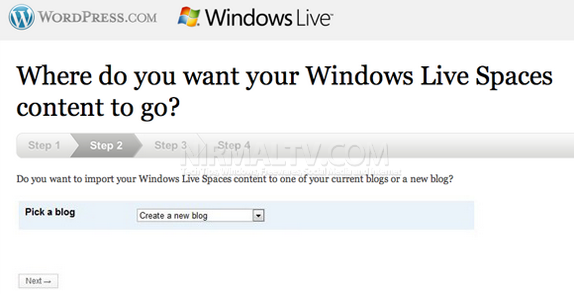
In the next step, you need to specify if you want to create a new blog or add the content to an existing blog (if you already have a WordPress.com blog).
Next step, you need to create a new blog with URL and specify the title.
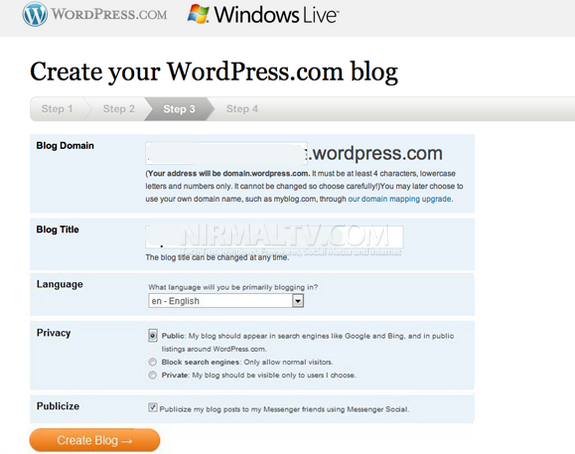
You can also specify if you want the blog to be private or public. Click Create Blog and the migration process starts.
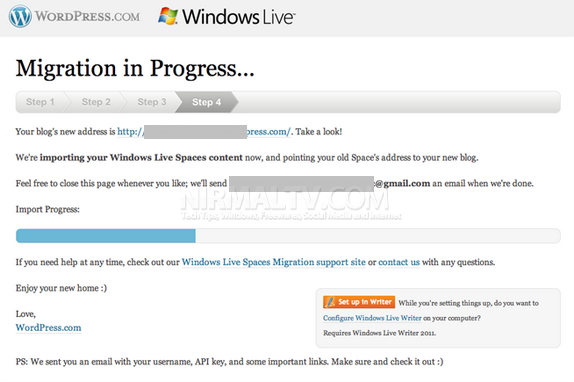
Once migrated, you will get the confirmation and also an email on the process. You old live space blog will now automatically point to new WordPress.com blog.
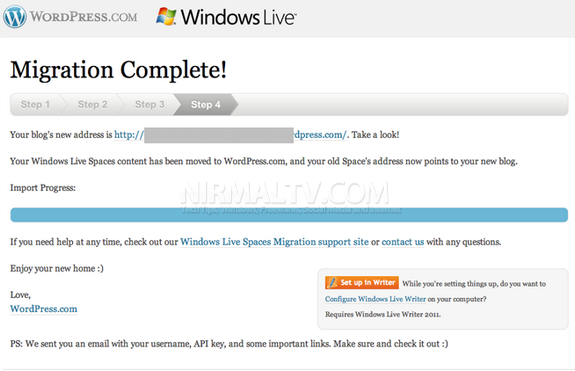
That’s it, Happy blogging with WordPress.com!





While migrating i was stuck at step 3.While I clicked upon Create blog nothing appeared to happed.After few sec as i try to click again it says that the blog URL already exits.Once i tried my URL I found the blog is created with no posts from my windows Live spaces.
Step 4 was skipped. Got a confirmation mail from Live spaces. So finally i wanna ask will my post will appear later or everythings gone. I didn’t even took a backup as the downloading was too slow
@Shahnawaz
May be you should contact the Windows Live team immediately, the posts will appear instantly as far as I know..
I checked my blog and the post appeared after few hours.Working fine now
@Shahnawaz
Thats nice to hear.
I did not like wordpress at all, in fact it was totally useless for my purpose of having a private blog to share with firends and family. In spaces they could all log in with Live ID, but in wordpress they have to have a wordpress account. So I decided to move to blogger/blogspot instead, and I made a migration tool to transfer my old blog. You can read all about it and download the tool/source code here: st185cs.wordpress.com